
VidFomo
Loading...

AI Proposal Video

Add one photo of two adults together. Generation is currently unavailable; your photo stays in the local form. Illustrations show imagined scenes, not generated videos.

References
0 / 1
Required Credits
50

Sample Videos

My Videos

AI Proposal Video from a Couple Photo

Give your couple photo a proposal story to explore: one partner on one knee, a ring offered, and the other person’s response at the center of the scene. Start with one photo of two adults together and choose a format for your idea. The images on this page are original AI concept illustrations, not videos generated by this effect or records of a real proposal.

AI concept illustration of an adult couple with one partner kneeling and offering a ring box

Start your AI proposal video in three steps

Use the proposal effect above with a single shared photo. You can prepare the image and framing in the same workspace, without choosing a video model or writing a motion prompt.

  1. Choose a photo with both people visible

    Add one couple photo to References. Pick a picture where both adults are easy to tell apart, with visible faces and space around their bodies. A standing photo gives you more room to imagine the kneeling gesture than a tightly cropped selfie. Check the local preview before continuing; replace or crop the image if a face sits against the edge.

  2. Set the shape of your scene

    Open Aspect Ratio and select a format for where you want to watch the idea: vertical for a phone, landscape for a wider scene, or square for a compact composition. Keep both people in mind when choosing. Resolution is available in the same settings panel. These controls set your selection; they do not let you choose who kneels, a specific ring, or a sequence of shots.

  3. Check your input, then select Generate

    Confirm that AI Proposal Video is the selected effect and that the image counter reads 1 / 1. Select Generate after reviewing your photo and settings. If the workspace asks for an image, add it first. Read the response beside the form before trying again; a submission message is not a completed clip. Keep your original photo so you can return to it when comparing a future result.

Make the proposal moment easy to read

A marriage proposal video has three visual priorities: the people, the gesture, and the response. Use these illustrated ideas to judge composition, rather than treating them as guaranteed movements or selectable scene presets.

Leave room for the person on one knee

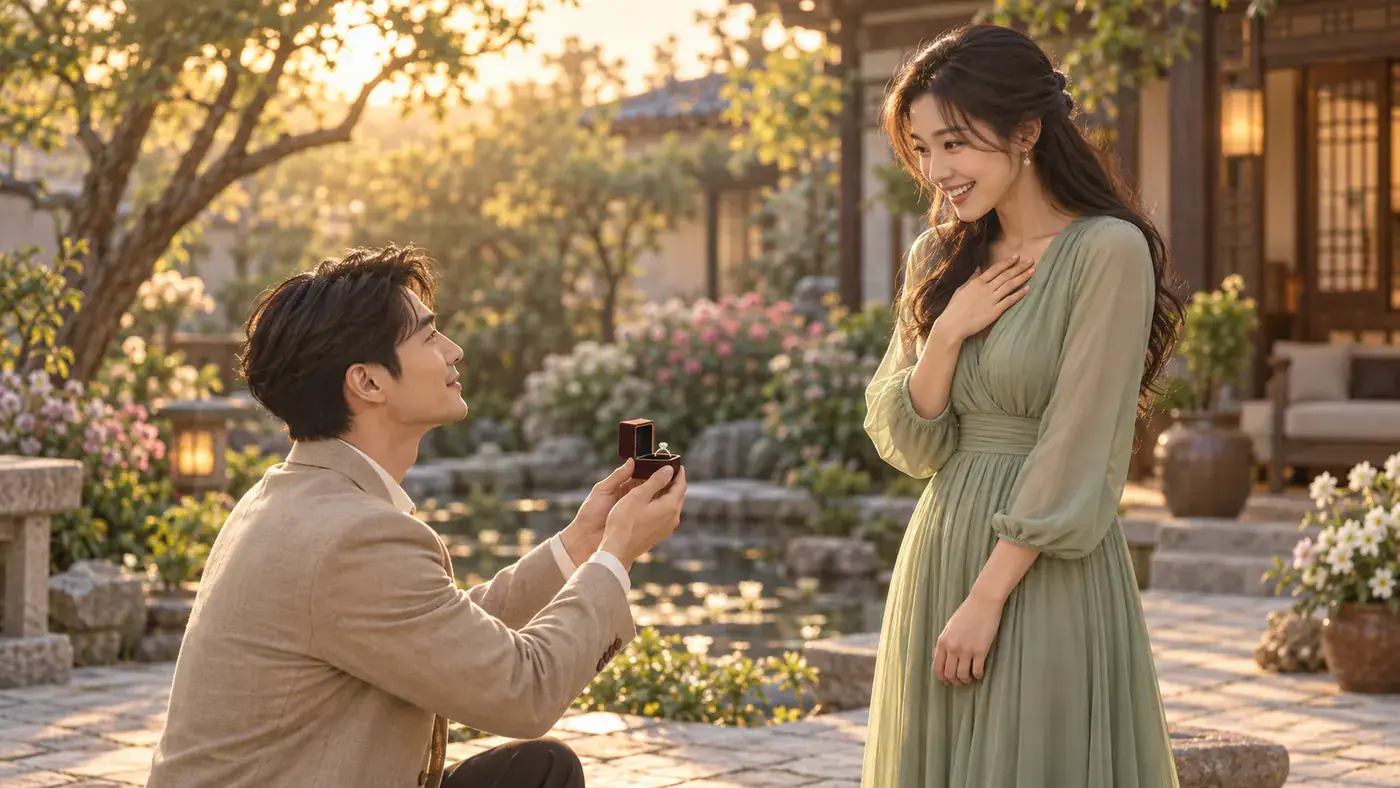
The kneeling silhouette is what makes a proposal readable before anyone notices the ring. Look for a source photo that shows enough of both bodies to establish their positions. A table across the foreground, a crowd between the couple, or a crop at the shoulders makes that idea harder to compose. For a garden or terrace photo, keep the ground visible and let the setting frame the people. You are choosing a useful starting composition, not specifying which partner must kneel. The illustration shows one possible staging with a clear gap between the two figures.

Select a Full Couple Photo
AI concept illustration showing space around a kneeling adult and their standing partner

Give the ring gesture a clear focal point

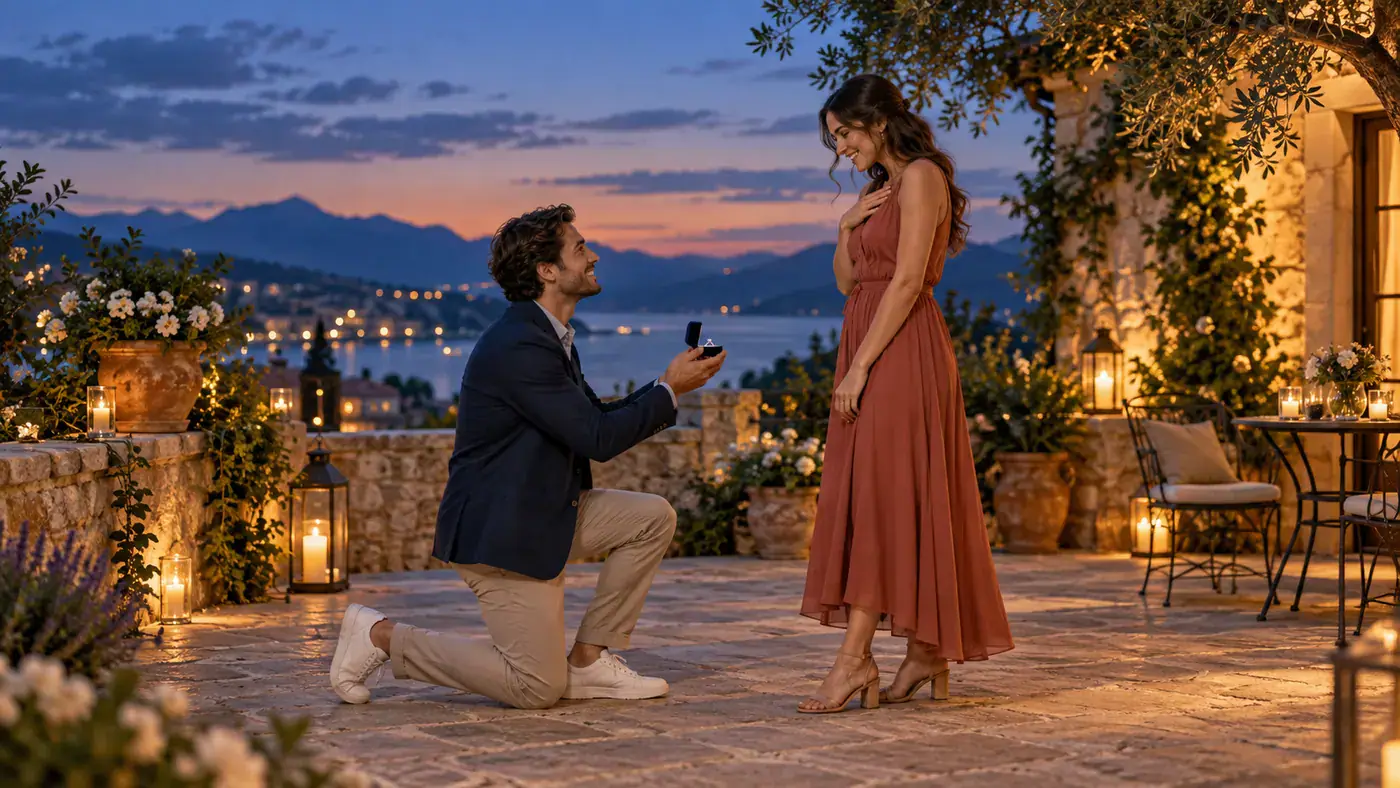
A ring reveal works visually when the hands and the small box stand out from clothing and background details. Think about contrast: dark sleeves against a bright wall, or a simple jacket beside a lighter dress, can make the space between the couple easier to see. Avoid choosing a photo just because it contains elaborate decorations. Flowers, signs, and sparkling lights can pull attention away from the hands. This concept image emphasizes an offered ring box; it is an illustration of the storytelling goal, not a promise to reproduce a particular piece of jewelry or hand movement.

Choose a Clear Composition
AI concept illustration of an adult offering an open ring box to their partner

Keep the other partner’s response in view

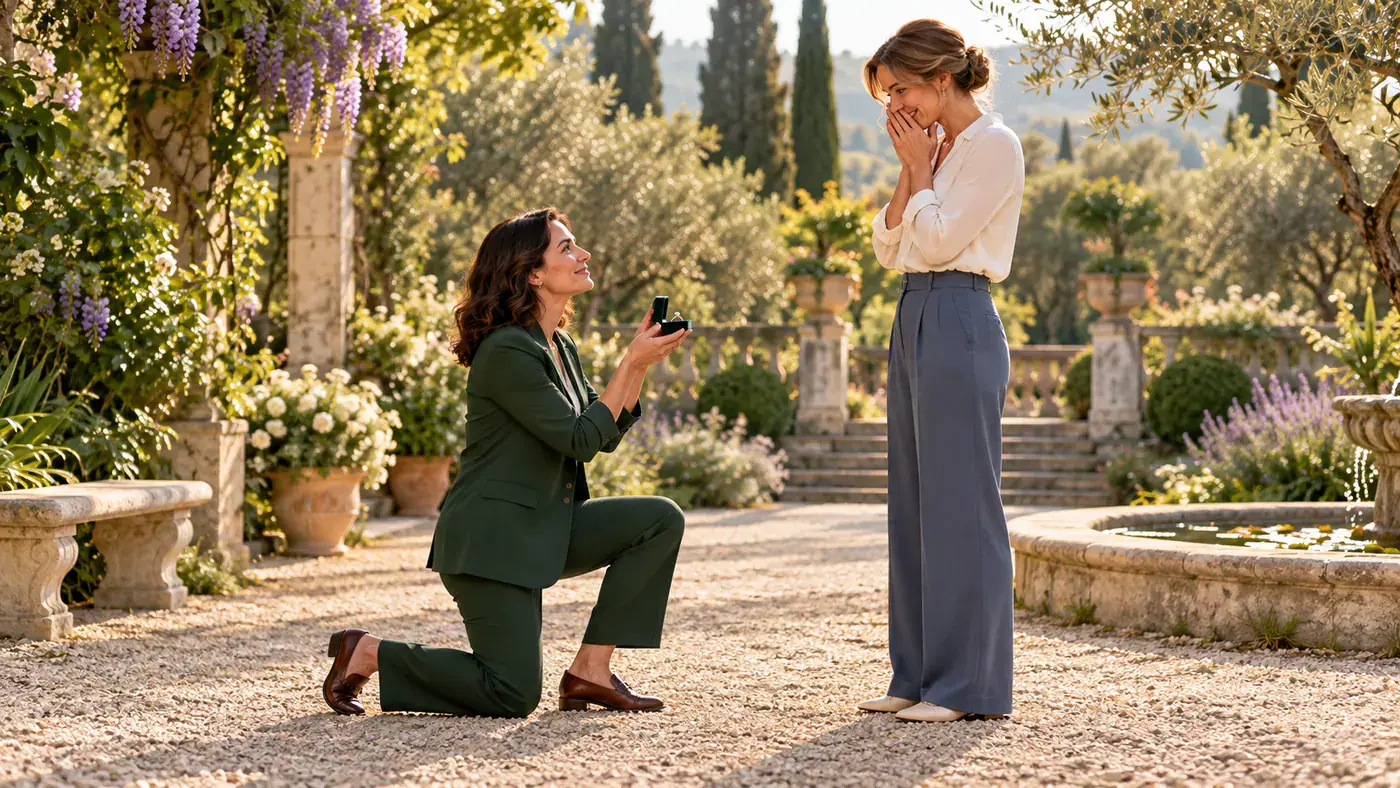
The person receiving the proposal matters as much as the person offering the ring. Choose a photo where their face is visible rather than hidden behind hair, sunglasses, or the other person’s shoulder. A wider composition can hold the gesture and the response together; a closer crop puts more emphasis on an expression but leaves less room for the kneeling pose. Decide which detail makes your idea personal before choosing the source. A smile, a surprised look, and an embrace are different story ideas, not reactions you can currently direct with separate controls here.

Frame Both Partners
AI concept illustration focusing on an adult partner’s warm response to an imagined proposal

Choose how to use your proposal idea

The same couple photo can suggest different stories. Pick the context before you add a caption or decide who should see it.

A private romantic message

For a playful message between partners, make the imagined nature of the scene part of the conversation. A line such as “A little future I imagined with you” gives the image a personal meaning without announcing an engagement. Choose a photo both of you are comfortable using, especially when the idea includes a very emotional response.

An anniversary reflection

An anniversary idea can look back at the question that started a shared chapter. Use a photo connected to that time and add the actual memory in your own words outside the effect. Keep an imagined scene separate from authentic photographs of the event, so family members can tell which images document the day and which reinterpret it.

A visual idea for a real proposal

If you are planning to ask in person, use a concept as a conversation about framing with a photographer or a trusted friend. Discuss where each person would stand, where the camera could see the ring, and how much of the setting should appear. The actual question and answer belong to the people involved; an AI scene cannot supply that answer.

A clearly labeled creative post

When sharing an imagined proposal, put a short AI concept label next to the image or clip, where viewers will see it before interpreting the scene. Avoid pairing it with a date or announcement that suggests the event happened. If you later share a real engagement announcement, use a caption that clearly distinguishes the genuine news from the earlier creative idea.

AI proposal video questions

Practical answers about the photo input, creative choices, and what to expect from this effect.

This effect accepts one photo containing both adults. Two separate portrait files are not combined here. If you only have individual photos, choose an existing shared picture instead; a side by side collage does not establish the same shared space as a couple photographed together.

There is no proposer selector or custom motion prompt in this effect. Do not rely on the left or right position in your photo to assign a role. If a particular partner must kneel or receive the ring, treat that as a requirement to verify in any eventual result, rather than a setting offered by this form.

Choose a Photo for Your AI Proposal Video

Choose one shared photo for your AI proposal video idea. Keep both faces visible, leave space for the gesture, and use the effect workspace above to set your framing.