
VidFomo
Loading...

Grok Imagine Video 1.5 Video Generator

Images
0/10000
Required Credits
15

Sample Videos

0:00 / 0:00

Grok Imagine 1.5 Image to Video Generator

Give a still image a next moment with Grok Imagine Video 1.5, the video model from xAI. Start with a product photograph, an illustrated character, or a scene you want to animate. Describe what moves, how the camera travels, and what the scene sounds like. This workspace uses one starting image and offers 480p or 720p clips lasting 1–15 seconds. The image sets the visual starting point; your prompt gives the shot its direction.

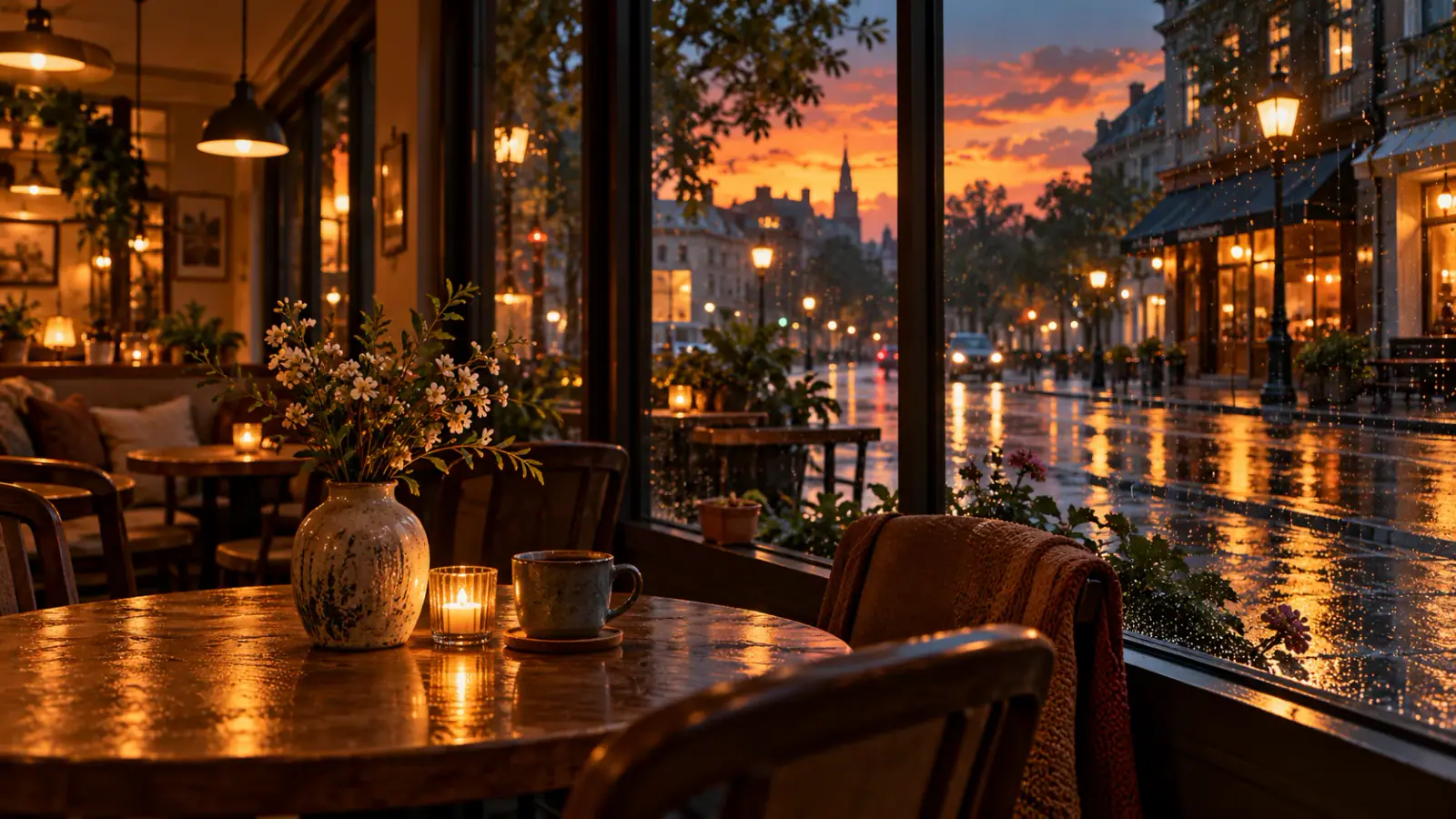
Illustrative scene: Warm cafe interior overlooking a rain-wet street at dusk.

Compare Grok Imagine 1.5 with Other AI Video Models

Explore the full model lineup, including Grok Imagine 1.5, and open a model page to find an option for your next video.

How to use Grok Imagine 1.5 for Image to Video

Work from a specific visual idea: a cup steaming on a desk, a character looking toward a doorway, or leaves moving around a garden bench. Each makes a clear starting point for a short shot.

  1. Add your Start image

    Use Upload in the Images section and choose the frame you want the video to begin from. Inspect the preview before moving on: the main subject should be visible, with room in the direction it will move. For a walking character, leave space ahead of the body. For a close product shot, keep the outline and important label comfortably inside the frame.

  2. Describe the action in Prompt

    Write one main action, then add camera direction and sound. For example: The paper boat drifts slowly across the puddle; the camera stays low and follows it; gentle rain taps the water. The image already supplies the boat and setting, so use the prompt to explain change over time. A sequence with a beginning and a clear finish is easier to evaluate than a list of style adjectives.

  3. Set Duration and Resolution, then generate

    Choose Duration and Resolution, review the displayed credit cost, and use Generate. Sign in when prompted to submit your request. When the result arrives, play the whole clip with sound before downloading it. Keep the source image and prompt with your downloaded take so you can reproduce your creative direction in the next edit.

Three ways to direct a still image

These shot ideas focus on different decisions: where attention goes, how a character behaves, and what sound contributes. Use the example directions as starting points for your own images.

Reveal a product through camera movement

A product photograph can become a short reveal without asking the object to perform an elaborate transformation. Try a slow push toward a ceramic vase while soft window light catches its rim. Keep the object still and describe the camera movement separately. For an item with lettering, favor a small move that keeps the front visible. Use the resulting shot as a motion concept or part of an edited sequence, then add exact prices, headlines, and calls to action in your editor.

Plan a product shot
Illustrative scene: Soft window light catching the rim of a ceramic vase.

Give a character one readable reaction

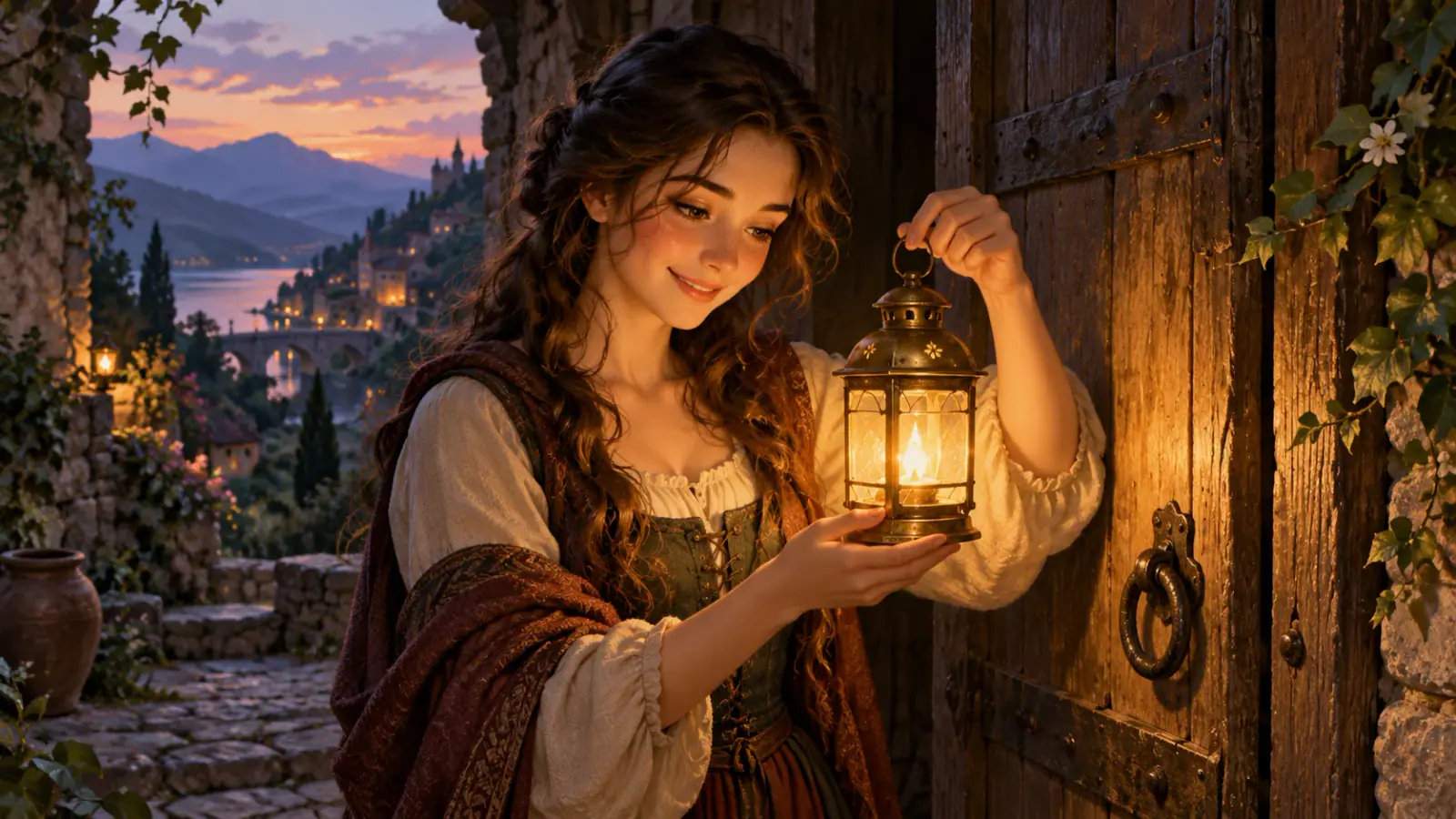
An illustrated figure or portrait gives Grok Imagine a concrete visual starting point for character motion. Choose a small story beat: a glance toward a sound, a surprised pause, or a hand lifting a familiar object. Describe the order when it matters: she notices the lantern, smiles, then looks back at the doorway. A fixed camera can keep attention on the reaction. For a storyboard, make each image represent a separate shot and compare the emotional beat before assembling the sequence.

Direct a character moment
Illustrative scene: Illustrated woman smiling at a lantern beside a wooden doorway.

Generate video with sound from your image

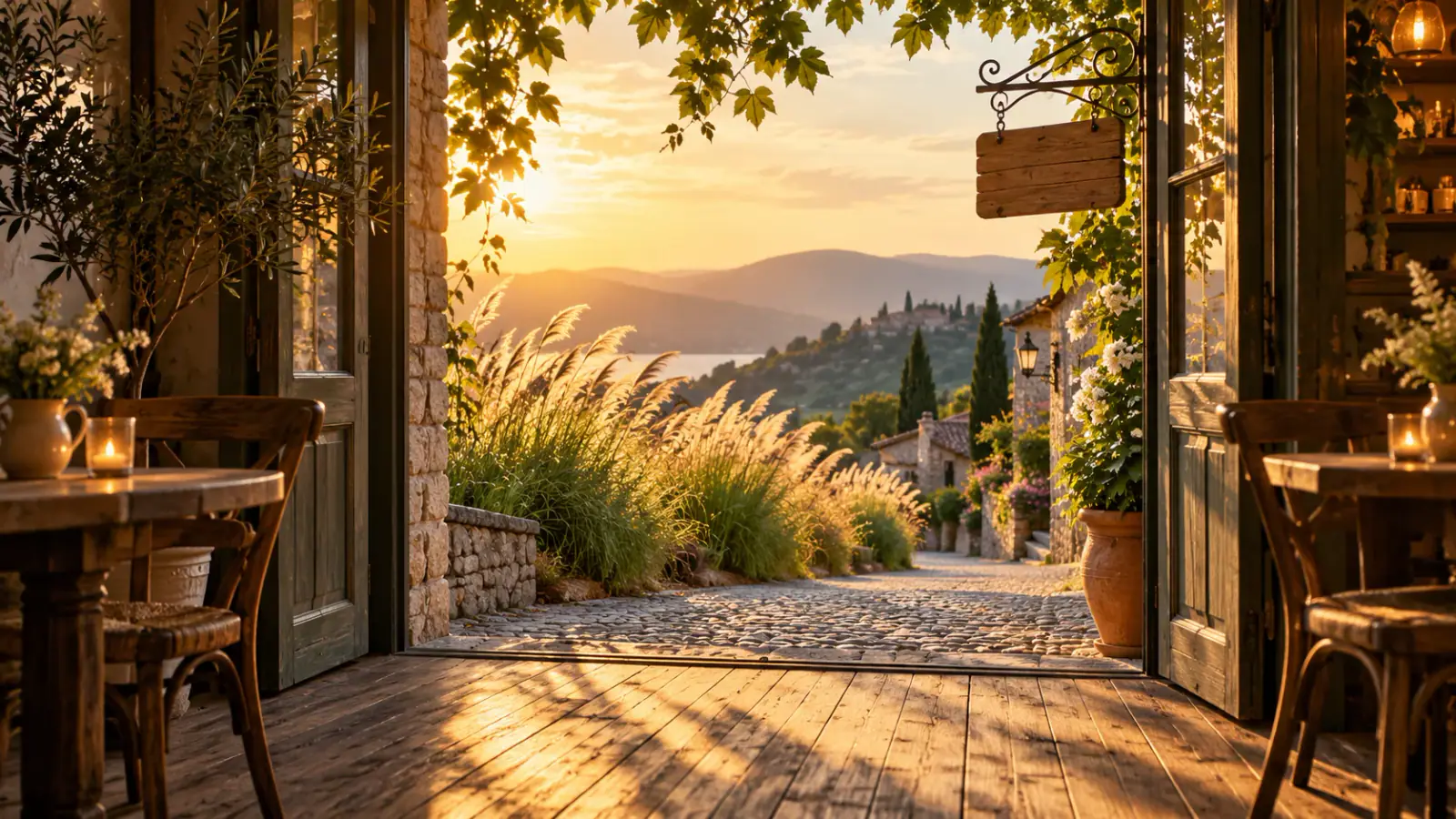
Grok Imagine Video 1.5 generates audio alongside the picture, including ambience, sound effects, and speech. Use that capability to give an otherwise quiet image a location: distant traffic outside a cafe, a creaking wooden floor, or wind moving through tall grass. State which sound should lead and which should remain in the background. For a spoken moment, provide a short line and identify who says it. Listen for intelligibility and timing as well as the visual action when choosing a take.

Describe a scene with sound
Illustrative scene: Open cafe doorway framing grasses and a quiet cobblestone lane.

Make four choices before you spend credits

Match the settings and source image to the job the finished clip needs to do.

Frame for the destination

With one starting image, the video follows the image proportions. Prepare a vertical composition for a vertical placement, or a landscape frame for a wider edit. Crop before uploading when the destination has a fixed shape, keeping faces and essential objects away from the edges.

Choose enough time for the beat

The Duration control offers whole seconds from 1 to 15. A brief gesture and a slow reveal need different amounts of time. Count the action aloud before selecting a length, including a small pause at the end if you plan to cut into another shot.

Choose 480p or 720p video resolution

Choose 480p for an initial motion study or 720p when you want a larger output to inspect. Both options use the same image-led workflow here. Judge small details at the size you intend to use, especially on objects with lettering or fine patterns.

Budget for useful comparisons

Read the current credit estimate after setting your duration and resolution. When comparing attempts, keep the source image and settings fixed and change one instruction, such as camera speed. That gives each additional generation a specific question to answer instead of spending credits on unrelated variations.

Grok Imagine 1.5 Reviews from Creators

Creator feedback on planning and developing video projects with Grok Imagine 1.5.

  • A Portrait With Subtle Movement

    I animated a portrait of a musician standing by an open window with Grok Imagine 1.5. The gentle movement in the hair and curtains made the image feel alive without changing its basic composition. I preferred that restrained result to something with a dramatic camera move, especially for a quiet promotional piece.
    Rebecca StoneMusic Visuals Designer
  • Simple Starting Point for Motion

    I had a finished illustration of a mountain cabin and wanted to see snow drifting past the windows. Starting from the still image and describing that motion felt natural. Grok Imagine 1.5 gave me a quick way to explore the shot without rebuilding the artwork as separate animation layers.
    Peter LawsonDigital Illustrator
  • Good for an Adoption Post

    Our shelter had a lovely photo of a dog sitting in the grass, but I wanted a little movement for a social post. I used Grok Imagine 1.5 to try a gentle head turn and breeze in the background. It gave us a playful concept while keeping the original photo as our primary reference.
    Dana RobertsAnimal Shelter Social Media Coordinator
  • A Smaller Camera Move Was Better

    My first attempt to animate a motorcycle photograph asked for a sweeping camera move, and the result felt too dramatic for the image. I changed the prompt to a modest push-in with subtle reflections. That version matched the product's mood much better and was easier to fit into my storyboard.
    Chris AlvarezAutomotive Content Creator
  • From Approved Still to Moving Draft

    I often get client approval on a still image before anyone agrees on how it should move. Using that image as the starting point made the review process more concrete. I could watch the animated result and decide whether the camera motion supported the design, rather than explaining everything with arrows on a slide.
    Grace MillerVisual Design Lead
  • More Options for a Photo-Led Story

    For a family anniversary montage, I wanted a few quiet moments of motion between the original photographs. Grok Imagine 1.5 let me explore that approach before committing to an edit. Some shots needed another try, but the tests helped me choose a consistent visual direction without animating every photo manually.
    Samuel OrtizPersonal Video Editor

Grok Imagine 1.5 questions

Practical answers for preparing, refining, and using an image-led video.

This page uses Grok Imagine Video 1.5 for video generation. It is a visual creation workflow: you provide an image and a motion prompt, then receive a video result. A chat conversation with Grok is a different interaction. If your idea is still only words, first create or choose an image that establishes the scene you want to animate.

This workspace takes one Start image. It does not expose additional reference slots or an ending-frame control for this model. Choose the image that best establishes your subject and composition. To plan a specific ending, describe the final pose or camera position in your prompt, then inspect whether the generated take reaches that point.

Give your image a next moment

Choose the frame, decide what happens next, and bring your first shot into motion.