
VidFomo
Loading...

AI Werewolf Transformation

Add one photo of a person for a werewolf transformation video.

References
0 / 1
Required Credits
50

Sample Images

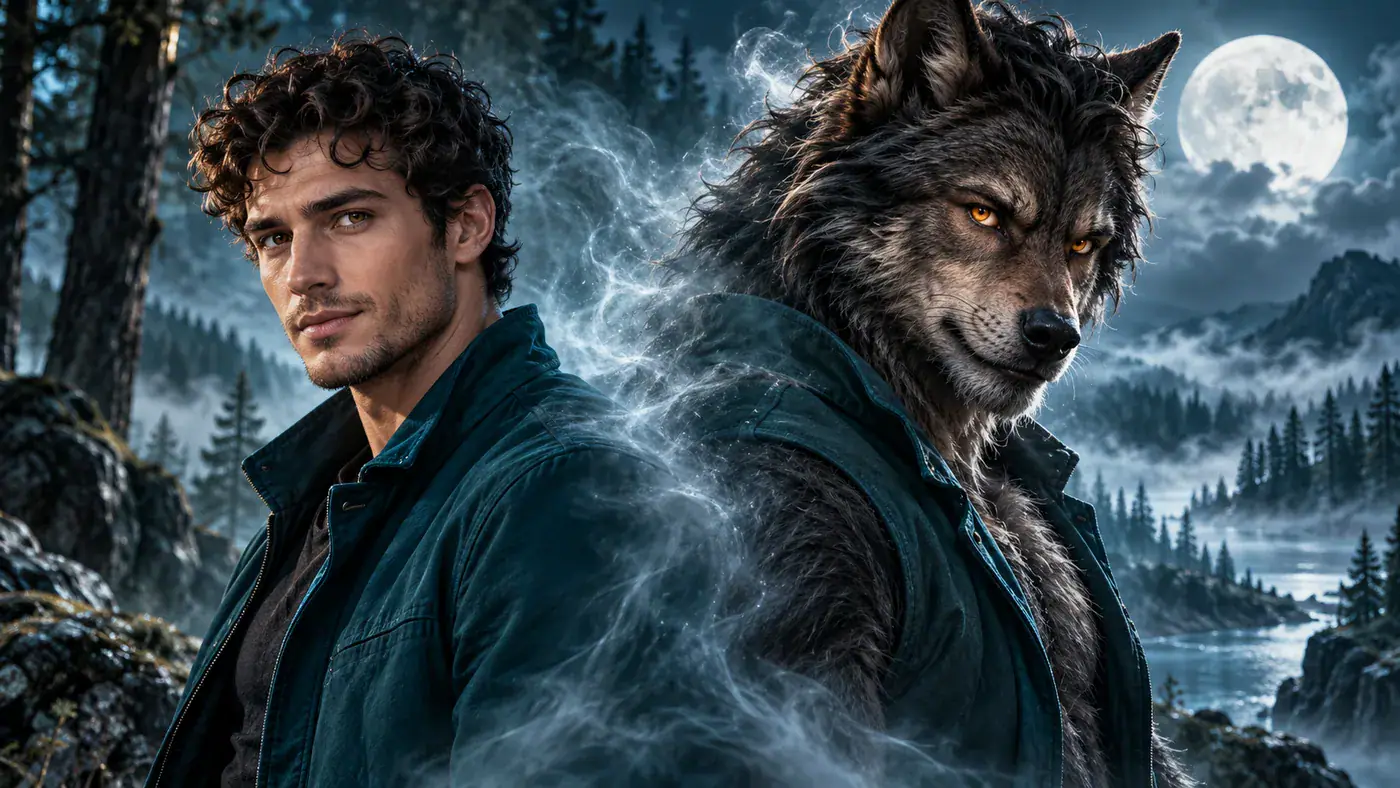
AI concept illustration of a man and his werewolf alter ego in matching teal jackets.

AI Werewolf Transformation

Put yourself at the center of a monster reveal. AI Werewolf Transformation uses one person’s photo as the starting point for a video about becoming a werewolf. Choose a familiar portrait for a Halloween post, a fantasy character introduction, or a surprise for friends who know your everyday look. The fun is in that contrast: an ordinary person at the beginning, a creature reveal as the payoff. Choose your photo in the tool above; there is no prompt to write.

AI concept illustration of a man and his werewolf alter ego in matching teal jackets.

How to start your werewolf transformation video

Use the photo area above to build your own reveal. The effect stays focused on one person, so you can spend your time choosing the starting image.

  1. Choose your starting portrait

    Add one photo with a single person as the clear subject. A picture taken from a little farther away gives you room to adjust the crop. Use the local preview to check which parts of the face and body are included. If you are choosing between pictures, start with the one where you can see the eyes and expression most clearly.

  2. Check the photo in the tool

    Keep AI Werewolf Transformation selected, then review the image in the photo area. You can crop it, remove it, or replace it before continuing. The counter shows one required photo. There is no second character image to prepare and no transformation script to type. Keep the framing comfortable around the subject instead of cutting closely along the hair or shoulders.

  3. Press Generate

    Review the Required Credits card, then press Generate. If the tool asks for a photo, add it in the same area and try again. Keep your chosen image in place while reading any feedback beside the form. This is the starting point for the effect; the photo you selected supplies the person for your werewolf reveal.

Give the reveal a reason to happen

A recognizable person and a simple setup give the transformation a story. Pick the occasion first, then choose a portrait that fits the mood you want to share.

A Halloween entrance starring you

Make the werewolf reveal the introduction to your Halloween plans. Start with a photo that friends associate with you: your usual jacket, a familiar hairstyle, or the outfit you are wearing to the gathering. That everyday detail gives the monster theme a personal starting point. For an invitation, place the date and location in the message accompanying the clip, where guests can read them easily. For a costume announcement, save the explanation for the caption so the transformation gets the first reaction. You do not need to build a complicated plot around it; a clear occasion gives the reveal its purpose.
Start My Halloween Reveal
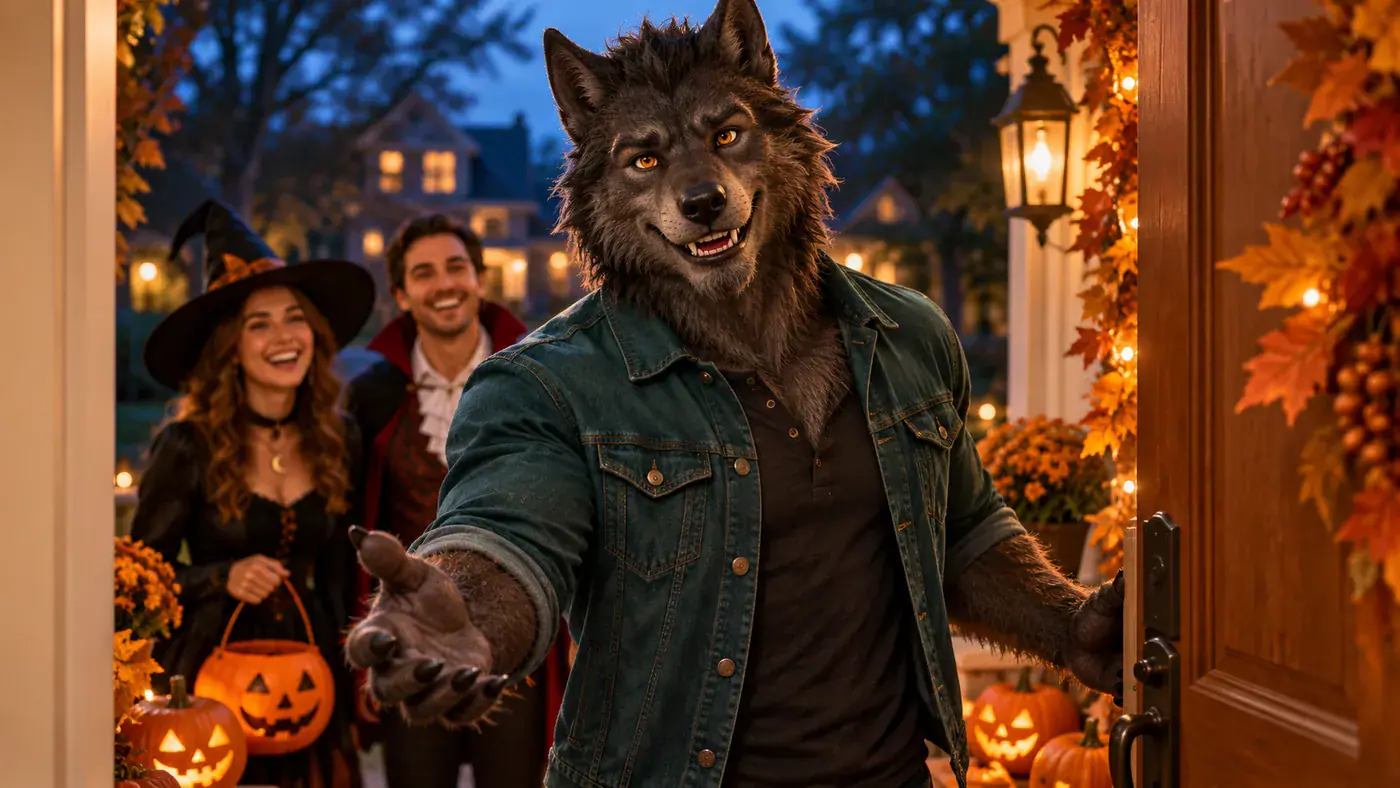
AI concept illustration of a werewolf arriving at a warmly lit Halloween gathering.

Introduce your fantasy alter ego

Use a human to werewolf transformation as the opening idea for a fictional character. Choose a portrait with an expression that suggests who they were before the change: calm, defiant, or caught off guard. In your accompanying text, give that character one memorable detail, such as a secret they are hiding or the place they call home. Keep the backstory separate from the image input; this effect starts from the photo rather than a written screenplay. For a game night introduction, the clip can set the mood while you explain the character’s name and role yourself.

Choose My Character Photo
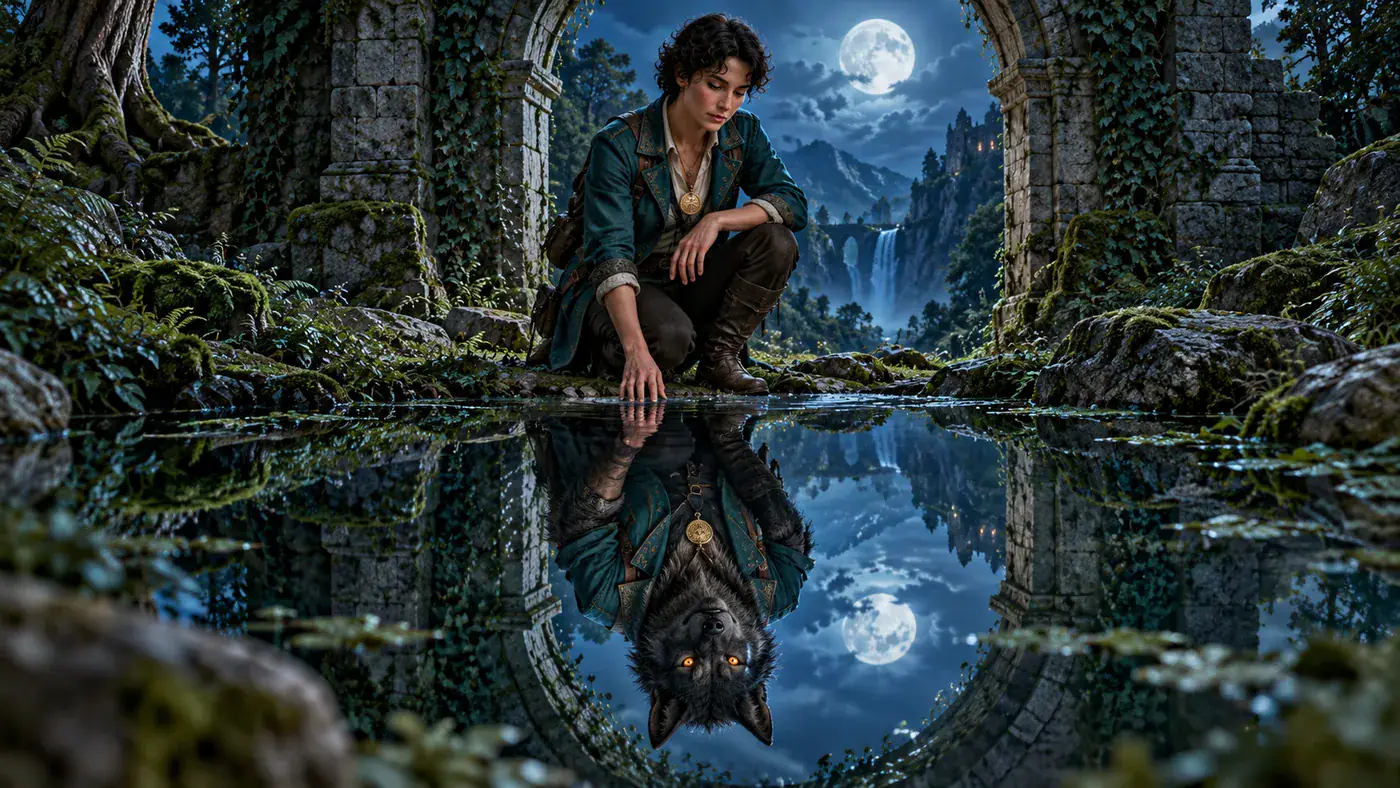
AI concept illustration of a forest explorer with a werewolf reflection.

Make the punchline personal

A werewolf transformation meme works as a playful exaggeration of a familiar mood. Think about the small situation your friends will recognize: getting competitive at board games, hearing the doorbell during a horror movie, or discovering the last snack has vanished. Put that setup in a short caption when you share your clip. A plain everyday portrait can make the contrast funnier than an elaborate costume. Aim the joke at your own fictional monster moment, and let the visual reveal finish it. Read the caption once without the video to check that the setup is easy to understand.

Set Up My Monster Moment
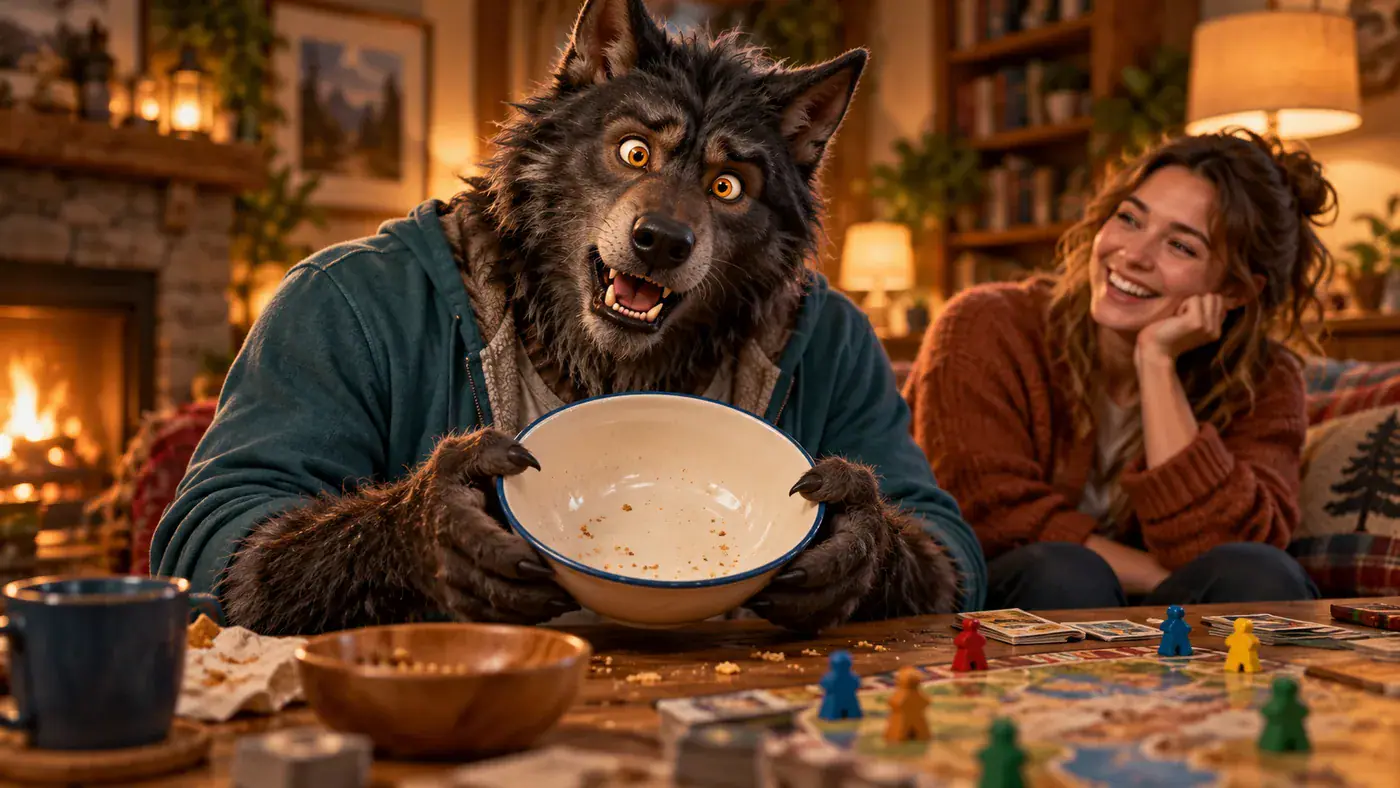
AI concept illustration of a playful werewolf reacting to an empty snack bowl.

Small choices that shape your starting image

Before adding your portrait, look at these four parts of the picture. Each helps you decide what the viewer should notice first.

Make the face easy to read

Choose light that reaches both eyes and the middle of the face. If one side is lost in shadow, take another photo facing a window or a soft lamp. Keep sunglasses and hands away from the eyes so the starting expression carries the character.

Leave room around the person

Look at the edges before cropping. Leave the top of the head and the shoulders inside the frame, with some space beyond them. A very tight selfie emphasizes the face; a wider portrait also gives the opening a sense of posture and clothing.

Simplify the background

A plain wall, open doorway, or uncluttered outdoor setting helps the person stand out. Look for objects that seem to emerge from the head, such as a lamp or branch, and choose a different angle. Keep the source photo’s attention on the person entering the transformation.

Choose a readable outfit

Clothing is part of the introduction. Pick an outfit with a silhouette you can distinguish from the background, especially around the neck and shoulders. For a casual joke, everyday clothes establish the ordinary moment; for a character introduction, a distinctive jacket can suggest personality before the reveal.

Questions about your werewolf video

Find the right input and understand the effect before choosing your photo.

This AI werewolf filter starts with a photo you select and is intended for a transformation video. You do not need to keep a camera running or perform the change yourself. Use the photo area to choose the starting portrait rather than looking for a live camera mask.

Choose one person for this effect. If your preferred picture contains a group, crop it to isolate that person while keeping their face large enough to see. When a crop would cut off important parts of the subject, a separate portrait is the clearer starting point.

Choose the face behind the werewolf

Bring your Halloween entrance, fictional character, or everyday monster joke back to one starting image. Choose a portrait and set up your reveal in the photo area above.