

VidFomo
Loading...

MiniMax H3 Video Generator

Mode
0/7000
Required Credits
160

Sample Videos

0:00 / 0:00

MiniMax H3 AI Video Generator

Create a MiniMax H3 video from a written scene, an opening image, or a set of reference images. Describe what moves and how the camera follows, then choose 768P or 2K output and a duration from 4 to 15 seconds. The model also understands video and audio references, as described in MiniMax’s official documentation; this workbench offers text and image inputs. Start with one focused moment and build a clip around the detail you want viewers to notice.

Illustrative scene: Server placing a steaming bowl on a restaurant table.

Compare MiniMax H3 with Other AI Video Models

Explore the full model lineup, including MiniMax H3, and open a model page to find an option for your next video.

Create a MiniMax H3 video in three steps

Build the brief around your source material, the action you want to show, and the place the finished clip will appear.

  1. Choose text, frames, or reference images

    Start with text when you have an idea to visualize, or add an opening image when the composition already exists. Use first and last frames to define the beginning and end of a shot. For several reference images, choose the reference image mode and describe what each image contributes. Keep your subject, setting, and main action clear before writing the prompt. Use images you own or have permission to use, and keep the source files together for later revisions.

  2. Write your MiniMax H3 video prompt

    In the Prompt field above, write the subject, its action, and the camera movement in that order. Then add lighting or environmental details that affect the scene. For example: “A cyclist stops beside a quiet lake, rests one hand on the handlebars, and looks toward the mountains. The camera slowly moves closer.” Read the description once as a sequence of visible events. Remove competing actions that pull attention away from the moment you want viewers to notice.

  3. Choose output settings and generate

    Choose a duration from 4 to 15 seconds and either 768p or 2K output. For a text prompt, select the framing that fits your project; an opening image supplies its own composition. Check the displayed credit cost, sign in and select Generate. Watch the completed clip against the brief, paying attention to the action and the camera movement you requested. Download a result you want to keep. Preserve your original prompt when revising so you can compare one changed instruction at a time.

Text, image, and reference video creation with H3

Start from an idea, an opening frame, or reference images. Choose the material that gives your scene its subject, composition, or visual direction.

Text to Video: develop an original scene

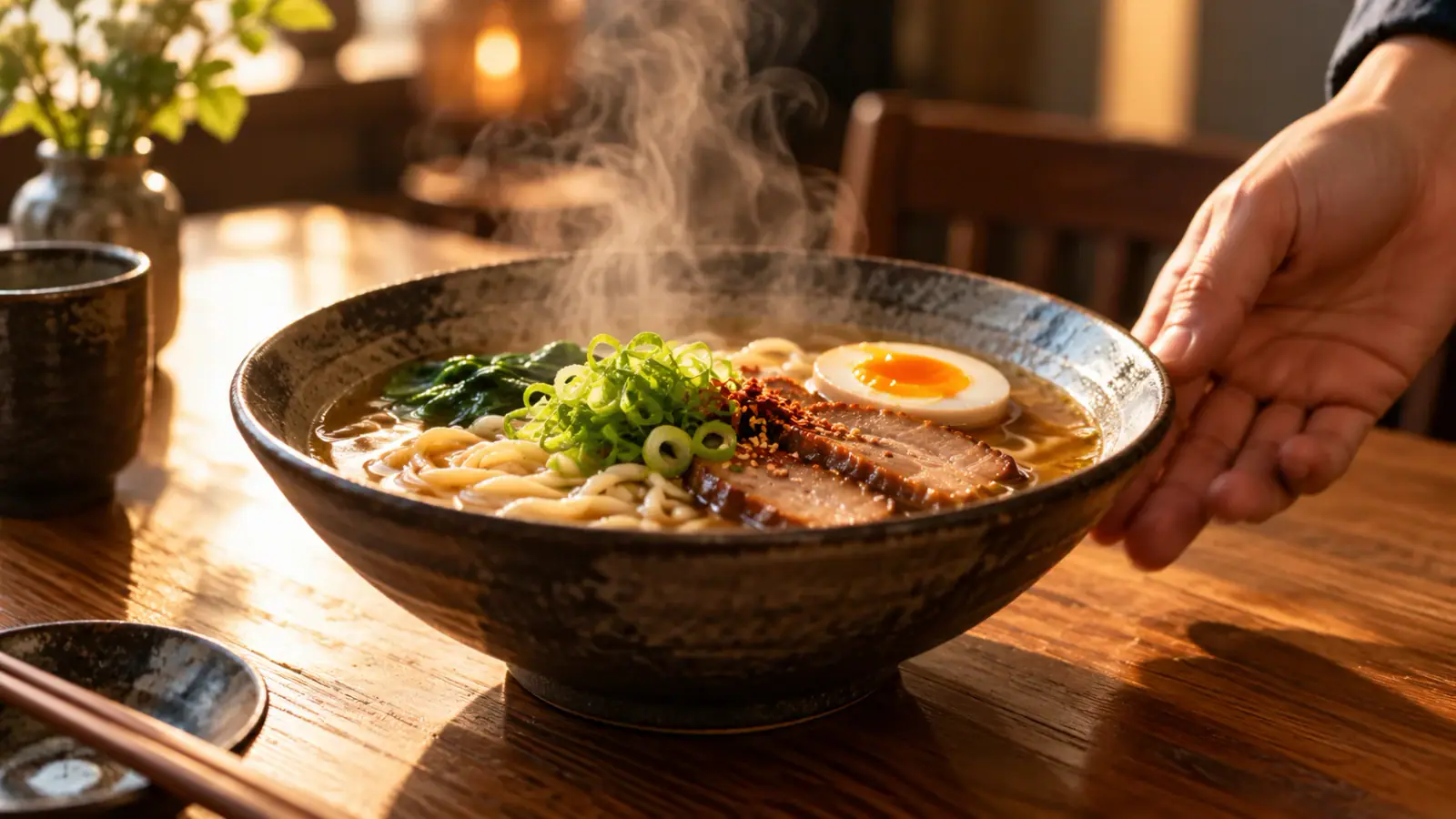
A written concept leaves the setting, subject, and composition open to exploration. This is useful for planning a storyboard beat before you have photographed or illustrated it. For a restaurant concept, describe the moment a server places a bowl on a table rather than summarizing an entire evening. Include the camera distance and the visible action that carries the idea. If the steam rising from the bowl matters most, frame the brief around that detail instead of filling the scene with unrelated activity.

Outline a text-led scene
Illustrative scene: Steam rising from a bowl of noodle soup on an oak table.

Image to Video: animate an opening frame

An opening image gives an image to video brief a defined visual starting point. Consider which parts of the composition should remain recognizable and which should move. A product photograph might call for a slow sideways camera move while the object stays still. A landscape could center on water movement while the horizon remains steady. Describe the change after the opening moment, rather than spending the whole prompt restating everything visible in the picture. For a tall composition, leave space in the intended direction of movement.

Plan image movement
Illustrative scene: Gentle ripples on an alpine lake beneath a steady mountain horizon.

Reference to Video: give each image a role

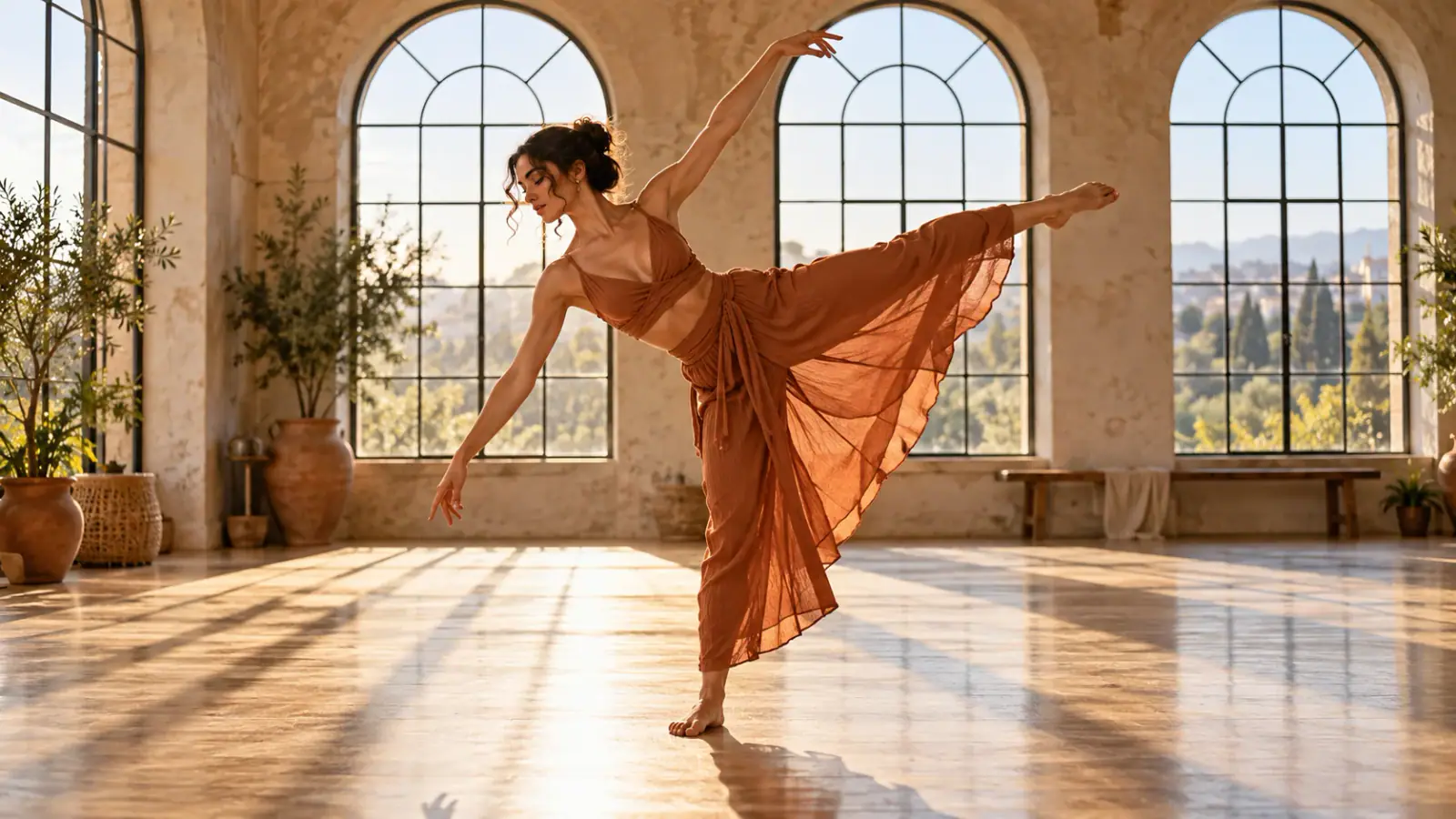
Use reference images to establish a character’s appearance, a setting, or a visual style. Give each image a clear role in the prompt rather than asking every source to guide every detail. For a dance concept, one image might define the performer’s clothing while another establishes the rehearsal room. Describe the movement in words and explain which visual details to carry into the new shot. Keep a numbered file list beside the prompt so you can revise the references without losing track of their roles.

Organize your references
Illustrative scene: Dancer in a terracotta outfit in a sunlit rehearsal studio.

Four decisions to make before production

Choose a duration and resolution that suit your shot, understand the H3 model options, and plan how sound will fit the final edit.

Confirm the exact H3 model

MiniMax H3 and MiniMax H3 Max are separate entries in the official documentation. H3 Max is described as a version post-trained by fal.ai with a focus on generation speed. When comparing demonstrations or settings, check the model name first so a result from one version does not become an expectation for the other.

Choose a 4 to 15 second video

The official H3 specification lists whole-second durations from 4 to 15 seconds. A glance and a walk across a room need different amounts of screen time. Break the idea into an opening state, the main action, and an ending state, then judge whether each part has room within the clip.

Choose 768P or 2K video

MiniMax documents 768P and 2K output for H3. Choose with the intended viewing size and editing workflow in mind. A clip used as a small layout element has different needs from a full-screen product presentation. Resolution describes the output dimensions; inspect the actual image detail separately when selecting footage.

Plan for native stereo audio

The official H3 announcement describes native stereo sound. In the shot brief, connect a sound to its visible source or give it a clear background role. Decide whether the final project needs scene sound, narration, or an existing music track, so the visual timing leaves room for the soundtrack you intend to use.

MiniMax H3 Reviews from Creators

Creator feedback on planning and developing video projects with MiniMax H3.

  • Product Details Held Up Well

    I used MiniMax H3 to explore a close-up shot of a skincare bottle turning under soft studio light. The shape and label placement stayed closer to my reference than I expected in the usable frames. I still inspected the lettering carefully, but the clip helped us evaluate a product-video direction without a studio setup.
    Claire JensenBeauty Brand Designer
  • A Detailed Brief Was Worth Writing

    For a fantasy alley scene, I described the environment, character movement, and background sound in one focused brief. MiniMax H3 gave me enough visual and audio context to assess the mood together. The useful part was not skipping creative decisions; it was being able to test those decisions in one draft.
    Owen FletcherConcept Artist
  • Useful for a Game Teaser

    I needed a short teaser for an indie game, with a character entering a dim room and reacting to something offscreen. MiniMax H3 helped me test the timing, framing, and atmosphere before we committed to animation work. I treated the result as a visual pitch, and it made the team's feedback more concrete.
    Liam ChenIndie Game Developer
  • The Revised Action Read Better

    My first prompt had a character running, turning, and speaking almost simultaneously. The action felt crowded, so I separated the beats and made the camera direction simpler. The next MiniMax H3 test was easier to understand. It reminded me that a strong reference and clear blocking matter as much as descriptive language.
    Isabel RomeroAnimation Director
  • Audio Helped Me Review the Scene

    I was evaluating a brief for a museum installation and wanted to hear how the ambience supported a moving image. Having a generated clip with sound gave me something I could judge as a whole. I could then note which visual moments needed more space before taking the idea into production.
    Henry WallaceExhibition Media Producer
  • Faster Alignment on a Visual Concept

    Our team was debating how a packaging reveal should feel, and static mockups weren't resolving it. I made a few MiniMax H3 concept clips with different lighting and motion directions. That gave everyone a shared reference for the conversation. We still refined the final approach, but the early discussion became much more productive.
    Priya ShahBrand Creative Lead

MiniMax H3 planning questions

Resolve common choices about shot structure, source material, and the final edit.

Look at the edges of the source image before deciding on a camera move. A close crop may leave little space for a subject to turn or travel. If the action needs more room, revise the source composition first. Keep the main subject visible against the background, and avoid placing the action behind foreground objects that obscure it.

For a sequence with distinct locations or story beats, plan each shot separately and arrange the order in an editor. Give each shot a clear purpose, such as establishing a place or revealing an object. This makes timing and transitions easier to adjust when you assemble the longer sequence.

Create your next MiniMax H3 video

Write your next MiniMax H3 shot in Prompt, choose the output settings and generate a clip to review against your brief.