
VidFomo
Loading...

Kling 3.0 Omni Video Generator

Mode
0/3072
Required Credits
210

Sample Videos

0:00 / 0:00

Kling 3.0 Omni AI Video Generator

Create a new scene from words, animate an opening image, connect first and last frames, or guide a video with multiple reference images. Kling 3.0 Omni gives you several ways to define what the shot should contain before you describe how it moves. Use the Studio above to choose the input that matches your brief, then develop a focused clip for a product presentation, character moment or visual story.

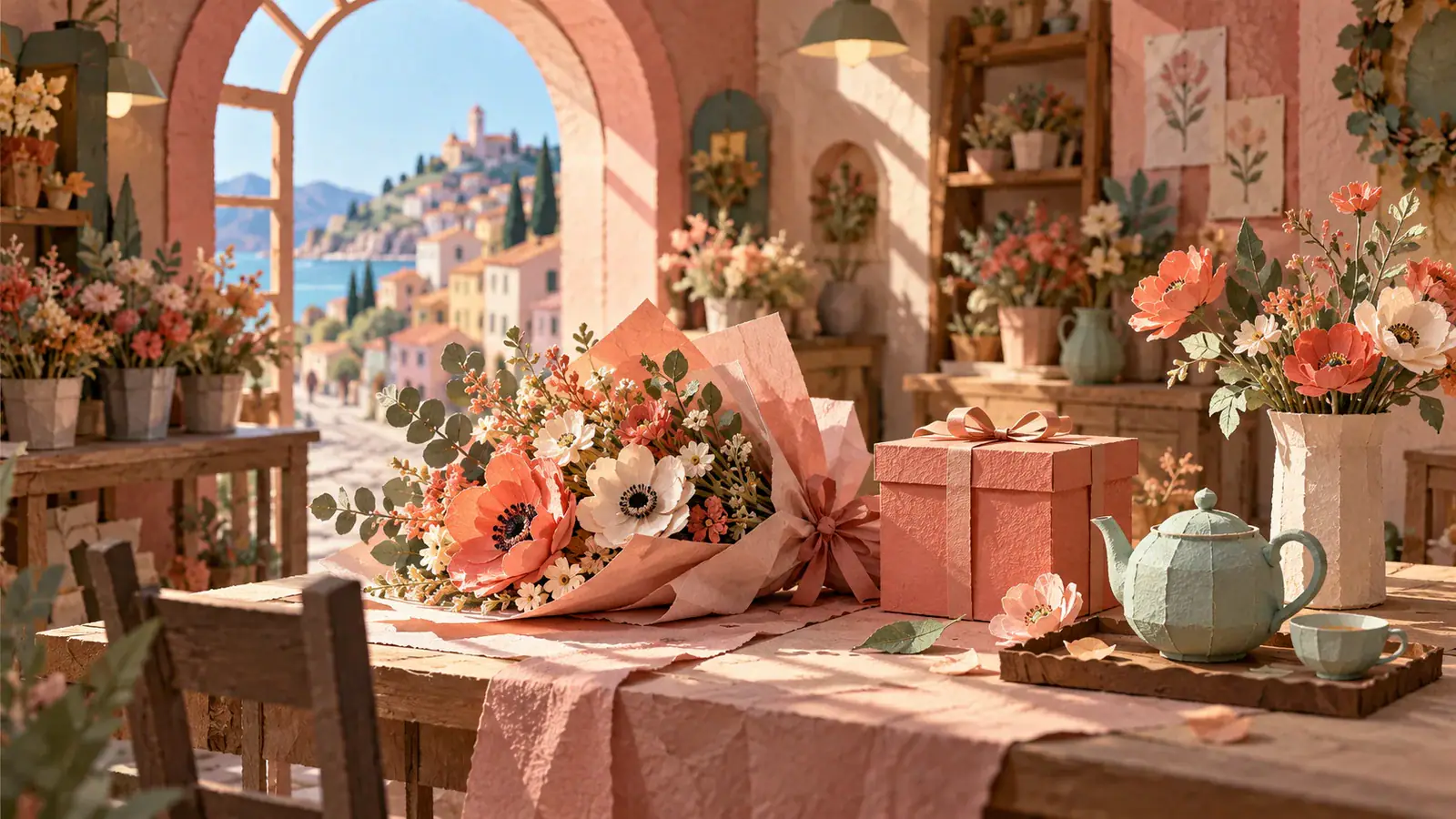
Illustrative scene: Pastel paper-craft flower shop with a bouquet, coral gift box and celadon teapot.

Compare Kling 3.0 Omni with Other AI Video Models

Explore the full model lineup, including Kling 3.0 Omni, and open a model page to find an option for your next video.

How to create your first Kling Omni video

Start with the material you already have, turn the idea into a clear action, then review a complete take.

  1. 1. Choose Text to Video or image inputs

    Use Text to Video for a written scene. For image to video, choose Frames to Video and add your opening picture to First Frame. Turn on Add End Frame when you also want a destination image. Choose Reference to Video for a collection of visual guides. Add images in the slots for your chosen mode, keeping reference collections separate from frame inputs. Prepare the material before writing the motion so the instructions match what you actually supply.

  2. 2. Write your prompt and set the shot

    Describe who or what moves, where the movement ends, and how the camera observes it. For example: “The cyclist rolls slowly past the bakery, stops beside the doorway, and looks inside; the camera stays at street level.” Select Duration and Resolution, then decide whether Generate Audio serves this scene. For text or reference inputs, choose the frame shape with Aspect Ratio. Keep the brief centered on one readable event rather than several competing storylines.

  3. 3. Generate and inspect the take

    Check the displayed credit cost, sign in when prompted, and submit with Generate. The result appears in Studio when the task completes. Play it once for the overall action, then pause where hands meet objects, a face turns or the subject passes behind something. Download the take you choose. If one detail needs work, change that instruction while keeping the rest of the brief stable so you can judge the effect of your revision.

Three ways to give the scene visual direction

An opening frame, a destination and a reference collection each give you a different kind of control. Match the input to the creative decision you need to make.

Image to Video: animate your chosen composition

Image to Video suits a still whose framing already works: a shop window, a character portrait or a carefully arranged object. Treat that image as the beginning of the action. A florist holding a bouquet might turn toward the doorway while the ribbon moves slightly; the prompt describes this change instead of inventorying every flower. Decide whether the subject or the camera should carry the motion. A small gesture with a steady view creates a different emphasis from a slow camera move around a still subject. Choose the emphasis before combining both, especially when the original image contains fine details you want viewers to notice.


Animate an opening image
Illustrative scene: Pastel illustration of a florist turning toward a doorway while holding a ribbon-tied bouquet.

Connect first and last frames with a clear transition

First and last frames are useful when the ending matters as much as the opening. Think of a closed presentation box becoming an open display, or a person moving from standing beside a chair to sitting in it. Choose images that share a coherent subject, environment and visual style. Then describe the action connecting the two states: the lid lifts, the interior becomes visible, and the movement settles. Large changes in viewpoint or subject placement require a more demanding transition. For a restrained reveal, prepare the two frames with similar framing so the prompt can concentrate on the event between them.

Plan a frame transition
Illustrative scene: Open coral presentation box with cream silk lining and a ceramic vase in a paper-craft setting.

Reference to Video: give each image a clear role

Reference to Video helps when the desired subject, object and setting live in different pictures. This page accepts up to seven reference images. You might provide a ceramic teapot, a table setting and a room, then describe the teapot resting on that table while afternoon light crosses the wall. Identify each picture by its content and explain the relationship you want. Add an image because it resolves a visual question, such as the handle shape or room palette. Several unrelated styles create competing directions; a smaller set with clear roles makes the brief easier to understand and gives you a clearer basis for reviewing the result.

Build a reference brief
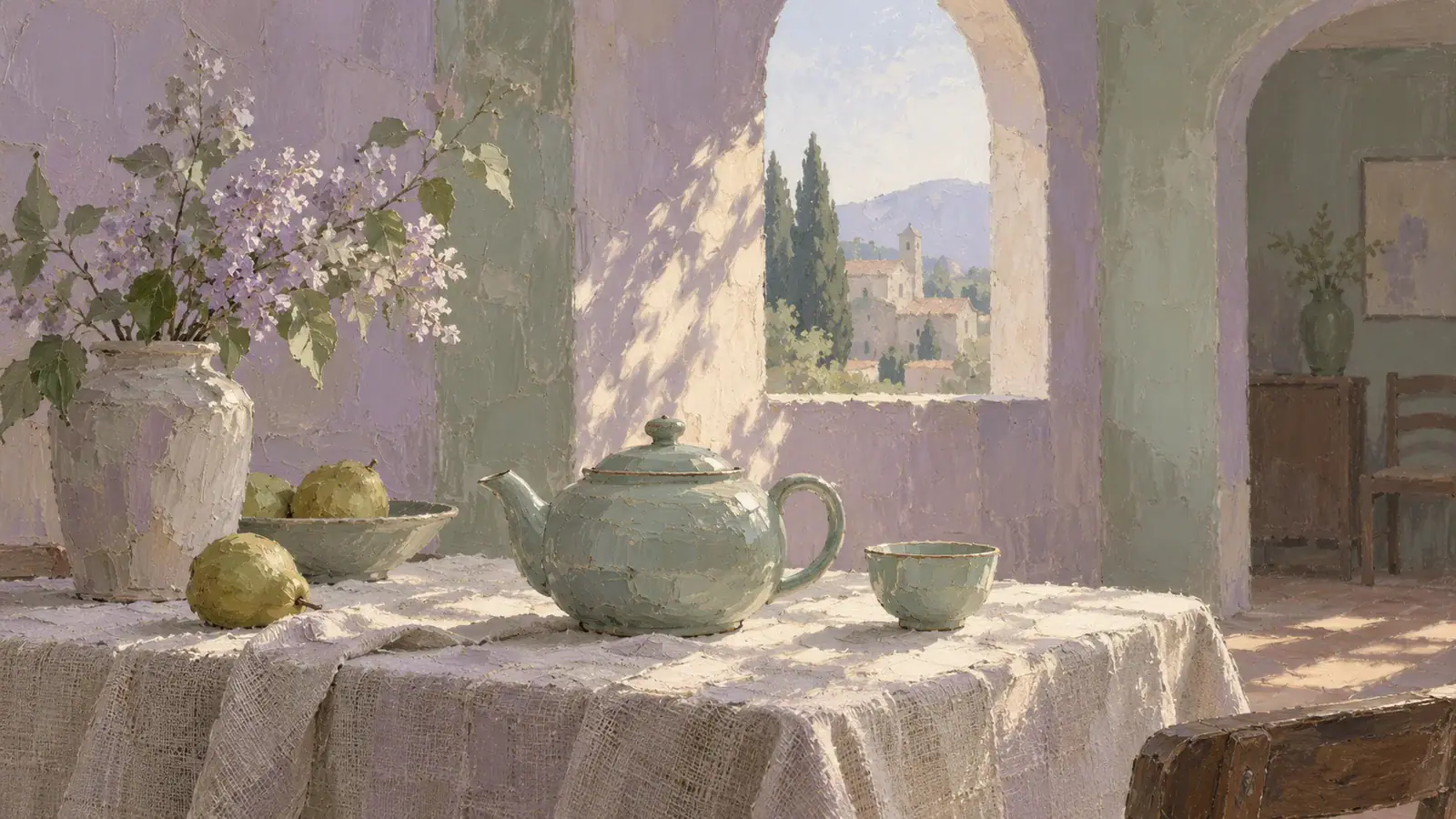
Illustrative scene: Oil painting of a celadon teapot on a linen-covered table in an arched-window room.

Decisions to make before generating

Prepare compatible images, choose the delivery format and allocate your generation budget around the shot you need.

Prepare compatible source images

Use JPG or PNG files with at least 300 pixels on each side and an image aspect ratio between 0.4 and 2.5. Keep each file within the upload limit shown in Studio. Inspect the source at full size: a blurred face, hidden handle or cropped hand gives you less useful visual information. Export a clean copy before uploading rather than relying on a screenshot of a screenshot.

Match length and format to the edit

Choose a whole-second duration from 3 to 15 seconds, with 720p, 1080p or 4K output. Text and reference modes offer 16:9, 9:16 and 1:1; frame-based generation uses automatic framing from the input. Plan room for the action to start and settle. A clip intended as a brief insert needs a different rhythm from a reveal that must hold its final composition.

Use the displayed credit estimate

Generation uses credits, and the estimate changes with duration, resolution and audio settings. Read it after making your selections. 1080p and 4K require paid access. When exploring an idea, use a shorter shot and an appropriate resolution to evaluate the action before committing to a longer version. Each new generation is a separate attempt, so keep useful prompts and notes alongside the takes you want to compare.

Choose optional audio for your scene

Generate Audio is optional and starts off. Turn it on when a scene benefits from audible activity, then include that activity in the prompt: footsteps on a wooden floor, a cup touching its saucer, or a short spoken line. Leave it off for footage you will score separately. When sound is enabled, listen through the whole take and check whether its timing supports the visible action.

Kling 3.0 Omni Reviews from Creators

Creator feedback on planning and developing video projects with Kling 3.0 Omni.

  • Our Mascot Stayed Familiar

    I used Kling 3.0 Omni to explore a few scenes featuring the same illustrated fox mascot. The ears, clothing, and overall silhouette stayed familiar enough to make the shots feel connected. I still selected the strongest takes carefully, but the character reference gave us a practical starting point for a recurring content series.
    Megan BrooksBrand Character Designer
  • Character References Made Planning Easier

    For a short animated dialogue, I prepared a character reference and wrote out the setting and key actions before generating. Kling 3.0 Omni made it possible to approach the scene around that recurring character rather than starting from a completely new description each time. That structure helped me keep the creative brief organized.
    Alex MorenoAnimation Content Producer
  • Useful for Short Character Scenes

    I was developing a lighthearted mini-series about two roommates arguing over dinner. Kling 3.0 Omni helped me explore how the characters could look and sound in a short scene. It wasn't a finished episode, but the draft made the personalities and comedic timing easier to evaluate with my writing partner.
    Nina PatelWeb Series Writer
  • Better Once I Simplified the Blocking

    My first attempt had three characters entering a cafe at the same time, and the scene felt cluttered. I kept the same character references but rewrote the action so each person entered separately. The revised Kling 3.0 Omni test had a clearer flow and made it easier to judge the dialogue beats.
    Felix GrantStoryboard Artist
  • Easier to Review Character and Voice

    I was preparing a pitch for a recurring virtual host, so seeing the character move and hearing the dialogue in one clip was useful. It let me review expression and delivery together instead of imagining how separate pieces would fit. I could give much more specific notes after watching the result.
    Kayla DixonDigital Show Producer
  • A Better Starting Point for a Series

    For a small educational series, I wanted one recognizable guide character across several topics. I used Kling 3.0 Omni to test the character in different situations before planning full episodes. Having those visual examples helped us discuss consistency and tone early, even though the scripts and final edits still needed work.
    Robert EllisEducational Video Creator

Kling 3.0 Omni questions

Practical answers for choosing references, interpreting model features and improving the next take.

Kling presents VIDEO 3.0 Omni as the successor to VIDEO O1, adding native audio and expanding its reference-based video approach. The relevant choice is the input your shot needs. Use visual references when appearance is already defined; start from text when you want the scene described in words.

This Studio uses text and still-image inputs for Kling 3.0 Omni. Kling’s wider model guide also describes video Elements, character voice features and storyboard tools. Those are separate workflows from the inputs offered here. For an existing clip, choose still frames that express the appearance you need and use them as visual references; they do not transfer its original performance or voice.

Turn your visual brief into a moving scene

Choose the input that answers your hardest creative question, write the action, and create a Kling 3.0 Omni take in the Studio above.