
VidFomo
Loading...

Seedance 2 Video Generator

Mode
0/10000
Required Credits
380

Sample Videos

0:00 / 0:00

Seedance 2 Video Generator

Turn a written idea or a starting image into a Seedance 2 video with optional generated audio. Create a product reveal, bring an illustrated character into motion or build a short story scene. Describe the subject, action and camera movement, then choose your output settings and review the credit cost before generating. ByteDance calls the model Seedance 2.0 and describes broader text, image, audio and video inputs. This workbench starts with text or an image; the guide below also compares Mini, Fast and Pro for your next creative brief.

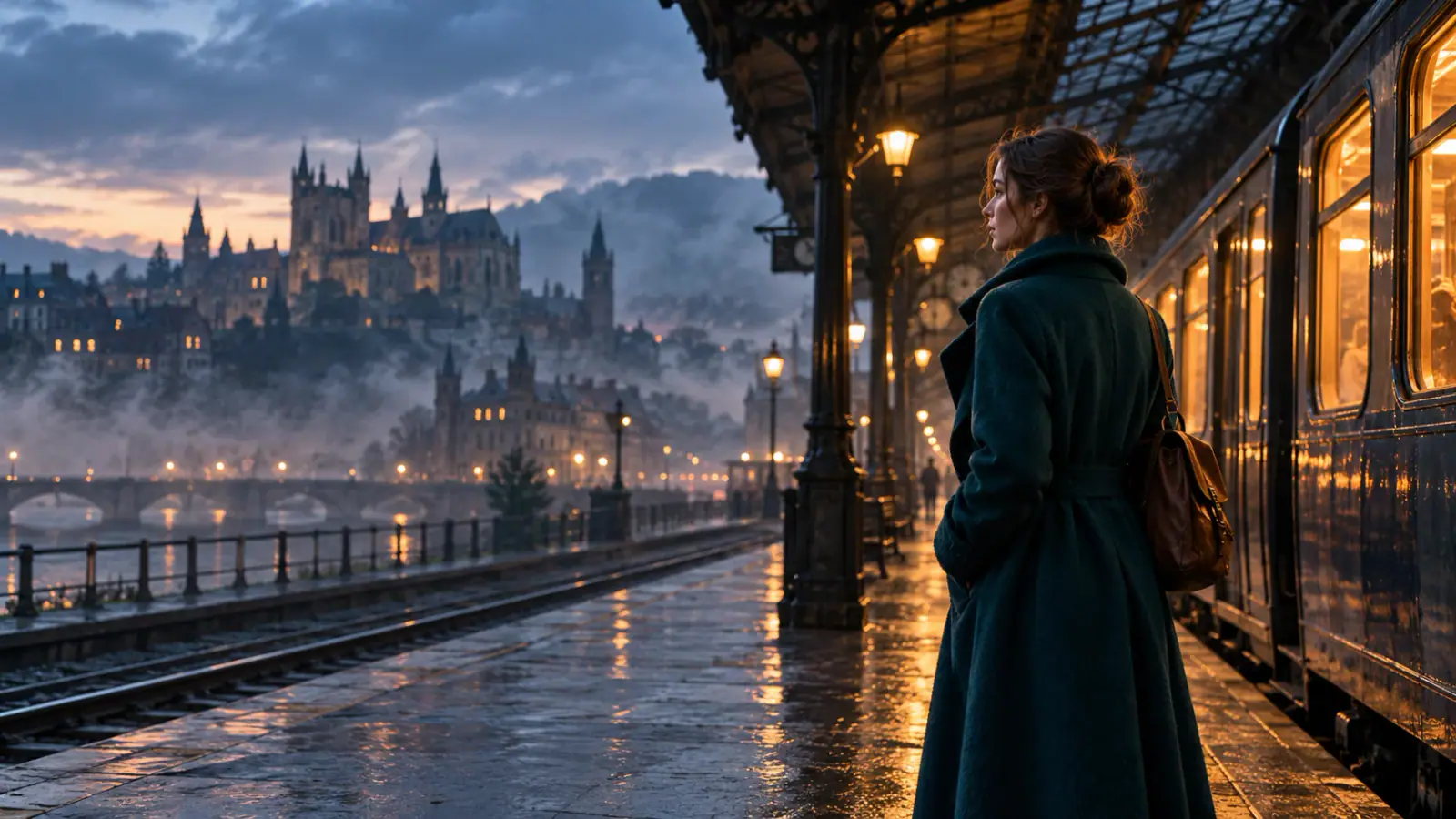
Illustrative scene: Traveler on a misty railway platform at blue hour.

Compare Seedance 2 with Other AI Video Models

Explore the full model lineup, including Seedance 2, and open a model page to find an option for your next video.

Create a Seedance 2 video

Describe your scene, choose the output settings and review the result in the workbench above.

  1. Start with text or an image

    Choose an image that explains the subject clearly, or write a short description if the scene begins with an idea. Separate identity references from location references: a character drawing tells a different story from a photograph of an empty street. Give each asset a role in your notes. For a product reveal, identify the detail that should remain visible, such as a handle, silhouette or label position, before planning movement around it.

  2. Write a prompt with action and camera direction

    Use the Prompt field above to describe a visible change with a beginning and an end. For example: a ceramic cup rests beside a window; a hand enters from the right, lifts the cup, and leaves the saucer in view. Add a fixed camera at table height and soft light from the left. Keep the subject's action separate from camera movement so a tracking shot does not accidentally become an instruction for the subject to turn.

  3. Choose settings and generate your video

    Choose a duration from 4 to 15 seconds, an output resolution and the framing that suits your scene. Turn generated audio on or off to match your brief. Review the displayed credit cost, sign in and select Generate. The workbench uses Seedance 2 for this page; Mini and Fast are discussed below for comparison. Watch the completed clip and check its action, framing and sound against your prompt. Download a result you want to keep, or revise one instruction before another generation.

Compare Seedance 2 Mini, Fast and Pro

Mini, Fast and Pro are names used for different Seedance options. Compare the creative approaches below, then use the Seedance 2 generator above for your scene.

Mini: give a compact idea a clear shape

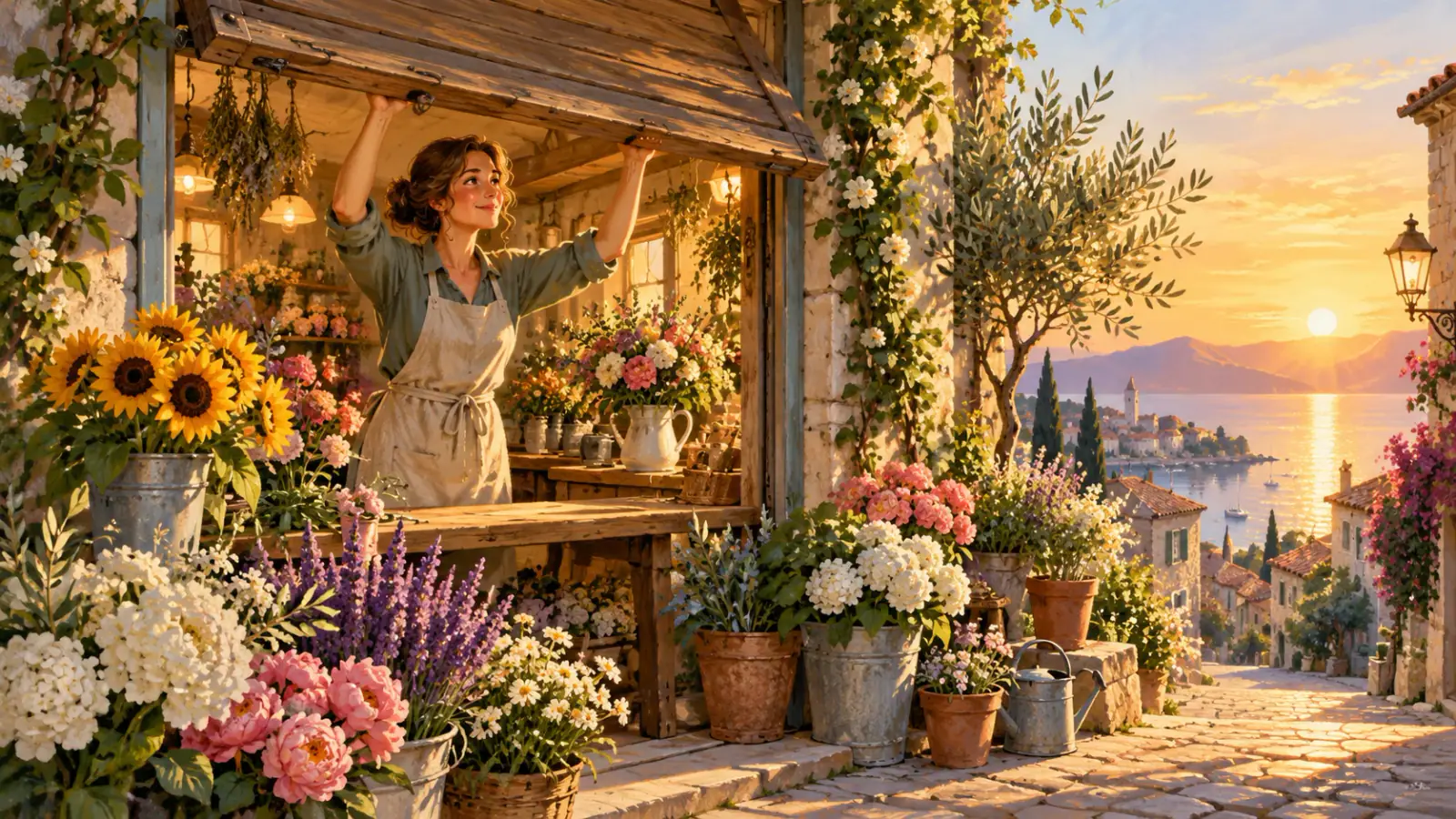
Mini is presented as a lighter option for short video creation. A useful brief might show an illustrated shopkeeper opening a shutter, or a product entering a pool of light. Keep the scene focused enough that you can judge one visual idea at a time. Begin with the relationship between the subject and its surroundings, then specify the movement that changes the scene. If you are planning a transition between two compositions, describe the action that connects them rather than listing unrelated objects. This makes a small concept easier to compare and revise.

Plan a Mini concept
Illustrative scene: Illustrated shopkeeper opening a flower shop shutter.

Fast: compare directions with a stable brief

Fast is positioned for iteration with multimodal references. Think of a character approaching a station platform: the creative question could be whether the camera should lead the character or follow from behind. Keep the character and setting references consistent while changing that camera instruction. A leading view can foreground the character's expression; a following view can reveal the destination ahead. Describe the opening composition for each version so the comparison begins at the same moment in the action. Choose the viewpoint that communicates the story beat you care about.

Plan a Fast comparison
Illustrative scene: Traveler approaching a train along a sunlit platform.

Pro: make the detail priorities explicit

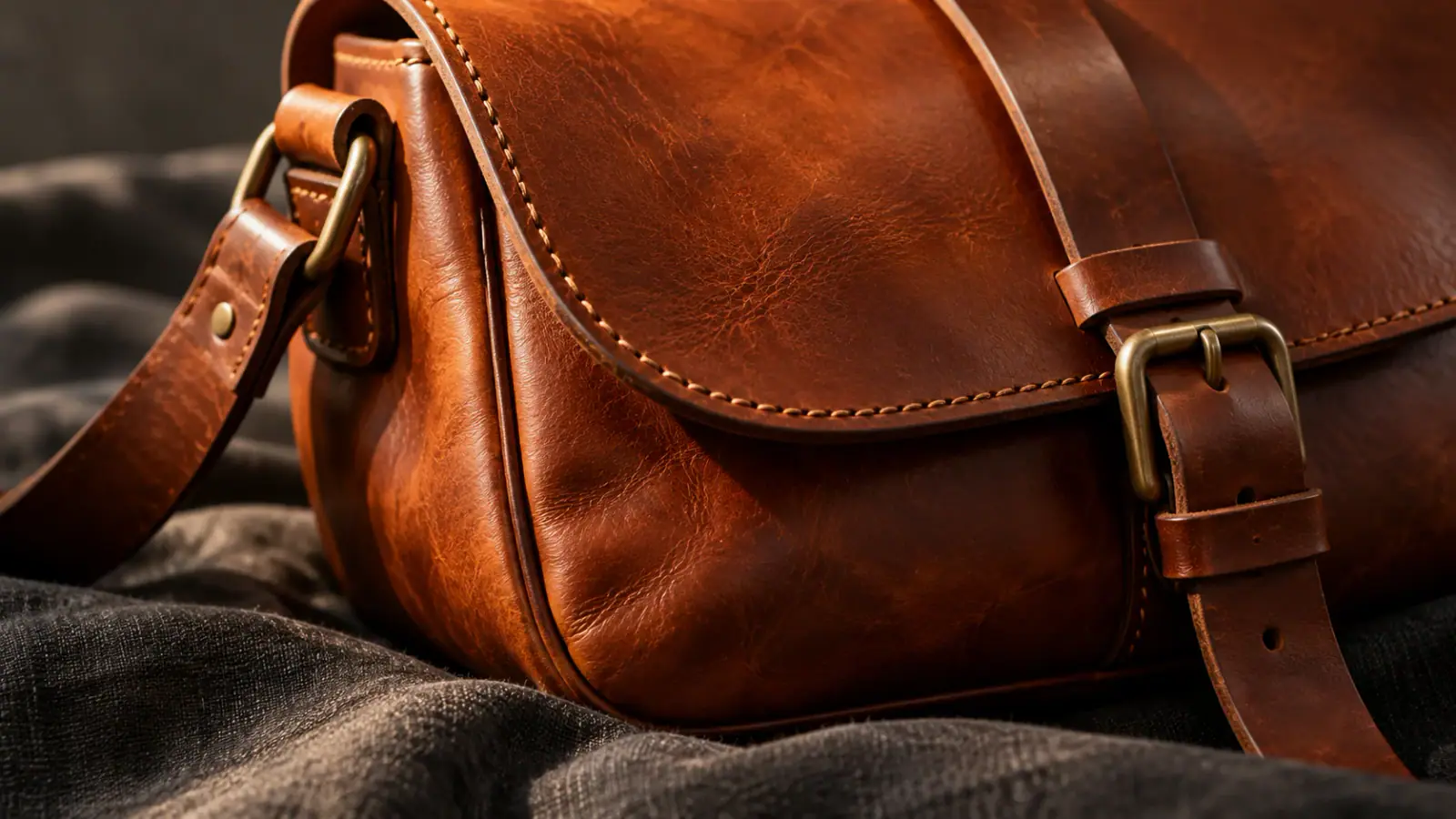
Pro is positioned around visual fidelity, making it an option to compare when small details matter to the scene. For a close-up of a handcrafted bag, specify the seam that should remain in view and the direction of light across the material. Keep the brief selective: leather texture, a readable silhouette and a controlled camera move are more actionable than a string of quality adjectives. Decide which details matter at the intended viewing size. A shot for a full-screen presentation and a small social preview may need different framing even when the subject is the same.

Plan a Pro detail study
Illustrative scene: Close view of stitching and leather grain on a handmade satchel.

Four decisions that strengthen the brief

Set these priorities before adding more instructions to your scene.

Decide the final framing

A vertical composition can emphasize a standing figure; a wider composition can show the relationship between two subjects. Sketch where the important action begins and ends within the frame. Leave space in the direction of travel so the movement has somewhere to go. If captions will be added later, reserve a quiet area away from the subject's face or product detail.

Plan one readable beat

Count the events in your idea: arrival, discovery, reaction and departure are four separate beats. Choose the one that carries the message, or plan separate shots. Give a reveal enough setup for viewers to understand what changed. A short sequence becomes easier to edit when its beginning establishes the situation and its ending leaves a clear visual point.

Direct the generated audio

Seedance 2.0's official description includes joint audio-video generation. In a creative brief, distinguish dialogue, background ambience and an action sound. For the cup scene, a soft ceramic clink has a different role from music or a spoken line. Write the sound next to the event it accompanies. This describes the intended soundtrack without letting several competing cues overwhelm the visual action.

Keep a useful comparison record

Save the brief version alongside your reference choices and the question you are testing. A note such as camera follows instead of leading is more useful than version two. When reviewing clips, look for the detail tied to that question. Preserve the decisions that worked, then revise the next unresolved part. This turns experimentation into a sequence of decisions you can explain to a collaborator.

Seedance 2 Reviews from Creators

Creator feedback on planning and developing video projects with Seedance 2.

  • The Movement Had a Good Rhythm

    I tried Seedance 2 with a street dance scene involving two friends and a handheld camera feel. The changes in posture and clothing movement helped the clip feel less stiff than a simple animated photograph. I still noticed a few odd details, but the overall rhythm worked for my concept edit.
    Jordan PriceDance Content Editor
  • Clear Direction From a Few References

    I started with an image reference and a short description of the setting, camera movement, and ambient sound. Keeping the prompt focused made it easier to understand what Seedance 2 was responding to. I didn't need to write a long script just to test whether a particular shot could work.
    Emily ReedFreelance Content Producer
  • A Useful Night Market Concept

    For a local food campaign, I wanted a busy night market scene with steam rising from a grill and the feeling of people moving nearby. Seedance 2 gave me a visual and audio direction I could show the restaurant owner. We used it to discuss mood, not as finished advertising footage.
    Victor HuangRestaurant Marketing Consultant
  • Less Action Worked Better

    I initially asked for a crowded sidewalk, several moving subjects, and a dramatic camera turn. The result felt harder to follow than I wanted. After rewriting the prompt around one person entering the frame, the scene became easier to read. That small change saved me from chasing more complicated revisions.
    Tessa MorganIndependent Film Director
  • Seeing Sound and Motion Together Helped

    I was sketching a short subway scene and needed to understand how the action and atmosphere would play together. Reviewing a generated audio-video clip gave me more useful feedback than looking at frames in isolation. I could tell which moments needed a stronger visual cue before moving into my regular editor.
    Noah BennettPost-Production Editor
  • Helpful for Early Campaign Decisions

    Before pitching a streetwear spot, I used Seedance 2 to test a model walking through a rain-soaked alley. Seeing the motion and overall mood made it easier to decide whether the concept justified a proper shoot. We avoided spending a whole planning session debating a scene nobody had seen in motion.
    Alyssa TurnerCreative Strategist

Seedance 2 questions

Practical answers for comparing the family and developing a scene.

Seedance 2.0 is the name used in ByteDance's official model introduction. This page generates with Seedance 2. The Mini and Fast variants are described for comparison and are not selectable in this workbench. Seedance 2.5 is a separate version with its own page and settings.

An end frame defines the composition you want the clip to approach at its finish. A reference image supplies information such as a character's appearance or a material texture throughout the scene. Seedance 2 supports first-frame and first-and-last-frame generation, separately from reference-image generation. Do not combine frame inputs with reference images in one request. This page starts in text-or-image mode; video and audio reference uploads are not available in this workbench.

Start with a scene you can describe

Choose a subject, describe one visible action and create your Seedance 2 video above. Review the credit cost with your settings, then generate a take to preview and download.