
VidFomo
Loading...

Wan 3.0 Video Generator

Mode
0/10000
Required Credits
80

Sample Videos

0:00 / 0:00

Wan 3.0 AI Video Generator

Turn a written scene or a starting image into a Wan 3.0 video. Build a product reveal, a small character moment, or a moving background with room for the action to unfold. This workspace brings text to video and image to video together with optional generated audio. Start with the scene you need, then use the guidance below to decide what belongs in the prompt and what belongs in your settings.

Illustrative scene: Reader beside a window in a warmly lit bookstore.

Compare Wan 3.0 with Other AI Video Models

Explore the full model lineup, including Wan 3.0, and open a model page to find an option for your next video.

How to Use Wan 3.0

Use one clear visual objective for your first generation. A focused scene makes it easier to decide whether the result fits your edit.

  1. Describe the shot or add a start image

    Write your scene in Prompt. Name the subject, location, visible action, and camera movement. For image to video, upload one image in the start-image area and wait for the upload to finish. Treat that picture as the opening composition: describe what moves after it, rather than asking for a different starting scene. A useful first prompt is: a paper boat drifts past a stone on a shallow stream; the camera follows slowly at water level.

  2. Set the frame, length, and sound

    Open Aspect ratio, Resolution, and Duration to choose the delivery format. Decide whether Generate Audio should be On or Off before submitting. For a first motion study, try a short 720p clip so you can judge the movement before committing to a longer version. Sign in when prompted and review the displayed credit cost with your chosen settings. Keep the subject and camera instruction unchanged while testing a different duration.

  3. Review the result and save your take

    Play the completed video in the result area. Watch once for the overall idea, then again for the exact moment that matters: a hand releasing an object, a character turning, or a product entering the light. Use the download action to save the selected take. If you need a revision, change the instruction responsible for the mismatch and generate again. Your recent account history remains available in the workspace, with more creations in Assets.

Give each scene a clear purpose

These prompt approaches suit different creative jobs. Choose the one that matches the material you already have and the moment you want to show.

Text to Video for Scene Ideas

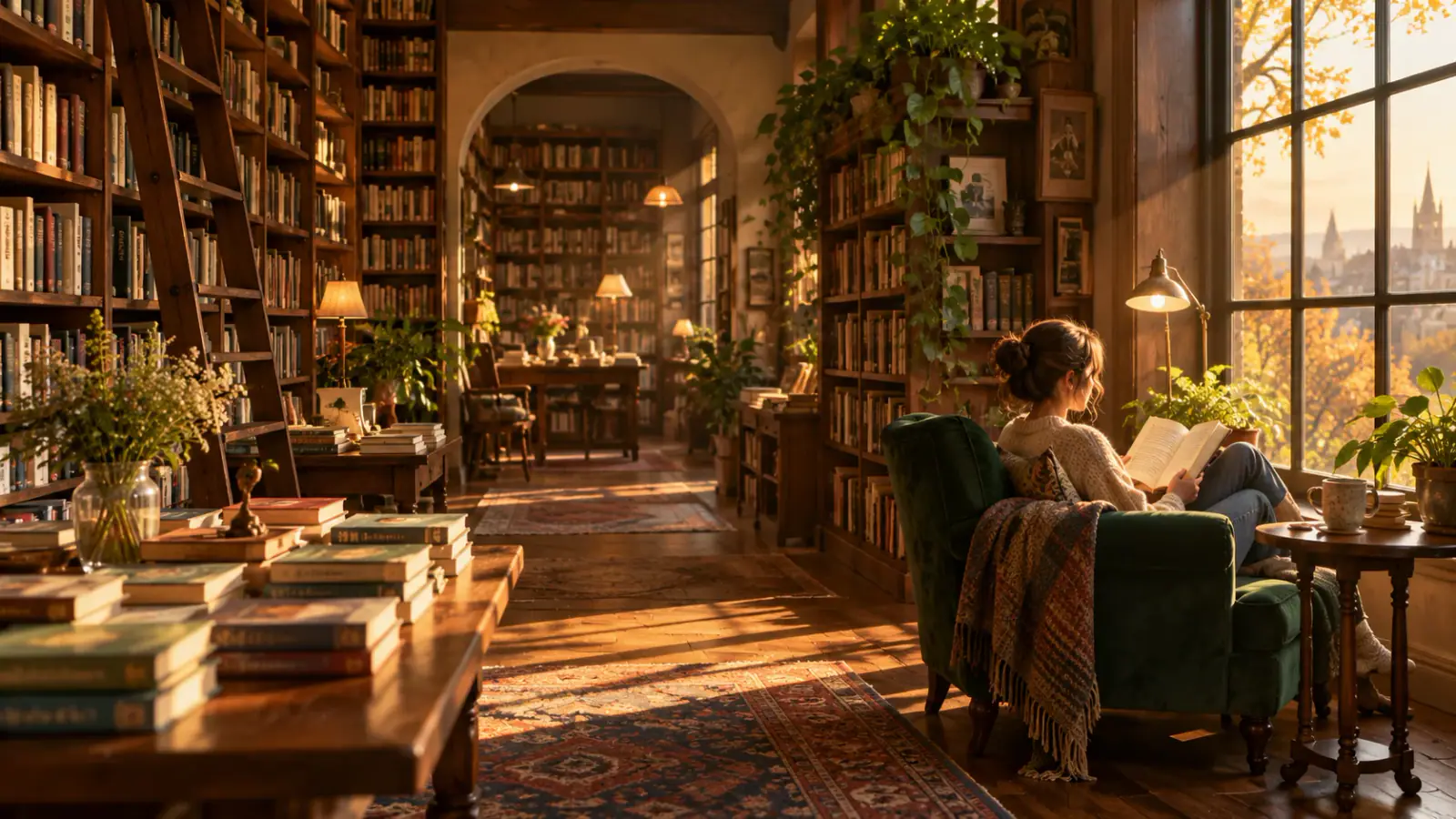
Text to video is a useful starting point when the scene exists only in your brief. For a bookstore opening, describe shelves, a single reader, late afternoon light, and a slow move toward the window. Specify the relationship between those elements instead of listing unrelated cinematic adjectives. Use the resulting clip to discuss pacing, framing, and mood with your team. When comparing ideas, keep the action the same and change one creative decision, such as daylight versus warm lamps. That makes the alternatives easier to evaluate.

Try a scene prompt
Illustrative scene: Bookstore aisle leading toward a reader in afternoon light.

Image to Video from a Start Frame

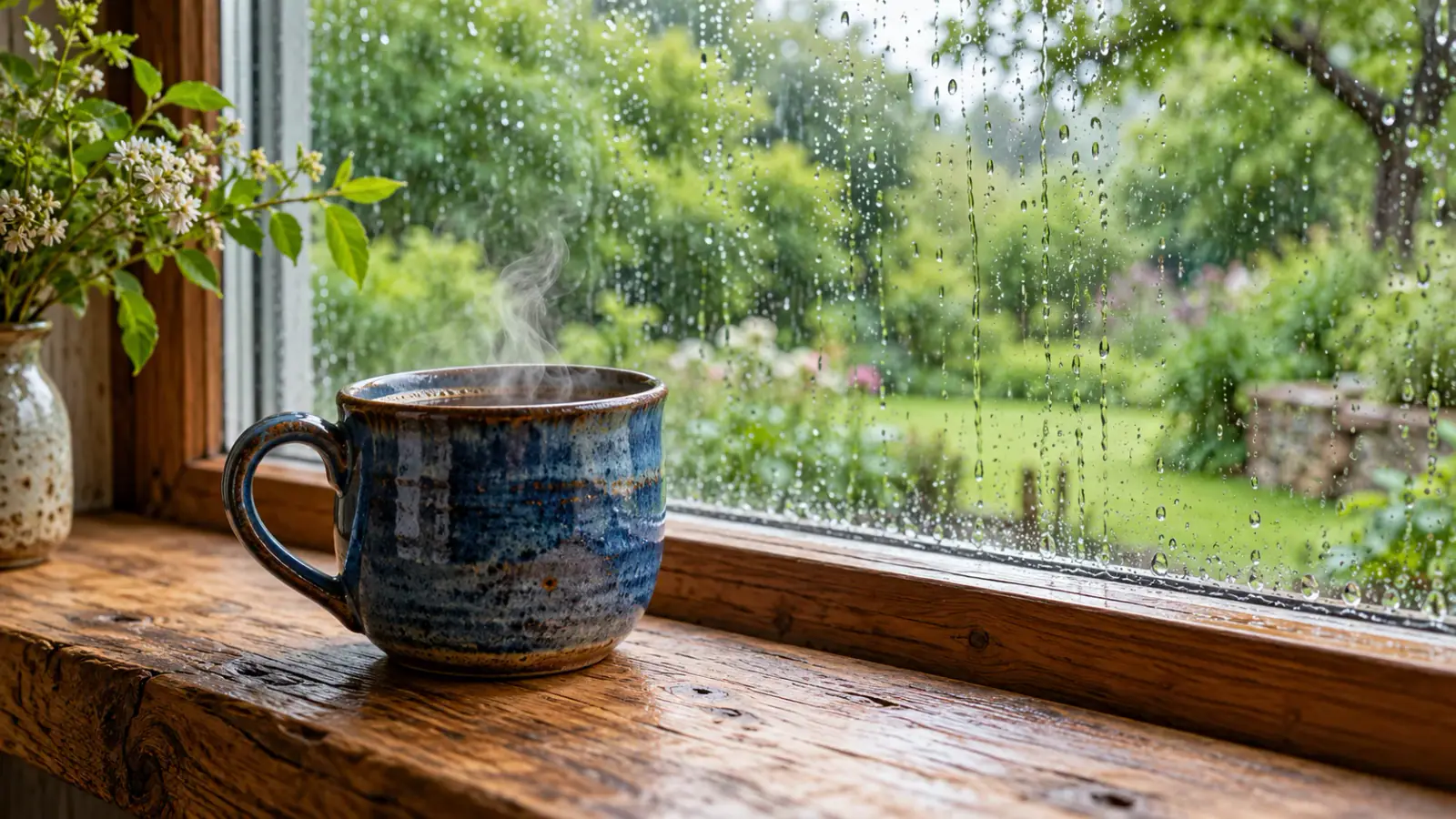
A start image helps when you have already chosen the subject, colors, and arrangement. Begin with a clean product photograph or an illustration with room around the moving subject. For a ceramic cup beside a window, ask for steam rising while the camera makes a gentle push forward. State which elements should stay still so the request has a clear center of attention. Before uploading, crop distracting edges and remove temporary layout marks. Build the motion around what the picture actually contains; save major scene redesigns for another image.

Animate a start image
Illustrative scene: Steam above a blue ceramic cup beside a rain-covered window.

Write a beginning, a change, and an ending

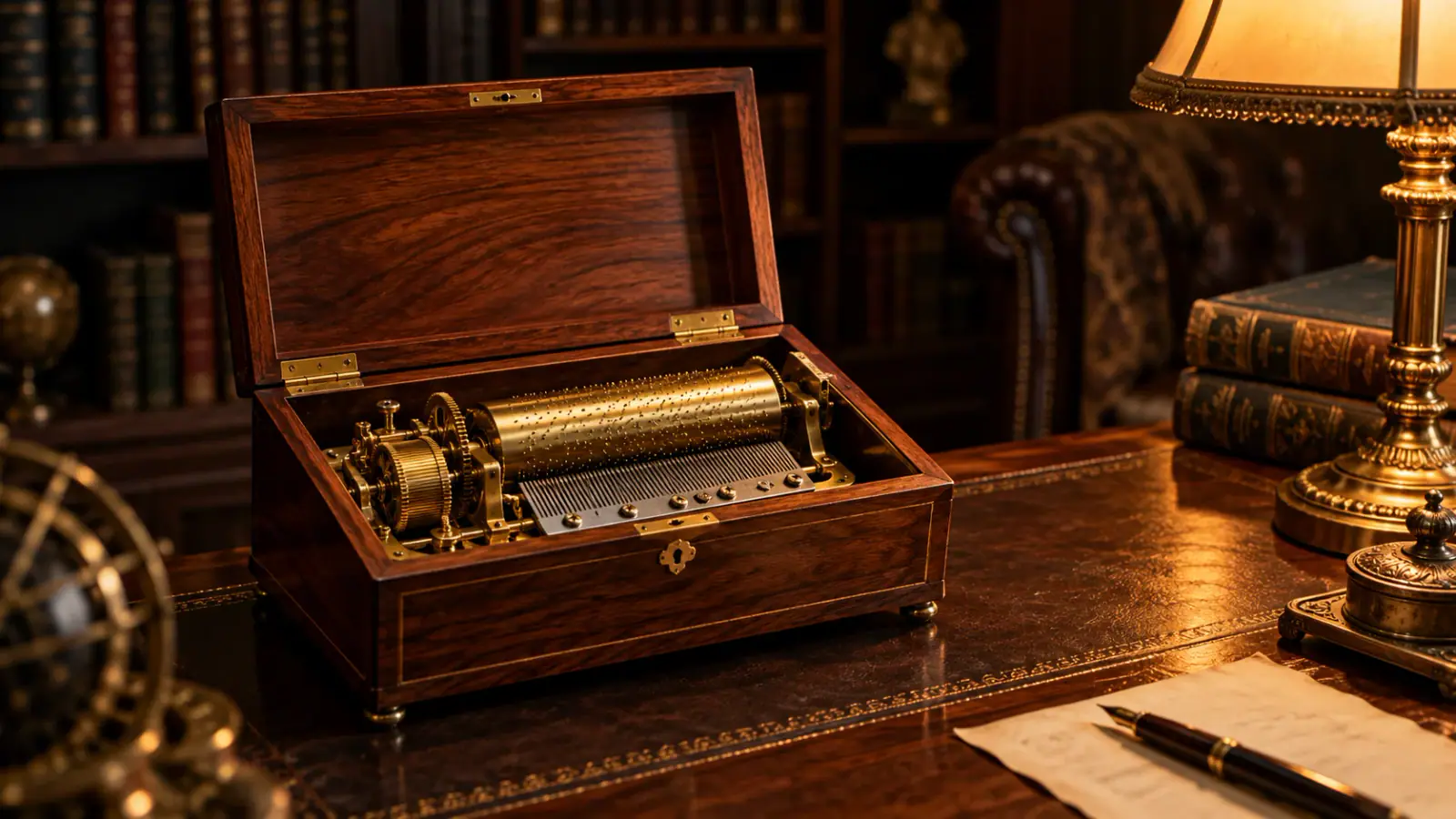
Longer clips benefit from a simple sequence instead of a longer list of objects. Sketch three beats: a closed music box rests on a desk, its lid opens, and the camera settles on the mechanism. Describe the transition between beats and leave a quiet final moment for an edit. For a continuous shot, say how the camera travels through the sequence. Keep the setting and subject names consistent throughout the prompt. This gives you a practical way to plan a reveal without treating every second as a separate scene.

Plan a longer scene
Illustrative scene: Open wooden music box revealing its brass mechanism.

Make the choices that shape your output

Use these controls to fit the clip into its destination and your production budget.

Compose for the destination

Choose 9:16 for a vertical placement, 16:9 for a widescreen edit, or a square frame when the layout calls for it. The workspace also offers 4:3, 3:4, and adaptive framing. Leave room for captions or interface overlays in your composition; adding that space at the start is easier than cropping a tightly framed subject later.

Wan 3.0 Resolution and Duration

Wan 3.0 offers whole-second durations from 2 to 30 seconds here, with 480p, 720p, and 1080p resolution choices. Use a brief take to test a single gesture, and reserve more time for an action with several stages. Resolution controls the output tier; it does not replace a well-composed input image or a readable subject.

Plan Your Video Credit Budget

The credit estimate changes with duration and resolution. Review it before each submission, especially after extending a scene or selecting a higher output tier. If you are comparing three creative directions, plan for three separate generations rather than treating the first result as the whole project. Keep a note of the prompt and settings for the take you select.

Generate Video with Audio

With Generate Audio enabled, describe the sounds that belong to the scene: footsteps on wood, distant rain, or a brief spoken line. Separate the sound direction from the visual action in your prompt. Turn audio off when the clip will sit beneath an existing soundtrack. For dialogue, listen to the complete line before choosing the take for your edit.

Wan 3.0 Reviews from Creators

Creator feedback on planning and developing video projects with Wan 3.0.

  • The quiet movement sold the mood

    For a fictional bookstore opening, I asked Wan 3.0 for a reader beside a window and a slow camera move. The take I picked had a gentle rhythm that suited the scene. I liked having a moving mood study to discuss before deciding how to stage the actual shoot.
    Claire BennettIndependent Film Director
  • An easy place to start

    I brought in a single photo of a handmade candle and wrote a short instruction about the flame. Choosing the duration and turning audio off felt straightforward. Reviewing the credit estimate before submitting helped me keep this small product experiment within the scope I had planned.
    Marcus LeeHome Goods Shop Owner
  • Useful material for a lesson opener

    My lesson needed an opening image of a paper boat traveling down a stream. I used a Wan 3.0 clip as the visual introduction, then added the lesson title in my editor. That little scene gave the class something concrete to notice before we started discussing movement and perspective.
    Elena BrooksArt Educator
  • One change made the comparison clearer

    The first version of my music box idea moved past the reveal too quickly. I rewrote the ending so the camera would settle on the open lid, keeping the other settings unchanged. Comparing that specific moment helped me choose a direction without rewriting the entire scene each time.
    Owen PatelMotion Designer
  • Reviewing and saving felt connected

    While assembling a travel concept, I could preview a completed clip in the result area and download the take I wanted for editing. The link to Assets was useful when I returned for an earlier version. I kept my own filenames organized around the locations in my shot list.
    Natalie ChenTravel Video Editor
  • A practical way to discuss an idea

    Before arranging a tabletop shoot, I explored a few lighting directions for a stationery launch with Wan 3.0. Seeing a short moving concept made our discussion more specific than a page of mood words. I still planned the final photography, but I had a clearer brief to bring to the photographer.
    Daniel FosterBrand Art Director

Questions before your first Wan 3.0 clip

Practical answers for preparing inputs and turning a generated take into something you can use.

This page uses the standard Wan 3.0 model. Prime is a separate model, and this workspace keeps your choice fixed to Wan 3.0. If you are comparing results across models, save the prompt and settings with each video so you can identify the take later.

This workspace accepts a prompt and an optional single start image. For a written brief, extract one visual moment and describe it in Prompt. If the brief contains a storyboard, choose the frame that establishes your opening scene and upload that image.

Bring your next scene into motion

Choose the moment you want to show, write a focused prompt, and create your first Wan 3.0 take above.