

VidFomo
Loading...

FLUX 3 Max Video Generator

Mode
0/5000

Sample Videos

My Videos

FLUX 3 Max Video Generator

Give your next video a scene worth watching: a paper bird crossing a moonlit greenhouse, a glass bottle catching a moving reflection, or a sailboat slipping across dark water. FLUX 3 Max is a video model from fal Research in collaboration with Black Forest Labs. Start with words or an image, then describe what changes during the shot. The artwork on this page illustrates creative directions, not verified FLUX 3 Max results.

Concept illustration of a silver sailboat below an amber moon, not FLUX 3 Max output

Explore other video models

Compare a different model when your project needs another starting point. Keep the subject and action consistent across your creative brief so that each comparison answers a useful question about the shot you want.

How to shape a FLUX 3 Max video

Begin with one shot and one clear action. A short, specific brief makes it easier to choose the right input before you adjust the rest of the scene.

  1. Choose words or a starting image

    Use Text to Video when the setting exists only in your imagination. For Image to Video, choose Frames to Video in the workspace and add the image you want as the opening frame. Pick a clean composition with enough space around the subject for the movement you describe. A single product photo or an original illustration gives you a concrete visual starting point.

  2. Describe the movement you want

    Name the subject, its action and the camera movement in that order. For example: a silver sailboat glides left across calm water while the camera slowly tracks alongside it. Add the light and mood after the action is clear. If you want sound, describe what should be heard, such as quiet water against the hull, rather than leaving the soundtrack unrelated to the scene.

  3. Set the frame and review your brief

    Choose the aspect ratio for where the clip will appear, then set duration and resolution. Read the prompt once as a sequence of events: what is visible first, what moves, and where the shot ends. Generate uses the current selection. FLUX 3 Max submission on this page is pending; the workspace reports that status without creating a video or charging credits, and keeps your inputs available for editing.

Three ways to direct the scene

Use these original creative briefs to decide what belongs in your prompt. Each focuses on a different decision: inventing the setting, preserving the opening composition, or building the sound around the action. Concept illustrations, not FLUX 3 Max output.

FLUX 3 Max Text to Video for imagined scenes

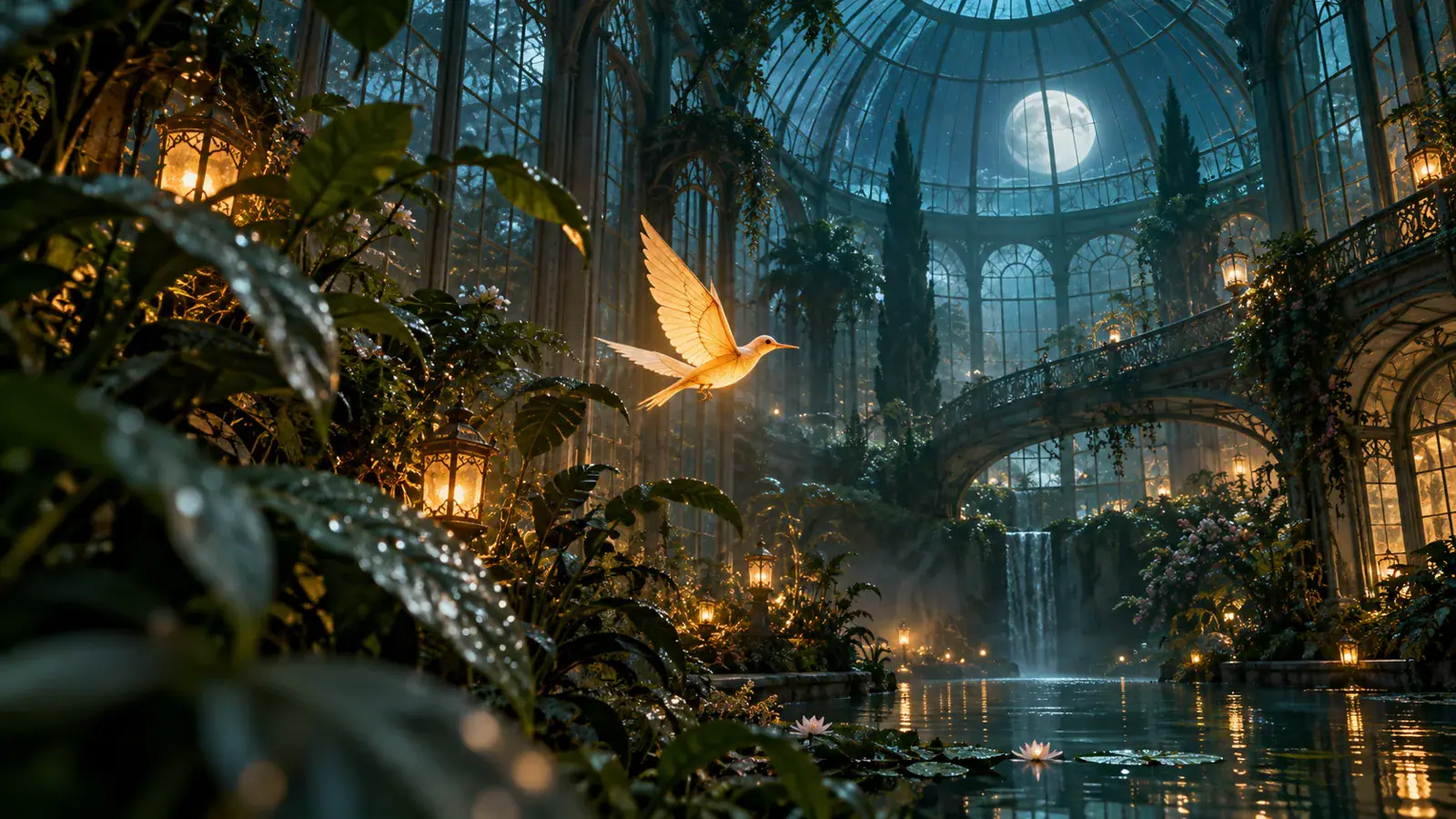
A glowing paper bird inside a glass greenhouse is a useful example of a scene you can describe without arranging a shoot. Give the bird a simple path through the frame and let the setting support that action. Try a steady wide view with the bird crossing from left to right, moonlight on the glass and warm lanterns below. Keep the first version focused on that movement. If you later want a closer view, change the camera instruction while keeping the subject and setting intact. That gives the next attempt a clear purpose instead of replacing every detail at once.

Write a scene prompt
Concept illustration of a glowing paper bird in a moonlit greenhouse, not model output

FLUX 3 Max Image to Video from a chosen frame

A product image already tells the viewer about shape, material and placement. Use the prompt to describe the change you want around that composition: a gentle camera arc around an amber bottle, a passing band of light, or a soft movement in the background. Avoid asking the bottle to rotate, the camera to orbit and the background to transform all at once in your first brief. If the ending composition matters, add an optional end frame in Frames to Video. Choose images with a related subject and viewpoint so the intended journey between them is easy to explain.

Choose an opening frame
Concept illustration of an amber glass bottle on a slate plinth, not model output

Plan video with audio around one moment

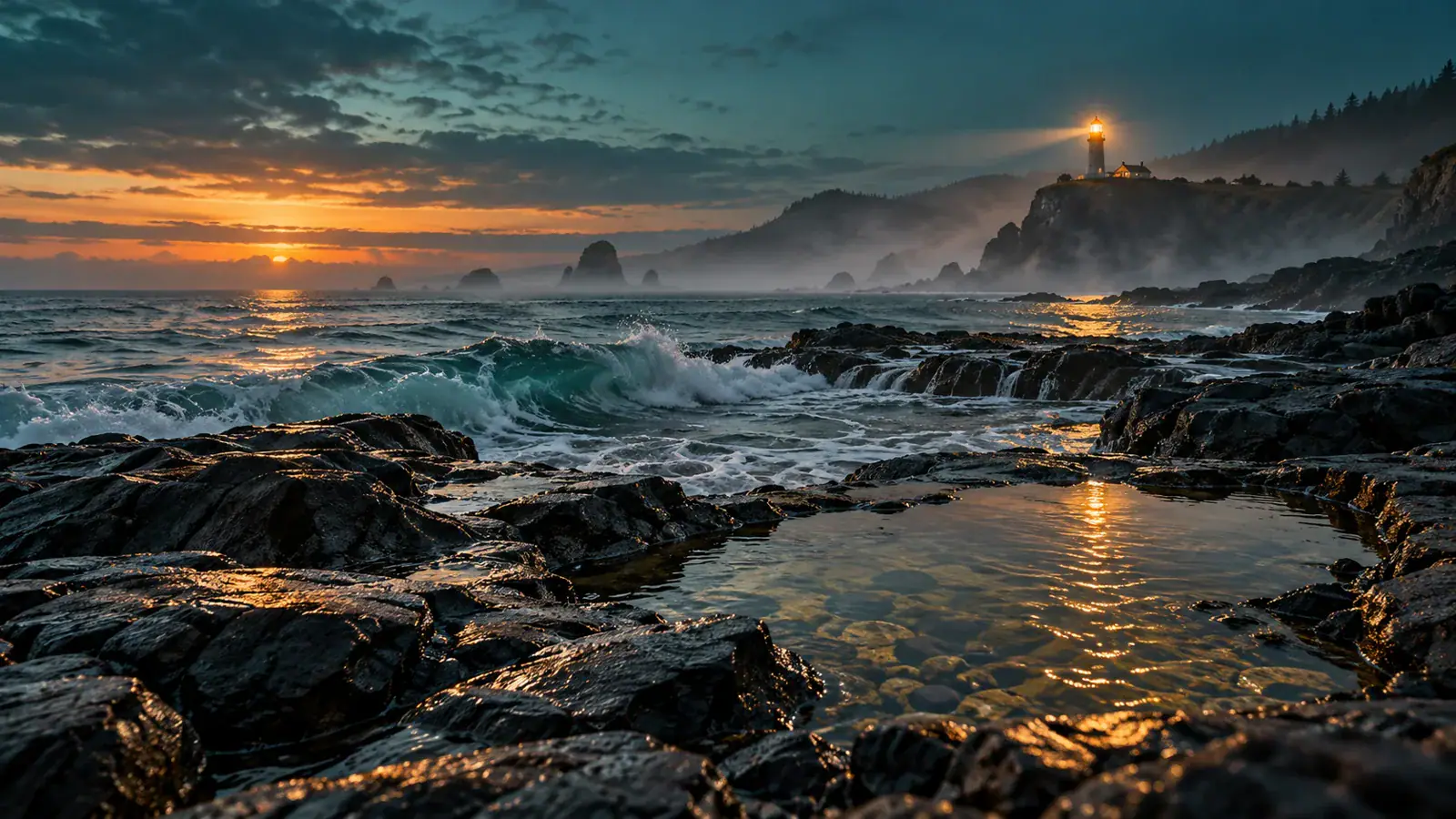
Sound direction starts with the event on screen. For a coastal shot, separate the close splash against a rock from the softer wind in the distance. Describe whether the camera stays still or moves toward the water, and keep those instructions compatible with the mood. FLUX 3 Max exposes an audio generation option through fal. Turn audio on when it is part of your brief, or leave it off when you intend to add your own soundtrack later. For dialogue, write the intended words and identify who speaks; review the eventual speech and timing before using a clip in a finished edit.

Plan the sound and motion
Concept illustration of waves near a coastal lighthouse at dusk, not model output

Settings that support your shot

Match each choice to the job the clip needs to do. These controls describe the selected shot, while your prompt supplies the creative direction.

Give the action enough time

The fal API lists durations from 5 to 20 seconds. Think about the action before choosing a longer clip: a quick reveal and a slow approach need different pacing. Describe a beginning and a finish that fit the selected length, rather than adding unrelated events to fill the available time.

Frame for the viewing space

Choose a wide frame for a landscape or a subject moving across the scene. A portrait frame can concentrate attention on a standing subject or a close product view. Leave room for the important movement inside the selected shape, especially when the original image has a different crop.

Keep the source easy to read

For an opening image, start with a subject whose outline and important details are visible. Remove unrelated clutter before choosing the file. If a label or design must remain exact, plan to inspect it closely in the resulting clip and finish that detail in your editing workflow when needed.

Check sound as well as picture

Listen to the clip from beginning to end when audio is enabled. Check whether a spoken line belongs to the visible speaker and whether a sound arrives at the intended moment. For a silent edit, keep audio off and reserve your final music, effects and voiceover choices for the timeline.

aaa

aaa

  • aaa

    aaa
    aaaaaa
  • aaa

    aaa
    aaaaaa
  • aaa

    aaa
    aaaaaa
  • aaa

    aaa
    aaaaaa
  • aaa

    aaa
    aaaaaa
  • aaa

    aaa
    aaaaaa

FLUX 3 Max questions before you begin

Understand the model name, the available starting points and what to check when choosing this workflow.

FLUX 3 Max is a video model. fal Research developed this version with Black Forest Labs using FLUX 3 as its foundation. It is distinct from the FLUX image models, so an image generation tutorial or an image model preset is not a guide to this video workflow.

This page offers text input and Frames to Video, with an opening image and an optional ending image. It does not offer a collection of reference photos or a video upload. If your project needs an existing clip edited or extended, choose a workflow that explicitly supports that task rather than treating an end frame as a video editing control.

Give your FLUX 3 Max video a clear direction

Choose the opening moment, describe what moves and set the frame for your audience. Return to the workspace to put those decisions together in one FLUX 3 Max brief.