

VidFomo
Loading...

LTX 2.3 Fast Video Generator

Mode
0/5000
Required Credits
360

Sample Videos

0:00 / 0:00

LTX 2.3 AI Video Generator

Generate video with LTX 2.3 Fast from Lightricks using text, a starting image or start and end frames. The workspace supports 1080p, 2K and 4K, landscape and portrait, and optional synchronized audio. Choose 6 to 20 seconds at 1080p with 24 or 25 FPS; higher resolutions and frame rates support up to 10 seconds. Describe one clear event, check the credit estimate, then generate and review your shot.

Illustrative scene: Ceramic cup in a sunlit apartment with a figure beside the window.

Compare LTX 2.3 with Other AI Video Models

Explore the full model lineup, including LTX 2.3, and open a model page to find an option for your next video.

Generate an LTX 2.3 video in three steps

Start with a prompt or image, choose the output settings and review the generated clip in the workspace above.

  1. Start with text to video or an image

    Choose text to video or image to video in the workspace. For an image-led shot, upload a starting image and inspect the crop: leave room around a moving hand, enough road ahead of a cyclist, or space above a person who will stand up. Add an end frame when you want to guide the final composition. In the Prompt field, name the subject and setting so the action has a clear starting point.

  2. Describe one readable event

    Add the action, camera direction and sound to the same Prompt field. For example: “A cyclist rides from left to right along a tree-lined road. The camera tracks beside the cyclist at a steady distance. Leaves rustle in a light breeze.” Read the complete brief once, checking that the action fits one camera setup. Replace any conflicting direction before saving a copy.

  3. Choose settings, generate and review

    Choose 1080p, 2K or 4K, a landscape or portrait ratio, duration and FPS. Clips longer than 10 seconds require 1080p at 24 or 25 FPS. Turn synchronized audio on or off, then check the displayed credit estimate before generating. Sign in and make sure your balance covers the request. Once the task completes, review the video in the results area and download the clip you want to keep.

Three creative directions for LTX 2.3

Explore how a starting image, a sound event and a portrait composition change the way you plan a scene.

Image to video: give the composition a next moment

An opening image can establish details that would otherwise take many words to describe: the position of a cup, the folds of a jacket or the light falling across a room. Use the motion brief to explain what changes next. For a tabletop scene, describe a hand turning the cup until its handle faces the camera, rather than asking every object to move. The image supplies the initial arrangement; the prompt supplies the next event. This is a useful starting point when you already have a product photograph or an illustrated scene.


Plan an image-led shot
Illustrative scene: Hand turning a sage-green ceramic cup on a wooden table.

Audio: make the sound belong to the action

LTX 2.3 combines audio and video generation, making sound a useful part of the creative brief. Name the source of the sound and the event it accompanies. A ceramic cup touching a wooden table suggests a different scene from a train passing outside a quiet room. Distinguish the main sound from background ambience so both have a clear role. If speech is central to the idea, identify the speaker and write the intended line. Treat dialogue length as part of the timing plan, leaving space for the visual action around it.

Outline the scene audio
Illustrative scene: Ceramic cup on a table with a train visible through the window.

Portrait video: compose for a tall frame

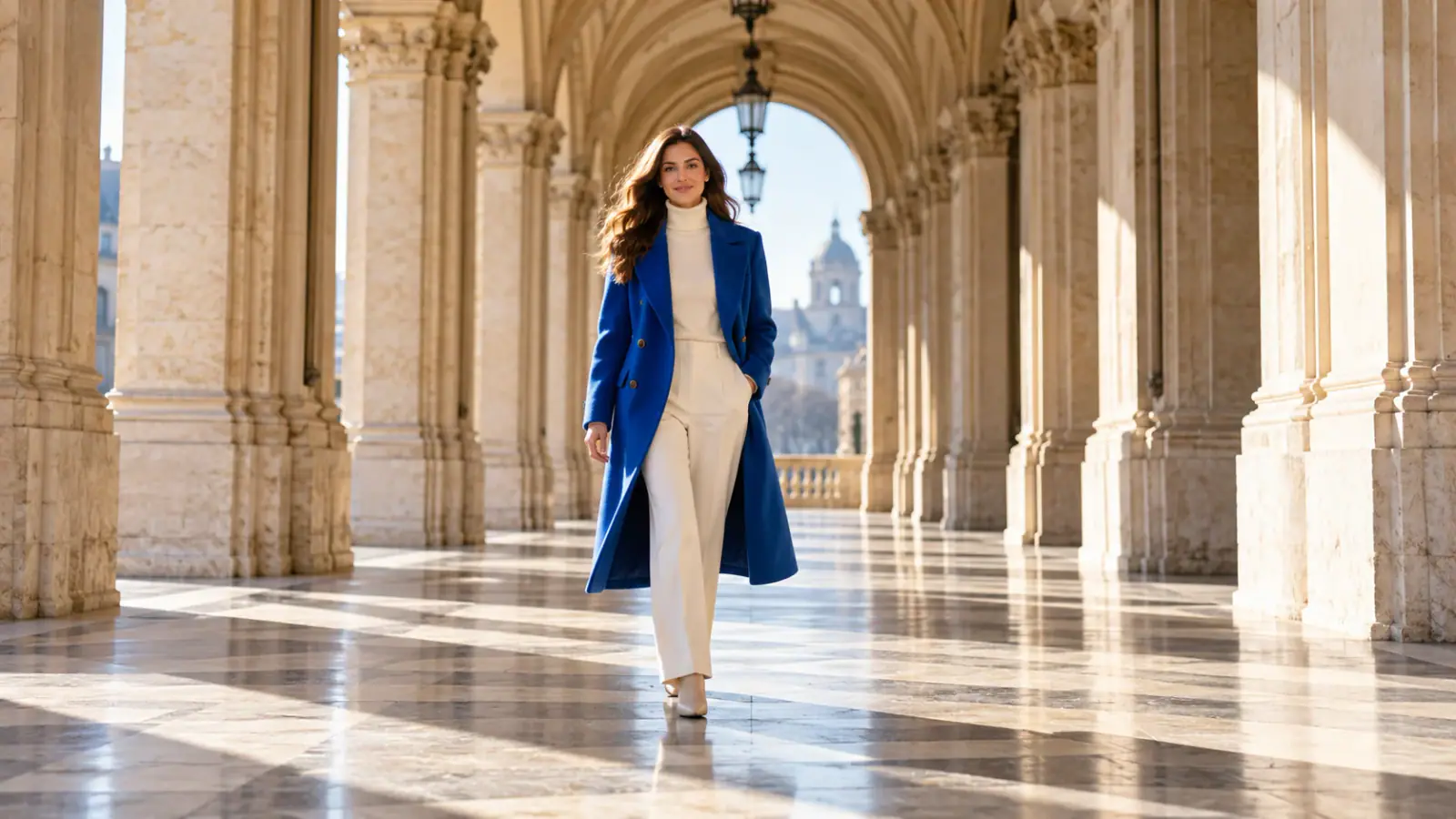
The official LTX 2.3 release includes native portrait video support. A tall frame changes where the eye travels: a standing figure, an overhead sign or a gesture near the face may matter more than a wide background. Plan the subject’s path inside that shape instead of treating portrait as a later crop. For a person walking toward the camera, keep the important gesture away from the edges. If captions will be added in editing, reserve a quiet area in the composition so text can remain readable without covering the action.

Prepare a portrait brief
Illustrative scene: Woman in a cobalt coat walking through a sunlit arched passage.

LTX 2.3 prompts: motion, camera and review

Give each instruction a purpose before comparing different versions of the same idea.

Choose the main point of attention

Name the single detail that must carry the shot: a changing expression, a product turning toward the light or a vehicle entering the frame. This gives you a concrete acceptance criterion. Background activity can support that detail, but it should not compete with it. When reviewing a version, ask whether that central moment is easy to notice at normal playback speed.

Set a camera rule

Decide whether the camera stays still, follows the subject or moves independently. A locked view makes a small gesture easier to study; a tracking view can keep a moving subject prominent. Specify the relationship in plain language, such as maintaining the same distance. Avoid combining a stationary camera with instructions for an orbit or a push-in in the same short brief.

Keep a useful version record

Label saved revisions by what changed, such as slower hand movement or wider framing, rather than only numbering them. Change one instruction between comparisons so you can track which creative decision you are evaluating. Keep the original wording alongside the revision: “walks past the doorway” and “stops at the doorway” imply different endings. A short note about why you preferred one version helps when planning the next shot.

Review the transition points

Inspect the beginning, the main action and the ending separately. Look for a recognizable subject, a readable movement and a final frame that can connect to the next edit. Listen without watching once to notice distracting sounds, then replay picture and sound together. Write down the exact moment that needs revision; a specific observation is more useful than simply calling the whole clip wrong.

LTX 2.3 Reviews from Creators

Creator feedback on planning and developing video projects with LTX 2.3.

  • The Fabric Texture Came Through

    I used LTX 2.3 to animate a still image of a model turning in a knitted sweater. The finer texture and edges stayed visible through much of the movement, which mattered for a clothing concept. I still checked the sleeve details, but the result was useful enough to include in our internal review.
    Hannah PierceApparel Content Designer
  • A Straightforward Vertical Video Test

    I started with a portrait image of a chef at a kitchen counter and described a small camera move. Working with a vertical composition from the beginning suited the social format I had in mind. LTX 2.3 let me focus on the action and framing instead of designing around a landscape crop.
    Ben CarterShort-Form Video Creator
  • A Good Opening for a Recipe Reel

    For a recipe series, I needed a quick opening shot with fresh ingredients and a little movement in the scene. I tried LTX 2.3 using a prepared image and a simple motion description. It gave me a visual starting point that I could combine with my own cooking footage.
    Julia ParkFood Content Producer
  • Changing the Source Image Helped

    My first street portrait didn't give the model much room to show motion, and the clip felt fairly static. I switched to a wider source image and rewrote the prompt around a passing bicycle. The next LTX 2.3 result had a more readable sense of movement and fit my edit better.
    Isaac FloresFreelance Motion Editor
  • Easy to Evaluate in My Timeline

    I was putting together a mood reel and wanted one moving shot to break up several static frames. After generating a clip with LTX 2.3, I could review its pacing in the context of the rest of my edit. That made it easier to decide whether the shot belonged in the sequence.
    Monica LeePost-Production Specialist
  • Helpful for Testing Visual Directions

    Our design team was comparing a dreamy, slow-moving treatment with a more energetic social video style. LTX 2.3 helped me create rough examples from existing images so we could react to actual motion. It shortened the early discussion and gave us a clearer direction for the footage we would eventually produce.
    Trevor BanksCreative Studio Manager

LTX 2.3 questions

Understand the model family and make clearer choices when planning your next shot.

Lightricks describes 2.3 as an update that improves visual detail, prompt adherence, image to video motion and audio quality, with native portrait support. When planning a shot, decide which matters most: the subject’s movement, a sound cue or a tall composition. Use that priority to focus your prompt and compare examples from the 2.3 release.

Lightricks publishes model weights, and ComfyUI documents LTX 2.3 workflows for text and image inputs. Running locally involves a separate model installation and a workflow suited to your hardware. Keep setup instructions with the model version they describe; a tutorial for a different release may use different files or nodes.

Give your next scene a clear direction

Bring together a starting image or scene idea, the main action and the sound that belongs with it. Choose your settings and generate a focused LTX 2.3 Fast clip above before expanding into a longer sequence.