

VidFomo
Loading...

Wan 2.6 Flash Video Generator

First Frame
0/1500
Required Credits
100

Sample Videos

0:00 / 0:00

Wan 2.6 Flash Video Generator

Turn a still image into a moving shot with Wan 2.6 Flash. Start with the image you already have, then describe the action you want to see. This workbench offers short clips with optional audio, making it useful for planning a product reveal, a character moment or a scene to assemble in your next edit. Choose a clear opening composition and keep the motion focused on the subject.

Illustrative scene: Ice-blue glass waves, a silver sphere and a coral ring over a cobalt sea.

Compare Wan 2.6 Flash with Other AI Video Models

Explore the full model lineup, including Wan 2.6 Flash, and open a model page to find an option for your next video.

How to use Wan 2.6 Flash

Build the shot around a visual starting point, a focused prompt and settings that fit the action.

  1. Choose your starting image

    Add one image to establish the starting composition. Choose a picture where the subject is easy to recognize and the surrounding space suits the movement you have in mind. A composed product photo works well for a detail shot; a character image can establish clothing, pose and setting. Check the preview before continuing, and replace the image if the important detail is cropped out. This workbench currently uses image input only; reference videos are not available.

  2. Describe one shot in Prompt

    Write what the subject does, where the action happens and how the camera observes it. For an image of a ceramic cup, try: “Steam rises from the cup while the camera slowly moves closer; the table and window stay in view.” Keep the prompt between 2 and 1,500 characters. Lead with the main action, then add lighting or atmosphere when it changes the scene. One clear movement is easier to evaluate than several competing events in the same short clip.

  3. Set the clip and generate

    Choose “Duration” and “Resolution”, then set “Generate Audio” to On or Off. Image input supports 5, 10 or 15 seconds at 720p or 1080p. Review the displayed credit cost, select “Generate” and sign in when prompted. The result appears in the workbench. Play the complete clip before deciding which version to keep, especially when the action or sound continues near the end.

Three ways to plan a useful shot

Give each clip a job in the finished piece: reveal a detail, introduce a subject or establish an audible setting.

Image to Video for Product Details

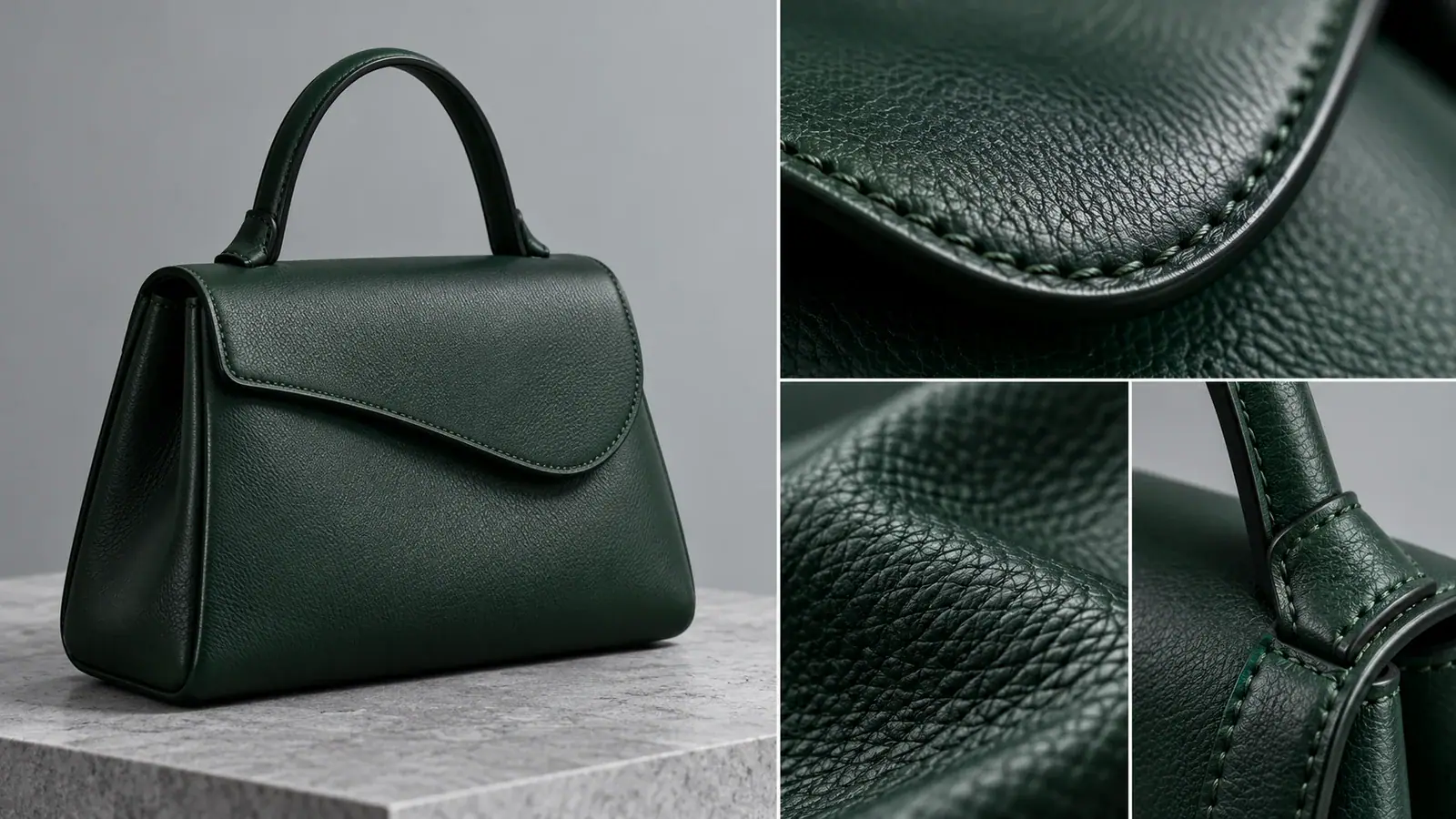
A product photo already supplies the object, lighting and composition. Use the motion brief to draw attention to one feature: a lid opening, fabric moving in a breeze or a highlight travelling across a curved surface. Decide what the viewer should notice before describing camera movement. For a handmade bag, a slow approach toward the stitching gives the shot a different purpose from a wider view of someone picking it up. Leave room around the object for the planned movement. If the final edit needs a logo or exact lettering, prepare that overlay separately so its placement stays under your control.
Animate an image
Illustrative scene: Macro photograph of stitching and textured leather on a dark green handmade bag.

Bring a Character Image into Motion

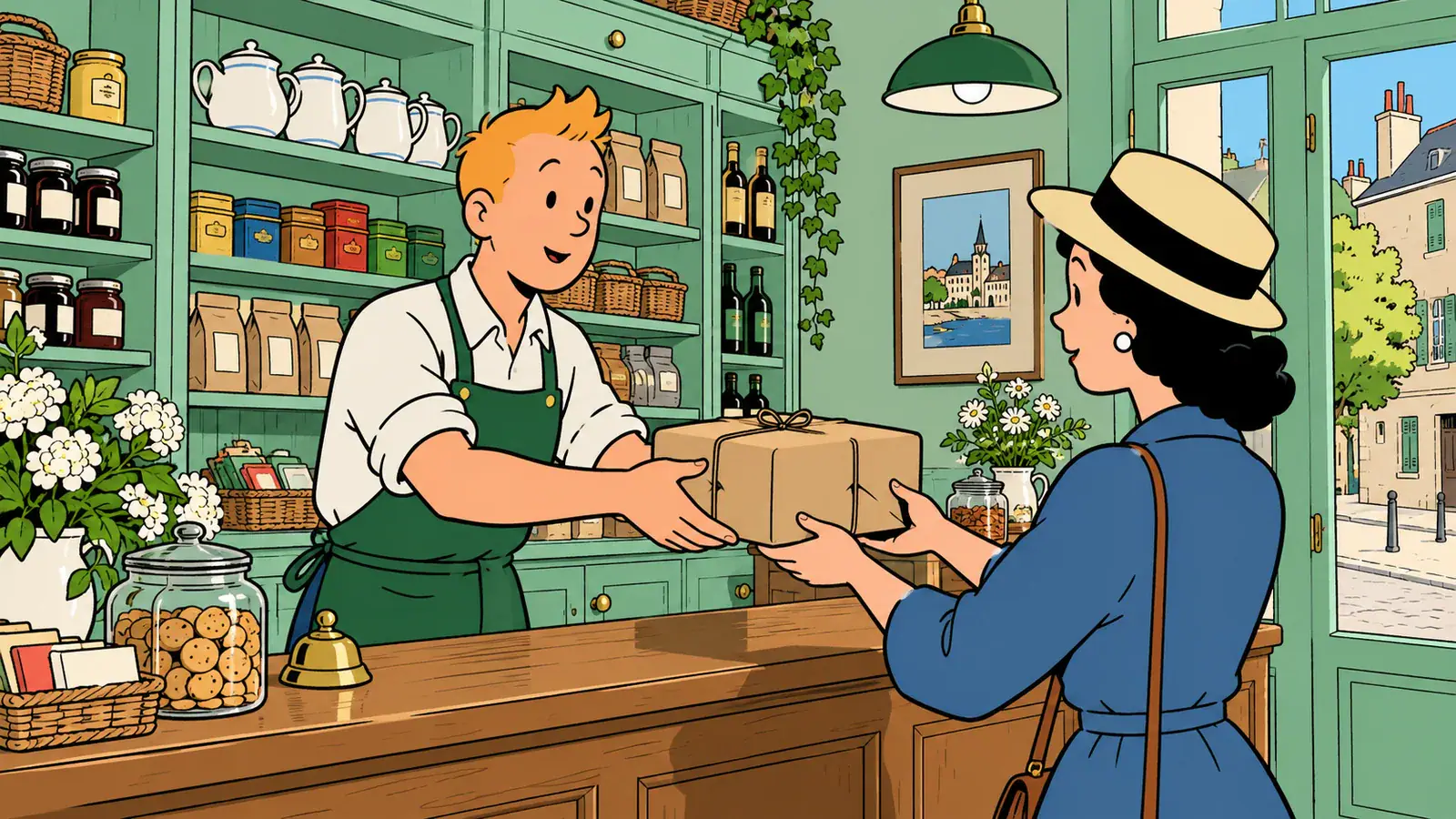
Begin with a character image and describe one event that could naturally follow its opening pose. Choose a picture where the face, clothing and important props are easy to distinguish. For example, show a shopkeeper standing beside a parcel, then request a small turn toward the counter and a deliberate hand movement. Keep the setting in the source image consistent with the action rather than asking for several location changes in one short clip. Describe who moves, what they touch and where the movement ends. Review the face and hands in the result before choosing a take for your edit.

Animate a character
Illustrative scene: Comic-style shopkeeper handing a paper parcel to a customer across a mint-green shop counter.

Create Video with Audio for a Sense of Place

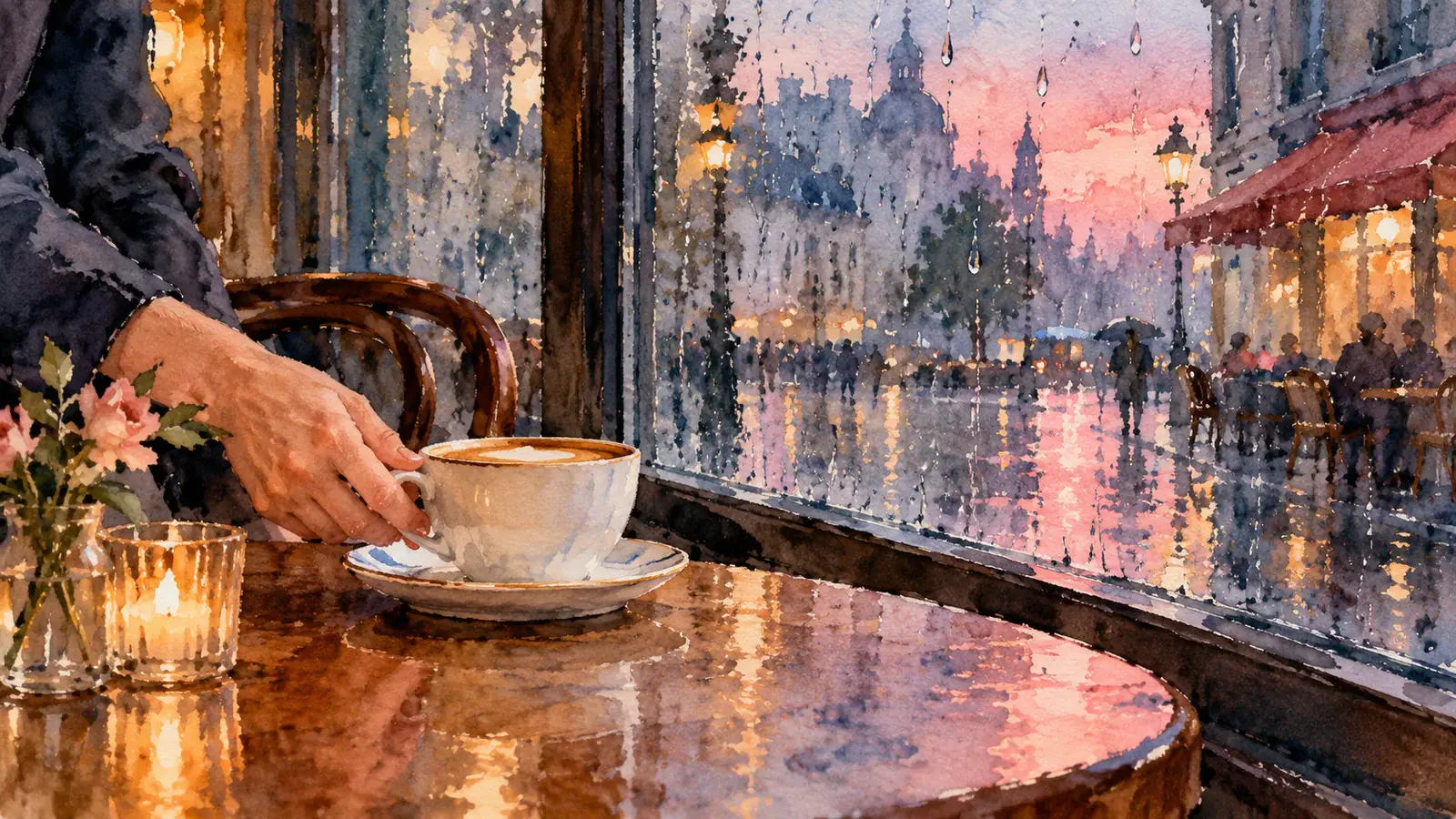
Optional audio gives you a way to request sound alongside the moving image. Describe an audible event that belongs to the scene: soft rain against a window, a cup touching a saucer or footsteps along a corridor. Give the sound a relationship to the action instead of adding a long list of unrelated effects. For a quiet cafe shot, the cup being set down can be the foreground event while distant room noise stays in the background. If the clip will sit beneath an existing voiceover or music track, choose silent output and build that soundtrack in your editor.

Create a scene with audio
Illustrative scene: Watercolor of a hand placing a cup on a saucer beside a rain-streaked cafe window.

Decisions to make before your next version

Use these four checks to prepare the material, control the brief and keep useful results organized.

Choose a readable source

Look at the source at the size where the finished clip will be viewed. Can you distinguish the subject from the background? Is the important detail visible rather than hidden behind a hand or another object? A source that already communicates the intended focal point gives you a clearer basis for judging movement. Crop or revise the source before generating when the composition itself needs attention.

Change one creative decision at a time

Keep your original brief and name the next change before making a variation. You might replace a camera push with a fixed view, or reduce a large gesture to a small turn. Comparing versions is more informative when you know which instruction changed. Record that difference alongside the result, so a promising movement can inform the next shot rather than becoming an isolated lucky clip.

Budget for the versions you need

Duration, resolution and audio affect the credit cost shown in the workbench. Start by deciding what a test needs to answer: whether the motion reads, whether the framing works or whether sound suits the scene. Select settings for that question, then check the updated cost. This gives each generation a purpose and makes it easier to choose between revising the brief and producing another version.

Review the middle as well as the opening

Watch once for the overall action, then replay the moment with the most movement. For a hand placing a cup, inspect the contact with the handle and the instant the cup reaches the table. Listen to the same moment when audio is enabled. Keep a note of the strongest usable interval and download the result you want to take into editing.

Wan 2.6 Flash Reviews from Creators

Creator feedback on planning and developing video projects with Wan 2.6 Flash.

  • The Product Stayed Recognizable

    I tested Wan 2.6 Flash with a still photograph of running shoes on a studio backdrop. The camera movement added energy while the shape and color of the shoes stayed recognizable in the stronger frames. That gave me a useful starting point for a short product teaser without arranging a new shoot.
    Kevin MarshallFootwear Marketing Specialist
  • Simple Image-to-Video Experiment

    I had a travel photograph of a mountain road and wanted a gentle forward camera move. Starting from the image and writing a short motion prompt was an approachable way to try it. Wan 2.6 Flash helped me see whether the idea worked before spending time on a more involved video edit.
    Chloe DavisTravel Content Creator
  • Useful for Travel Social Clips

    For a small tour company's social feed, I wanted to add some motion to a photo of a coastal overlook. Wan 2.6 Flash gave me a draft with moving clouds and a gradual camera shift. I combined that with real destination footage to make the post feel less like a slideshow.
    Evan RiveraTourism Social Media Manager
  • A More Specific Prompt Improved It

    My initial request to animate a cafe exterior included too much camera movement, which distracted from the storefront. I rewrote it around a slower approach and subtle motion in the trees. The next Wan 2.6 Flash result was easier to use because the business remained the clear subject of the scene.
    Paige WilsonLocal Business Video Editor
  • Good for Reviewing a Quick Draft

    I needed to decide whether an animated still of a conference venue would work as an intro shot. Generating a short clip let me review the motion rather than guessing how it might feel. I could then compare it with the footage we already had and make a practical editing decision.
    Scott NguyenEvent Video Producer
  • More Room to Explore Concepts

    I use Wan 2.6 Flash when I want to test several ways a static product photograph might move. Exploring different camera directions gave me options to bring into a client meeting, rather than committing to one idea too early. The drafts still needed selection and editing, but they made the creative process more efficient.
    Amber FosterE-commerce Creative Consultant

Wan 2.6 Flash questions

Practical answers for preparing inputs and moving from a brief to a usable clip.

This page needs a starting image as well as a prompt. If you only have a written idea, first prepare an image that establishes the subject and scene. Choose that image based on what you want viewers to recognize. The prompt then explains the movement rather than serving as the only source.

Reference videos are currently disabled in this workbench. Use one starting image and a motion prompt instead. Choose a clear image that establishes the subject and composition, then set the duration, resolution and optional audio before generating. The available controls show the inputs you can use on this page.

Give your next shot a clear starting point

Bring a starting image, decide on the focal action, and build your Wan 2.6 Flash clip in the workbench above.