


VidFomo
Loading...

Vidu Q4 Video Generator

Mode
First Frame
0/20000
Required Credits
120

Sample Videos

0:00 / 0:00

Vidu Q4 AI Video Generator

Create short videos with Vidu Q4 from a photograph or a set of visual references, with optional scene audio. Animate a product shot for a reveal, bring an illustrated character into a setting, or develop a clip for a social post. Start from the visual material you already have and direct the movement in the workspace above.

Illustrative scene: Traveler with luggage approaching a coastal station in warm sunset light.

Compare Vidu Q4 with Other AI Video Models

Explore the full model lineup, including Vidu Q4, and open a model page to find an option for your next video.

How to use Vidu Q4

Add your images, describe the movement and choose the output settings before submitting.

  1. Choose images for your shot

    Open Frames to Video for a single opening image, or Reference to Video for separate subject and setting images. Upload the material for your shot, then check the selected thumbnails. In reference mode, note the image order so you can identify each subject clearly in your prompt.

  2. Write a focused motion prompt

    Describe the subject’s action, the camera movement and the pace of the shot. For example: “The person turns toward the window as the camera slowly moves closer.” Add a lighting change or background movement when it contributes to that moment. Use a clear sequence of events so the action has a beginning and an ending within the clip.

  3. Check settings, then generate

    Choose the duration, resolution and audio setting. Reference mode also provides an aspect ratio selector. Sign in, check the credit estimate and submit your request. When the video is ready, preview it in the result area.

Three ways to shape your Vidu Q4 video

Choose a workflow for the visual material and sound your shot needs.

Image to Video: animate your opening composition

An existing product photo, landscape or portrait can supply the opening composition. Use this workflow when you have already arranged the subject and want to explore movement around it. For a sneaker reveal, try: “The camera slides slowly along the side of the shoe; soft light moves across the fabric while the shoe stays in place.” Keeping the shoe still makes the camera and lighting the main events in the shot. For a different emphasis, describe the shoe rotating while the camera stays fixed. These two directions let you explore different presentations of the same source image.
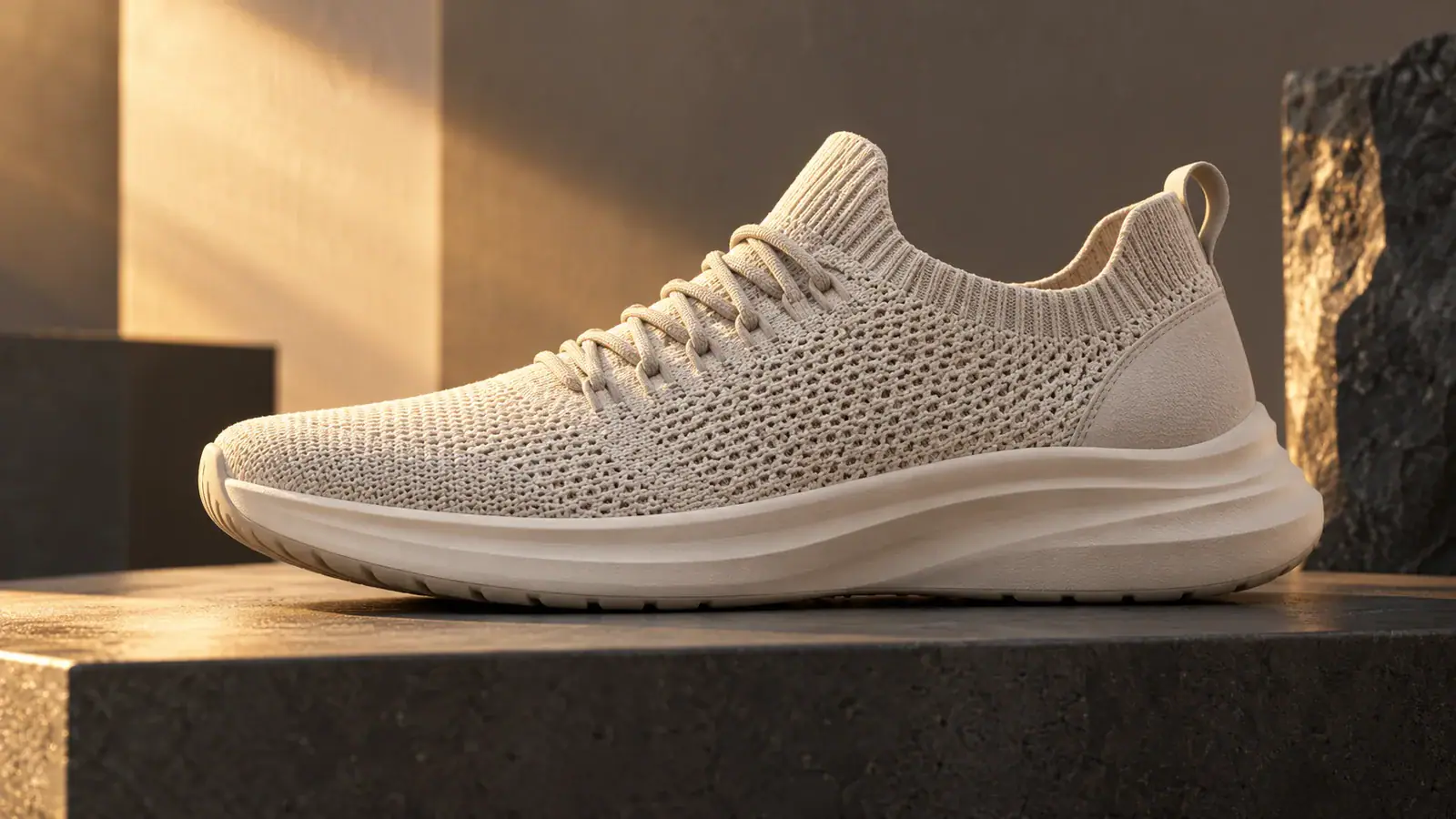

Animate an image
Illustrative scene: Cream knit sneaker on a graphite plinth with warm side lighting.

Reference to Video: connect subjects and settings

Build a scene from images that supply different parts of the idea. Pair a character drawing with an empty train platform, then explain how they belong together: “Use the person in the first image as the traveler and the second image as the station setting. The traveler lifts a suitcase as the camera tracks alongside.” Assigning a role to each image makes the brief easier to follow. This is useful for a storyboard concept where you have a character design and a location, but have not yet composed them into one image.

Build a reference scene
Illustrative scene: Animated traveler in an ochre coat with a teal suitcase at a coastal train station.

Audio: plan the sound as part of the shot

Enable audio when sound is part of the event you want to show. For the station scene, you could add: “Suitcase wheels click across the paving, with distant station ambience.” Describe the sound alongside its visible source so the brief connects what happens with what is heard. If your project already has music or a narrator, disable audio and create a silent clip for that soundtrack. Choose this before submitting so the request matches the way you plan to finish the video.

Set up video and audio
Illustrative scene: Close-up of teal suitcase wheels on station paving with a train in the background.

Vidu Q4 settings, credits and downloads

Check file compatibility, output options and credit requirements here.

Supported images and input limits

Use JPG, PNG or WebP images, each no larger than 10 MB. A task accepts one opening frame or 1–15 reference images; these modes cannot be combined. End frames are not supported. If a file is rejected during upload, check its format and size against these limits before trying again.

Duration and resolution

Choose a whole-second duration from 3 to 16 seconds and output at 540p, 720p, 1080p, 2K or 4K. Let the action guide the length: a brief turn and a walk across a scene need different amounts of screen time. Select the resolution for your intended viewing size.

Credits and paid access

Sign in with enough credits to cover the request. The displayed estimate depends on duration, resolution and your plan discount, so check it after changing settings. The 1080p and 4K options require active paid access.

Download and finish your video

Download completed clips from the result area or your assets. Bring the file into your editing software to set the final in and out points, add captions or place it within a longer sequence. For a product preview, this is also where you can add your title card and call to action around the generated shot.

Vidu Q4 Reviews from Creators

Creator feedback on planning and developing video projects with Vidu Q4.

  • The fabric became the focus

    I started with a photo of a woven bag and asked Vidu Q4 for a gentle camera slide. In the take I chose, the movement drew attention to the texture without overwhelming the composition. It was a useful visual study for deciding which detail to emphasize in a product reveal.
    Hannah EllisAccessories Designer
  • Reference order kept my brief organized

    For a character concept, I added a drawing and a separate location image in reference mode. Checking the thumbnails helped me describe which image supplied the character and which supplied the setting. I appreciated being able to organize the visual material before writing the action for the shot.
    Miles ThompsonCharacter Illustrator
  • A moving introduction for a collection

    My small jewelry collection needed an introductory shot for a lookbook video. I used a product photo as the starting image, then placed the selected clip between title cards in my editor. That gave the collection an opening moment while leaving the exact names and descriptions under my control.
    Isabel GrantJewelry Studio Owner
  • A simpler move gave me a useful revision

    An orbit was distracting from the side detail of my model train, so I replaced it with a straight sideways camera instruction. Keeping the source image and settings fixed made that revision easier to assess. Vidu Q4 gave me a way to explore the presentation before committing to the edit.
    Noah ReevesHobby Video Creator
  • Easy to carry a take into the edit

    During a fictional exhibition preview project, I reviewed the completed clip in the result area and downloaded the version I wanted. I then trimmed it and added the exhibition title in my usual editor. The website covered the generation handoff I needed without changing how I finish a video.
    Leah AndersonGallery Communications Designer
  • A clearer conversation before animation

    I paired a character sketch with a station reference to explore a departure scene in Vidu Q4. A moving concept helped us talk about the suitcase gesture and camera position together. For our early planning session, that was more useful than exchanging separate notes about the character and the location.
    Gabriel TorresAnimation Producer

Vidu Q4 questions

Find answers about inputs, framing, sound and refining a shot.

An image and a prompt are both required. If you have a written concept, first choose a photo or illustration to use as its visual starting point. Then describe the movement you want to add.

Reference images guide the subjects and setting of a generated scene; they are not an ordered list of frames to play back. Explain how the images relate within the shot. For a story with several distinct scenes, plan separate clips and arrange their order in your editor.

Start with one image and a clear idea

Add your images, describe the shot and choose your output settings to start creating with Vidu Q4.