
VidFomo
Loading...

PixVerse V6 Video Generator

Mode
0/5000
Required Credits
20

Sample Videos

0:00 / 0:00

PixVerse V6 AI Video Generator

Turn a written scene or a starting image into a short video with PixVerse V6. Build a product reveal, an atmospheric establishing shot, or a character moment, then choose the length and sound treatment that suit the edit. This workspace offers clips from 1 to 15 seconds, resolution choices up to 1080p, and optional generated audio. Start with a single visual idea so your first take answers a useful creative question.

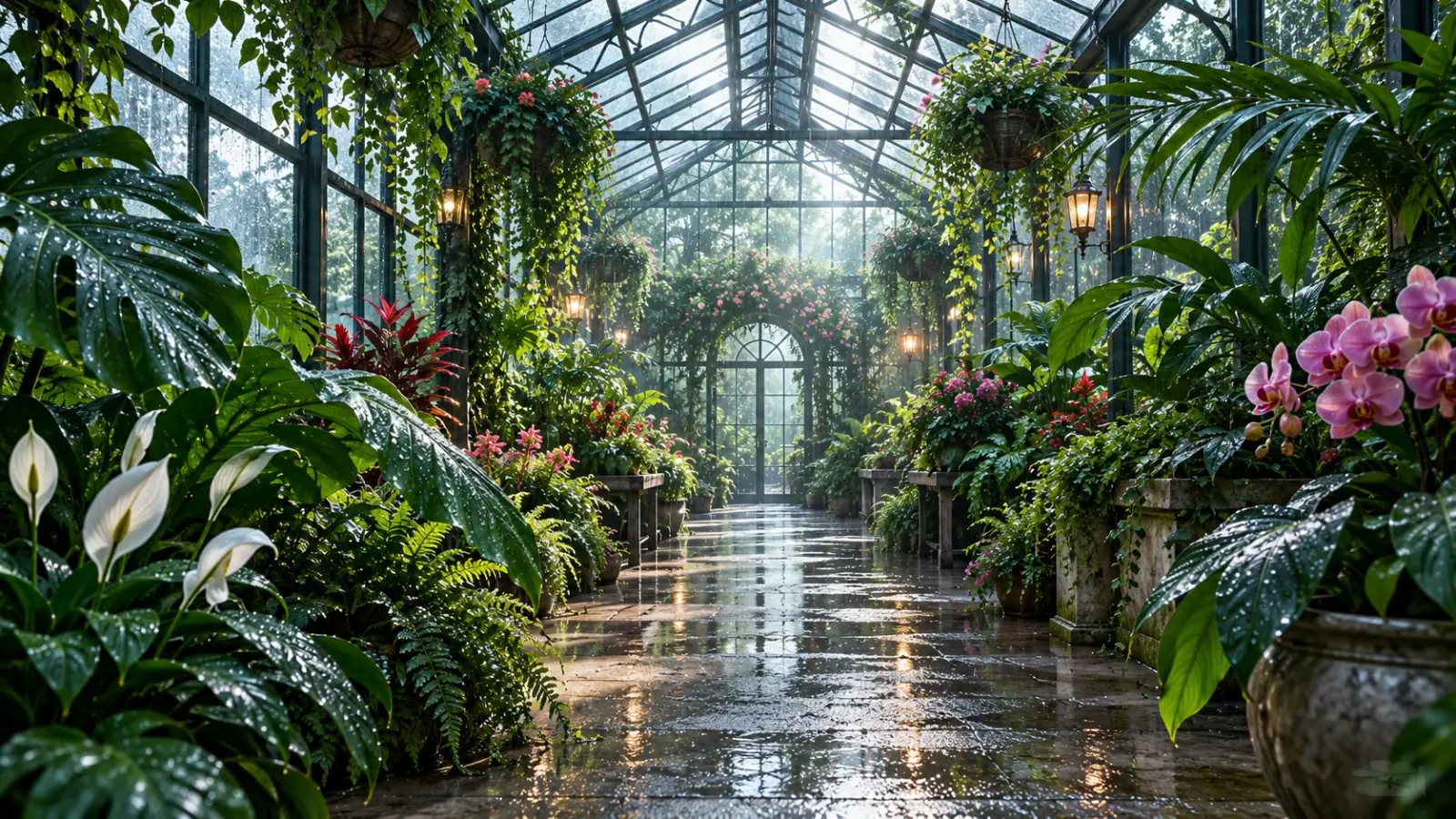
Illustrative scene: Quiet greenhouse aisle beneath a glass roof after rain.

Compare PixVerse V6 with Other AI Video Models

Explore the full model lineup, including PixVerse V6, and open a model page to find an option for your next video.

Make your first PixVerse V6 clip

Move from a brief to a usable take in three steps. Keep the original brief nearby so you can compare the result against the shot you actually need.

  1. Choose Text to Video or Image to Video

    Use the Prompt field to describe a new scene, or add a Start image when you already have the composition. For text, name the subject, location, lighting, and main action. For an image, concentrate on what changes after the opening frame. Sign in when prompted; your selected image uploads when you start generating. A clean, uncropped subject gives you a clearer starting point than a collage containing several competing views.

  2. Set length, quality, and sound

    Choose Duration and Resolution for the clip, and use Aspect ratio when generating from text. If sound belongs in the scene, turn Generate Audio on and describe it in the prompt. Review the displayed credit cost after making these choices. For an initial motion study, pick the shortest duration that still contains the action; extend your idea only when the extra seconds have a specific job.

  3. Generate, compare, and download

    Submit the shot and watch its progress in the workspace. When the result appears, play it through once for the overall rhythm and again for the detail that matters most to your brief. Download the take you want to use. For another attempt, change one instruction, such as the camera direction or the timing of the main gesture, so you can understand what improved.

PixVerse V6 prompt ideas for three short scenes

A useful prompt tells the model what the viewer should notice and when. These examples are writing exercises you can adapt to your own footage plan.

Reveal a product through motion

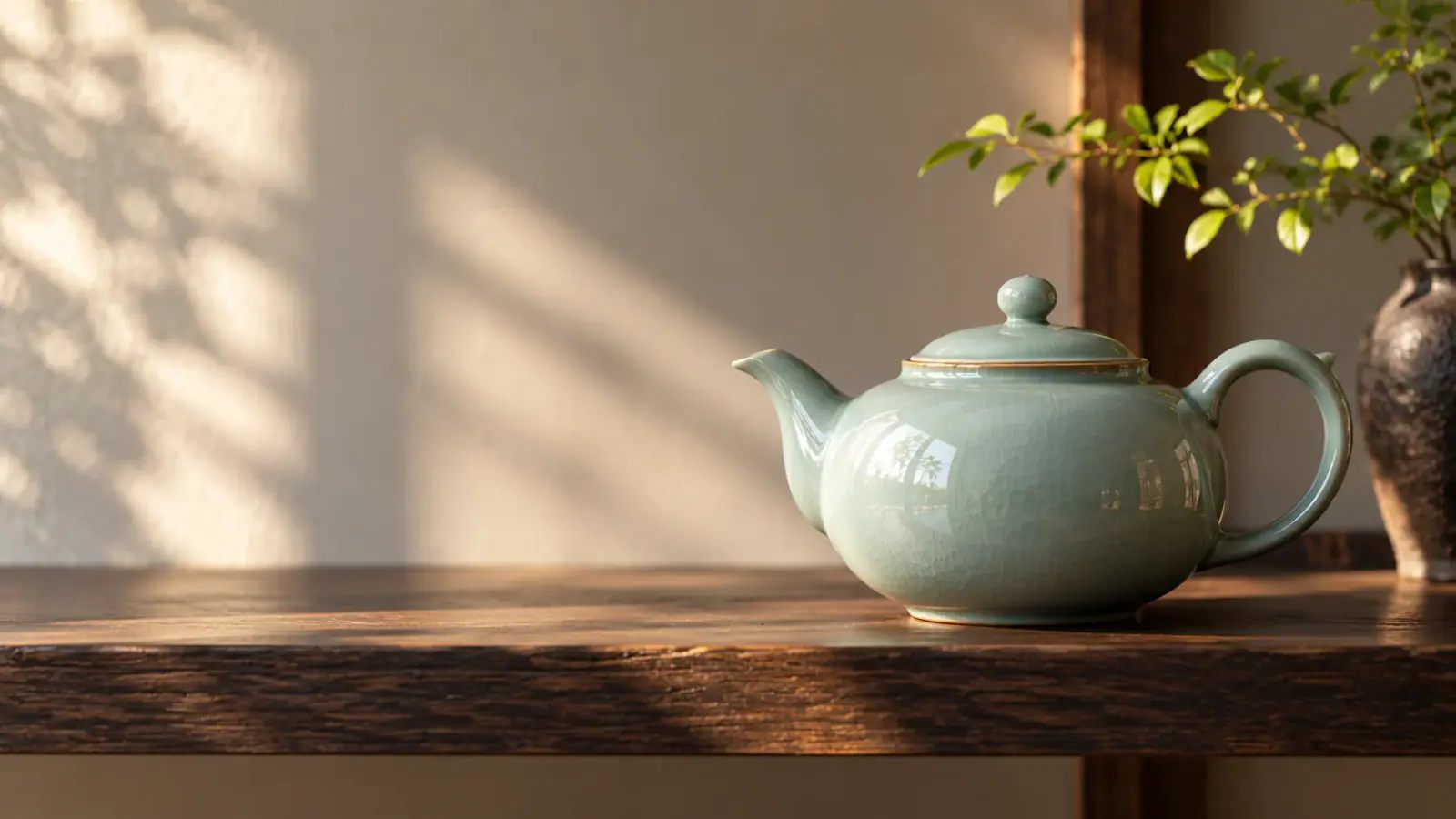
For a product teaser, begin with the image that best communicates the object's shape. Place the important surface in view instead of asking a single photograph to explain every side. Try a prompt such as: “The ceramic teapot stays on the shelf. Morning light moves gently across its glaze as the camera makes a slow push toward the handle.” The movement supports a specific feature instead of turning the whole scene into an elaborate transformation. Leave space in the composition for a title you will add during editing. Inspect the handle, rim, and silhouette in the generated clip before choosing the take for your layout.
Animate a product image
Illustrative scene: Morning light across a celadon teapot on an oak shelf.

Give an environment a clear rhythm

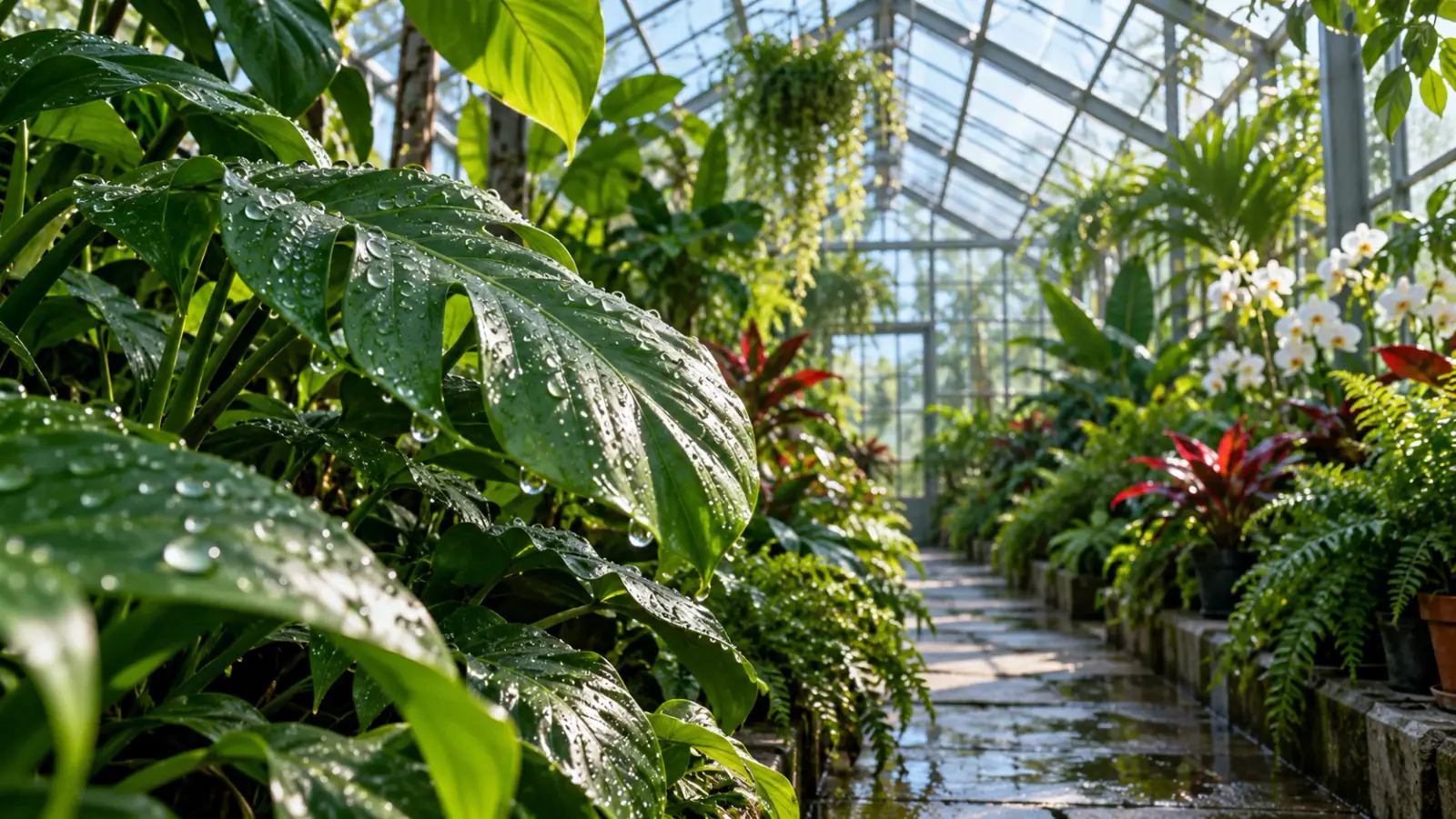
An establishing shot can communicate a place through a small set of coordinated movements. Start from text when you want to invent the location: “A quiet greenhouse after rain. Water drops fall from the leaves while the camera glides slowly down the central aisle. Cool daylight fills the glass roof.” Decide which motion leads the eye and which motion belongs in the background. A steady camera can suit a scene whose subject already moves, while a gentle track can reveal a still environment. Treat those as alternative directions to compare, rather than stacking every camera command into one prompt.

Describe an establishing shot
Illustrative scene: Rain droplets on greenhouse leaves above a central aisle.

Connect a visible action to audio

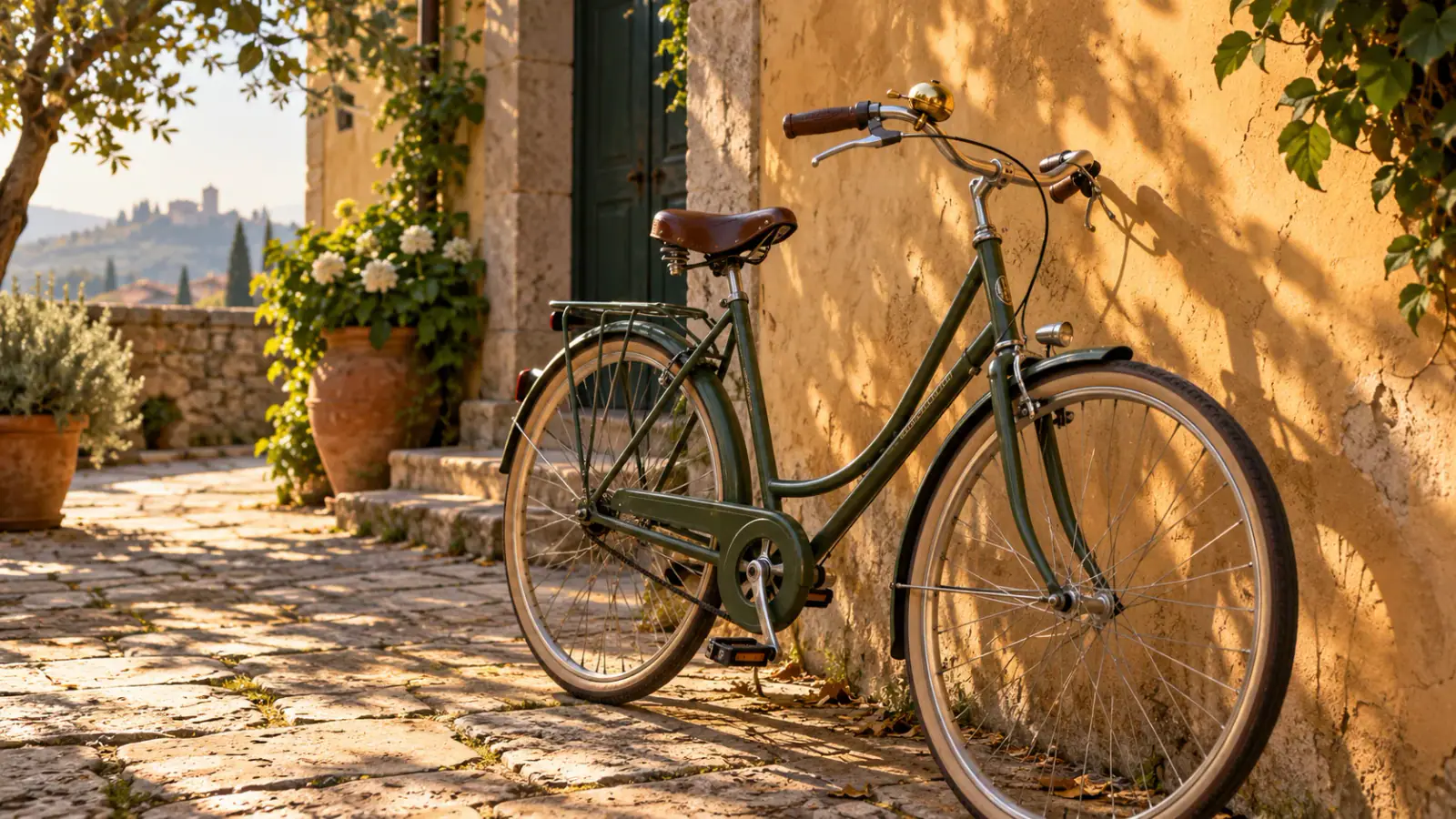
PixVerse V6 supports optional audio generation alongside the picture. Use it when a sound gives the viewer information: a latch clicks as a gate opens, footsteps approach across a wooden floor, or wind carries through a courtyard. State the sound source and the moment it belongs to, then describe the background ambience separately. For example: “A bicycle rolls to a stop beside the wall; one bell ring follows, with distant street ambience.” If you plan to use an existing music track, generate the visual take with audio off and arrange that soundtrack in your editor. This keeps the creative choice tied to the purpose of the scene.

Plan a scene with audio
Illustrative scene: Bicycle with a brass bell beside a sunlit courtyard wall.

PixVerse V6 duration, resolution, and format

These four decisions help you match a generated clip to its destination before spending time assembling a sequence.

Fit the action into 1–15 seconds

Duration accepts whole seconds from 1 through 15. A brief accent may need only a few seconds; a reveal needs room for the viewer to register the subject. Count the beats aloud before choosing a length. Leave a short settling moment at the end if you need a clean place to cut into the next shot.

Match resolution to your review stage

Choose 360p, 540p, 720p, or 1080p. Lower resolutions can serve a composition or pacing study; choose a higher setting when fine visual detail matters to the deliverable. Resolution changes the output dimensions, while the prompt still determines the requested scene. Judge motion and framing before spending further attempts on a direction you already want to change.

Compose for the viewing format

Text generation offers landscape, portrait, square, and wider framing choices. Use 9:16 for a vertical layout or 16:9 for a horizontal sequence, then keep the important action inside that composition. With a Start image, prepare the image in the framing you want; this workspace does not show a separate aspect ratio control for that input.

Budget a deliberate comparison

The credit estimate responds to duration, resolution, and the audio choice. Check it before each submission. If you are comparing two concepts, keep those settings the same so the comparison concerns the creative direction. Save the prompt and settings alongside the downloaded clip to make your preferred approach easier to revisit.

PixVerse V6 Reviews from Creators

Creator feedback on planning and developing video projects with PixVerse V6.

  • A small gesture with room to breathe

    For an imagined library scene, I asked PixVerse V6 for a character to look up from a book. I liked the restrained movement in the take I selected, especially the pause before the glance. It gave my storyboard a sense of timing that the still drawing did not communicate.
    Sophie RamirezStoryboard Artist
  • The settings matched my brief

    Starting from a photo of a ceramic bowl kept my first experiment focused. I described a slow approach, chose the clip length, and left audio off because I already had music. The arrangement of those choices made it comfortable to prepare a simple shot without overcomplicating the prompt.
    Ethan CollinsCeramic Artist
  • A scene for a reading announcement

    I wanted a quiet garden moment for a poetry reading announcement. A short PixVerse V6 clip became the background, and I added the event details separately in my editor. Keeping the scene simple left space for the text and helped the post feel related to the evening's atmosphere.
    Priya MorganLiterary Events Coordinator
  • A clearer camera instruction helped

    My first greenhouse prompt mixed a camera push with a sideways move, which made the idea hard to judge. I reduced it to one direction and kept the same duration for another attempt. That gave me a more useful comparison and helped me write a cleaner brief for the next shot.
    Julian ParkVideo Producer
  • A convenient handoff to my editor

    For a fictional cafe campaign, I watched the completed takes in the workspace before choosing one to download. I could check the opening and closing moments before bringing the file into my editor. Having that preview step beside the result made selecting a shot feel like part of the same task.
    Grace SullivanFreelance Social Video Editor
  • A useful check before production

    I used PixVerse V6 to explore an opening scene for an educational video before building the rest of the presentation. A moving draft helped me decide whether the environment deserved its own shot. That early decision made the shot list more focused and gave the team a concrete starting point.
    Adrian MillerLearning Content Producer

PixVerse V6 questions

Practical answers for preparing a shot and fitting the result into a larger project.

This page accepts one Start image. It does not offer an End frame input. If your idea depends on a precise final composition, design the shot around that required image or plan the final cut separately. A written ending can describe your intention, but it is not a second image input.

Give the character one readable action with a beginning and an end: looking up from a book, turning toward a doorway, or placing a cup on a table. Specify the camera's position so the gesture remains visible. For a subtle expression, use a closer composition instead of adding more full-body movement.

Give your next shot a clear direction

Bring one scene idea or one starting image. Decide what moves, what the viewer should notice, and whether sound belongs in the moment, then create your PixVerse V6 take.