
VidFomo
Loading...

LTX 2.5 Fast Video Generator

Mode
0/5000
Required Credits
60

Sample Videos

0:00 / 0:00

LTX 2.5 Fast AI Video Generator

Turn a scene description or a still image into a video with LTX 2.5 Fast. Create a product reveal, bring an illustration to life, or explore a scene with synchronized audio. Add an ending image when you want to guide the final frame. Enter your idea in the workbench above, choose the format, and generate your first clip without installing software.

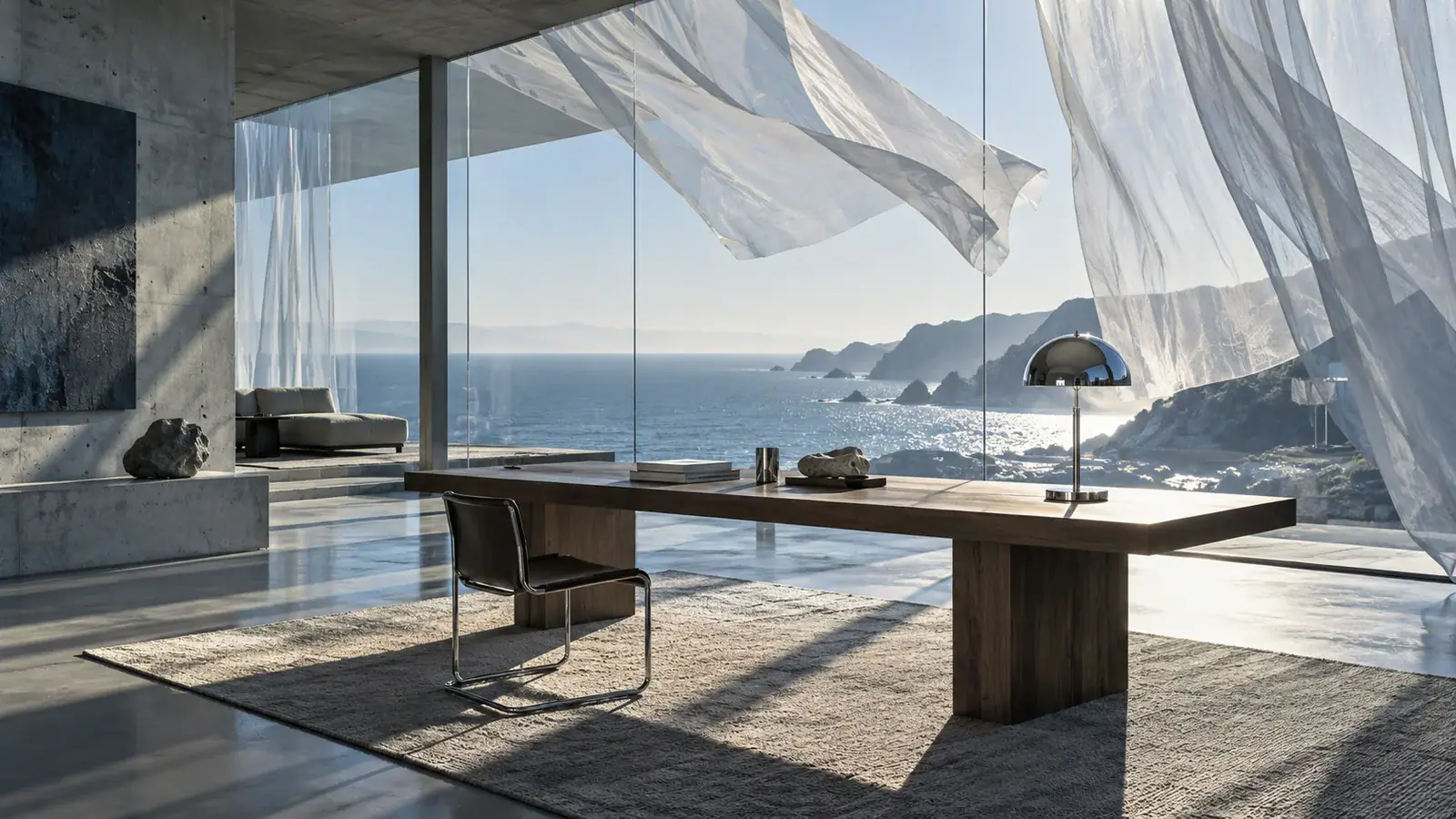
Illustrative scene: Blue-gray coastal glass studio with a flowing translucent curtain, silver lamp and wooden desk.

Explore video models for your next shot

Compare video models by the images they accept, the controls they offer, and the clips you want to create. Open a model page to start your next idea.

Create your first LTX 2.5 Fast clip

Plan one shot before you generate. A clear starting point and a single main action make the first result easier to evaluate.

  1. Choose Text to Video or Image to Video

    Use Text to Video when the scene exists only in your description. Choose Image to Video when you already have an opening composition, then upload its start image. You can also add an end image to guide the final frame. Keep both images close in subject, lighting, and framing when you want a continuous transition rather than a dramatic transformation.

  2. Describe the action and set the shot

    Write what happens, where the camera moves, and what should be heard in one connected paragraph. For a first attempt, try the default six seconds at 1080p and 25 FPS. Choose your aspect ratio before generation, then check the available duration after changing resolution or FPS. Keep Generate Audio enabled if sound belongs in the scene.

  3. Generate, review, and download

    Sign in and review the credit estimate before selecting Generate video. When the result appears, watch the whole clip once for the action and again for the details that matter to your brief. Download the result you want to keep. For the next attempt, revise the part that needs work while keeping the rest of the prompt stable.

Create videos from text, images, or start and end frames

Use the input that settles the hardest creative decision first: the scene itself, its opening appearance, or the composition it should reach.

Text to Video: turn a scene into motion

Text to Video gives you room to explore a scene before producing source artwork. Try a brief such as: A ceramic cup sits beside a rain-streaked window; steam rises as the camera slowly pushes closer, with quiet rain outside. This specifies a subject, a visible action, a camera move, and an acoustic setting. Add relevant material or lighting details instead of a string of quality adjectives. For an imagined product spot, describe the reveal itself rather than asking for a complete campaign in one clip.

Create from text
Illustrative scene: Steam rising from a blue ceramic cup beside a rain-streaked window with distant red lights.

Image to Video: animate your opening frame

An opening image is useful when the composition already matters: a product on a table, a character illustration, or an interior you have designed. Describe the change you want to see, such as a curtain lifting in a breeze while the camera stays still. Separate object movement from camera movement so the instructions remain readable. If a small detail is essential, make it visible in the source image rather than expecting a prompt to reveal something hidden outside the frame.

Animate a starting image
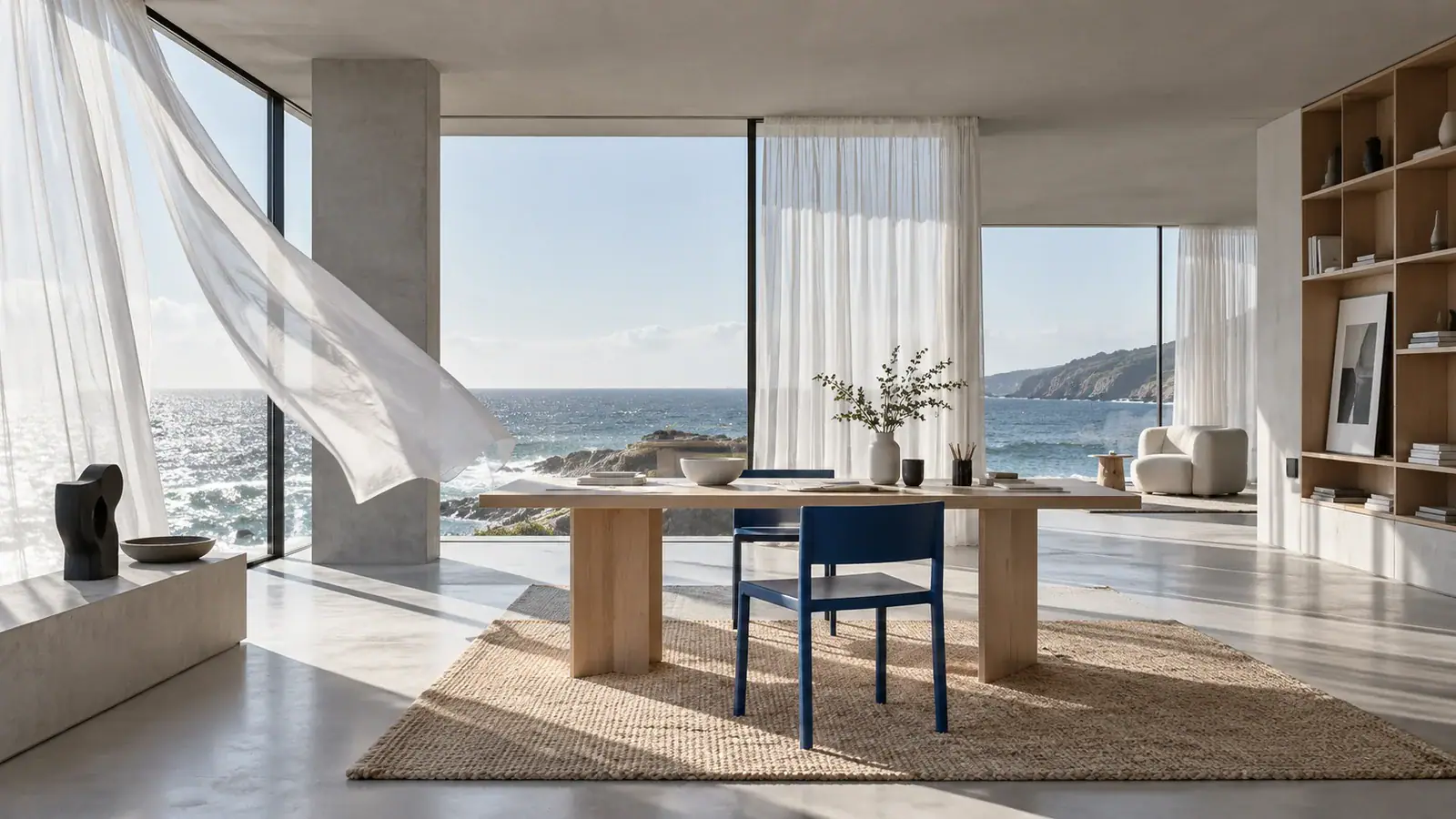
Illustrative scene: White curtain lifting in a coastal studio beside a birch desk and blue chair.

Start and end frames: guide the transition

Start and end frames help when you know both ends of a visual move. A wide room image and a closer view of the same desk can guide a push-in; describe the camera path and which objects stay in place between them. Allow enough time for the distance you are asking the shot to cover. If the two images show unrelated spaces, rethink the transition as a transformation or prepare a more closely matched pair. The prompt supplies motion direction between the frames.

Create with start and end frames
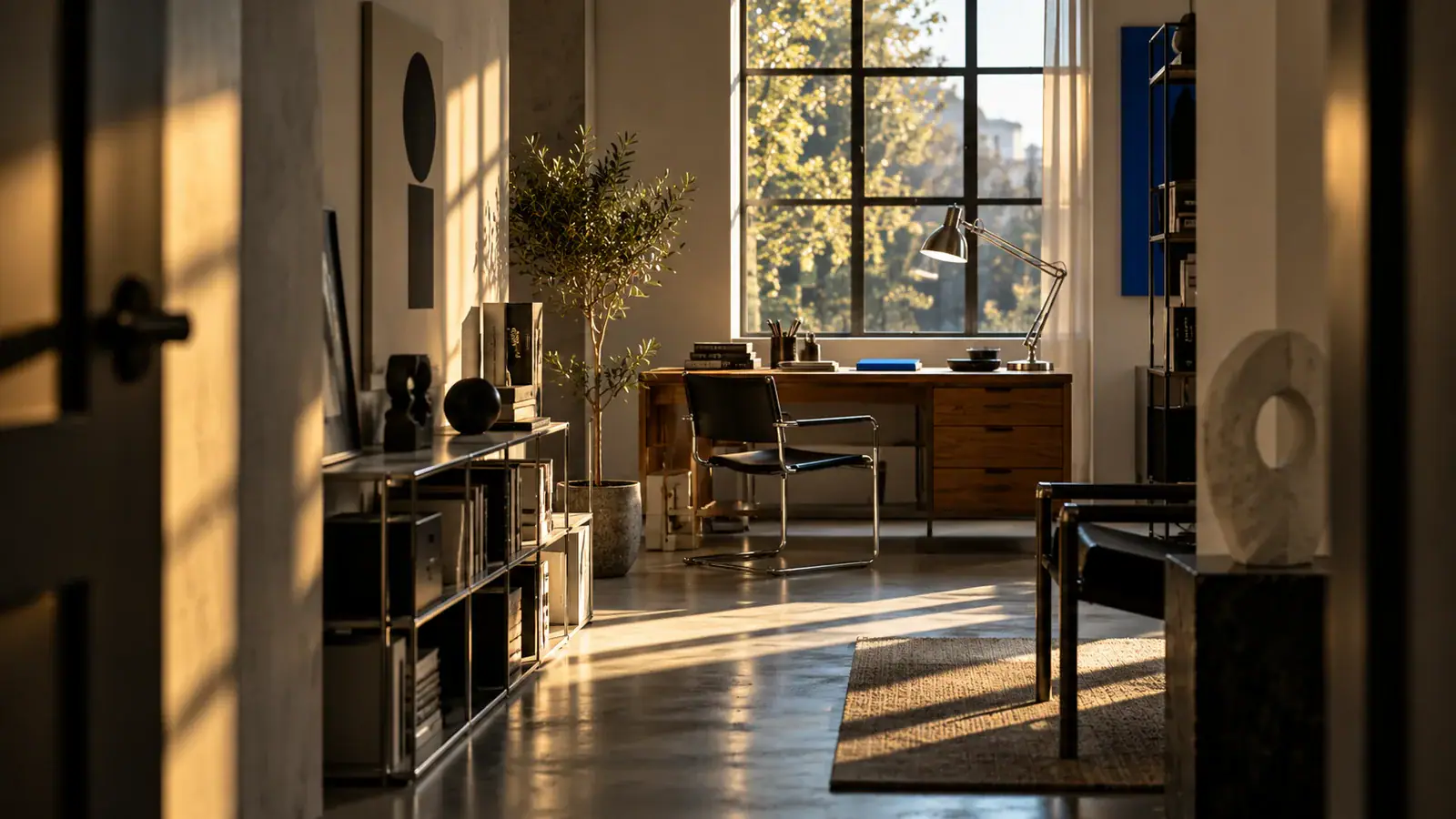
Illustrative scene: View through a studio doorway toward a wooden desk with a silver lamp and blue notebook.

Choose settings around the shot you need

Match the output to its destination and budget. These four decisions cover the main trade-offs before you submit.

Landscape or portrait from the start

Choose 16:9 for a landscape composition or 9:16 for a portrait clip. Compose uploaded frames for the chosen shape, with the main subject away from edges that a later crop could remove. A vertical close-up and a wide establishing view need different staging even when they share the same prompt idea.

Duration follows resolution and FPS

Available lengths are 2, 3, 4, 5, 6, 8, 10, 12, 14, 16, 18, and 20 seconds. Choose 720p or 1080p at 24 or 25 FPS for clips longer than ten seconds. At 2K or 4K, or at 48 or 50 FPS, the maximum is ten seconds. Start with the action length, then choose a compatible output setting.

Use the estimate to budget iterations

Credits depend on duration and resolution, with your applicable plan pricing reflected in the workbench estimate. A shorter 720p test can help you decide whether to develop an idea before spending more on resolution. Keep 4K for shots that need it; that setting requires an active paid entitlement. Check the estimate again whenever you change the output settings.

Generate video with synchronized audio

Generate Audio is enabled by default. Describe a sound source and its relationship to the action, such as footsteps approaching before a door opens. Turn it off when you plan to add your own soundtrack in an editor. For spoken lines, keep the wording short enough for the chosen clip and listen to the result before using it.

LTX 2.5 Fast Reviews from Creators

How creators use LTX 2.5 Fast to animate images, develop product teasers, and explore creative ideas.

  • Natural Motion Without Losing the Subject

    I used LTX 2.5 Fast to animate a still image of a cyclist riding through the city. The subtle body movements and changing light made the shot feel more natural than I expected. The cyclist stayed recognizable through most of the clip, which helped me use it in a short video sequence.
    Ethan ParkerVideo Editor
  • Easy to Turn an Idea Into a Clip

    For a coffee shop concept, I started with a reference image, wrote a short description of the camera movement, and selected a vertical format. The process felt straightforward, even while I was experimenting with different ideas. I liked being able to focus on describing the scene rather than figuring out a complicated setup.
    Rachel MorganContent Creator
  • Helpful for Quick Product Teasers

    I needed a short visual for a candle launch and wanted to show warm light moving across the packaging. LTX 2.5 Fast gave me a useful starting point without organizing a separate video shoot. I still made a few edits afterward, but the generated footage helped me put together a product teaser for social media.
    Natalie BrooksE-commerce Marketing Specialist
  • Small Prompt Changes Made a Difference

    My first attempt at a rainy street scene had more camera movement than I wanted. I revised the prompt to describe a slower push-in and softer reflections on the pavement. The next result was closer to the mood I had in mind. Being able to try variations like this makes LTX 2.5 Fast useful during early creative exploration.
    Marcus BennettMotion Designer
  • Fits Into My Editing Workflow

    While preparing a short social ad, I used a reference image and prompt to generate a portrait video. Having the resulting MP4 made it easy to bring the clip into my usual editing workflow. I could review the movement alongside my existing footage and decide whether the scene was worth developing further.
    Olivia CarterFreelance Video Producer
  • A Practical Way to Test Creative Ideas

    Before committing to a new campaign concept, I usually need to show my team what a scene might look like in motion. With LTX 2.5 Fast, I can explore a few visual directions without building a full production. It doesn't replace the final creative process, but it helps us discuss ideas and make decisions earlier.
    Daniel KimCreative Director

LTX 2.5 Fast questions before you create

Practical answers for choosing a workflow and improving your next attempt.

This page uses LTX 2.5 Fast. To try LTX 2.3, open its separate model page. Compare the two using the same scene description, then look at how each handles the main action, your chosen composition, and the sound. Keep the result that best fits the video you are making.

Fast identifies the speed-focused model variant, rather than a fixed delivery time. Processing depends on the requested output and current service conditions. Follow the task status in the workbench. If you leave the page while it is processing, check your creations before starting another attempt so you can find the existing task and its eventual result.

Create your first LTX 2.5 Fast video

Bring a scene brief or an opening image to the workbench. Make the first version, then use what you see and hear to decide the next change.