

VidFomo
Loading...

Seedance 2.5 Video Generator

Mode
0/10000
Required Credits
560

Sample Videos

0:00 / 0:00

Seedance 2.5 AI Video Generator

Turn a short brief or a set of images into a video with Seedance 2.5, ByteDance’s audio and video generation model. Use VidFomo to develop a product reveal, a character scene, or a miniature story with a beginning and an ending. This workspace offers text and image guidance, clips from 4 to 30 seconds, and optional generated audio. Begin with the idea you want viewers to remember, then give that idea a visible sequence of actions.

Illustrative scene: Pastry box on an artisan bakery counter in morning light.

Compare Seedance 2.5 with Other AI Video Models

Explore the full model lineup, including Seedance 2.5, and open a model page to find an option for your next video.

Seedance 2.5: Text to Video and Image to Video

Set up one scene, give it direction, and review the result before expanding the idea.

  1. Choose the visual starting point

    Choose Text to Video and use the Prompt field for a newly imagined scene. Choose Image to Video for an opening image, or Reference to Video when several images should guide subjects and setting. Sign in when prompted to upload. Wait until the images finish uploading, then remove duplicate or unrelated material so the workspace contains only what this shot needs.

  2. Describe the action and choose settings

    Write who appears, what changes, and where the camera ends. In the settings, choose Duration and Resolution; choose Aspect ratio for a text-led scene. Set Generate Audio to match your plan for sound. Before generating, read the required credits beside the submission control. Keep the first version focused on a single creative question, such as whether the reveal happens at the right moment.

  3. Generate, compare, and save

    Select Generate and follow the task in the result area. Play the finished clip from beginning to end, then replay the moment that matters most to your brief. Compare that moment with the prompt and source images. Use the result download control to save a useful take; for another attempt, change the instruction responsible for the mismatch instead of rewriting every part of the scene.

Seedance 2.5 prompts for stories and product videos

Build the clip around a reveal, a continuous action, or a change in the scene.

Plan a story that reaches a payoff

A longer clip benefits from a simple sequence of events. For a twenty-second bakery scene, introduce a closed pastry box, show a hand opening it, and finish on the arrangement inside. Write those beats in order and reserve time for the final view. Describe whether the camera stays in one continuous shot or cuts between views. The useful distinction is what changes on screen: adding more adjectives to the same moment does not create a story. Keep the location and main subject stable while the action progresses.


Plan a short story
Illustrative scene: Hands opening a pastry box on a bakery counter.

Animate a product without crowding the frame

A product photograph gives you a concrete starting composition. Choose one where the important surface is visible, then describe a restrained movement: a slow camera slide beside a ceramic cup while steam rises, for example. Keep props away from the detail you want viewers to notice. If the video is intended to sit behind a headline, leave a quiet area in the composition and add the final typography in your editing app. This separates the moving visual from exact campaign wording and makes it easier to reuse the clip across several layouts.

Animate a product image
Illustrative scene: Steam rising from an ivory ceramic cup on a stone plinth.

Guide Reference to Video with clear image roles

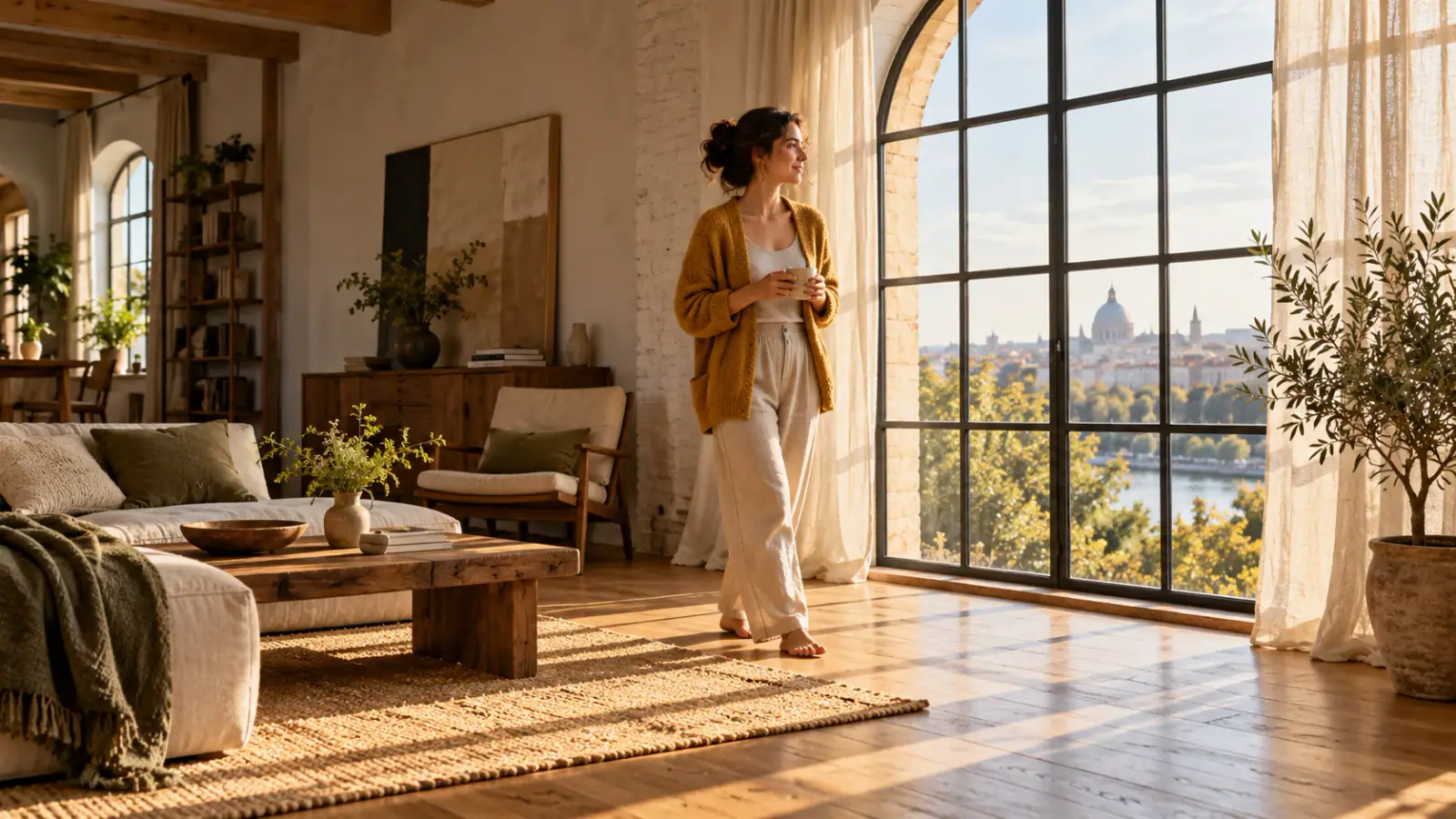
Several reference images are useful when the subject, location, and visual style come from different sources. Start with a small set you can explain clearly. Use the image references offered by the Prompt field to connect each instruction to the right upload: one image supplies the character, another the room. Describe the relationship between them, such as the character entering from the left and stopping beside the window. Avoid including alternate costumes or conflicting room layouts unless the scene explicitly calls for a change. More references should add useful direction, not competing instructions.

Build a reference-led scene
Illustrative scene: Woman in a mustard cardigan beside a sunlit loft window.

Make the key production choices

Match the available controls to the way you will use the finished video.

Choose the output size

This page offers 480p and 720p output. Choose 480p for an initial composition or timing study, and 720p when you want more output detail for the next edit. For text-led scenes, the aspect ratio choices include widescreen, portrait, square, and intermediate formats. Prepare an image in the intended framing before upload when its composition is your starting point.

Plan a scene up to 30 seconds

Duration can be set in whole seconds from 4 through 30. Estimate how long the main action takes before choosing the maximum. A brief glance and a full walk across a room need different amounts of screen time. Include a short settling moment at the end when the next edit needs a clean place to cut.

Generate video with audio

Audio generation is enabled by default and can be switched off. When using it, describe the sound that belongs to the visible action, such as a cup meeting a saucer or footsteps on a wooden floor. Keep spoken lines brief enough for the clip. Choose silent output when you plan to add your own narration or soundtrack during editing.

Budget for deliberate iterations

Generation uses credits, with the required amount shown before submission. Duration and resolution affect the cost for this model. Decide which change you are testing before spending credits on another take. Comparing two versions with one changed instruction tells you more than changing the framing, action, length, and sound together.

Seedance 2.5 Reviews from Creators

Creator feedback on planning and developing video projects with Seedance 2.5.

  • Two Performers Stayed Distinct

    I tested Seedance 2.5 with a reference scene showing two dancers crossing paths in a rehearsal studio. The movement felt connected, and their outfits remained recognizable through most of the sequence. I still checked a few tricky frames, but the result gave me a convincing starting point for a choreography concept.
    Maya CollinsDance Video Director
  • References Made the Brief Clearer

    For a fashion concept, I gathered a few visual references and described how I wanted the camera to move around the model. It was easier to communicate the lighting and mood with those examples than with text alone. The generated scene was close enough to help me refine the creative brief.
    Lauren MitchellFashion Content Producer
  • A Story Instead of Separate Stills

    Our boutique needed a short launch concept that moved from a storefront to a product detail and then a customer moment. I used Seedance 2.5 to explore that sequence as a video rather than three disconnected images. It helped our team understand the pacing before we planned the actual campaign.
    Sophie GrantBrand Marketing Manager
  • Better After a Simpler Direction

    My first cafe scene felt too busy because I asked for several actions and a moving camera at once. I revised the prompt to emphasize one subject and a slower camera move. The next version felt more intentional, and I learned which details mattered most before adding anything else.
    Caleb FosterCommercial Filmmaker
  • Easy to Judge the Whole Sequence

    When preparing a presentation, I needed to see whether a sequence of visual references would actually feel coherent in motion. Working toward one generated clip gave me something concrete to review instead of guessing from a mood board. I could identify the parts worth keeping before sharing the concept with my team.
    Erin WalshCreative Producer
  • Useful Before the Real Shoot

    I used Seedance 2.5 to explore a rooftop campaign scene before committing to a location and crew. Seeing the lighting, character movement, and shot rhythm together helped me spot problems in the idea early. It didn't replace production planning, but it made our first client discussion much more specific.
    Andre BrooksAdvertising Art Director

Seedance 2.5 questions

Answers for planning, troubleshooting, and taking your clip into an edit.

ByteDance introduced Seedance 2.5 as an audio and video model with longer single-generation storytelling and expanded reference capabilities. On this page, its practical value is combining a written scene plan with image guidance and optional sound. Choose it when a sequence of actions needs more room than a very brief animated moment.

Give each character a short, consistent description and a separate role in the action. For example, the person in the green jacket hands a notebook to the person seated at the desk. Use those same descriptions throughout the prompt instead of switching between names, pronouns, and clothing labels.

Give your next scene a clear direction

Bring a brief or your own images, plan the action, and make your first Seedance 2.5 take.