
How to Create an AI Proposal Video from a Couple Photo
Create an AI proposal video from a couple photo. Plan a kneeling ring box scene or a romantic clip with a question card, then generate and edit it.
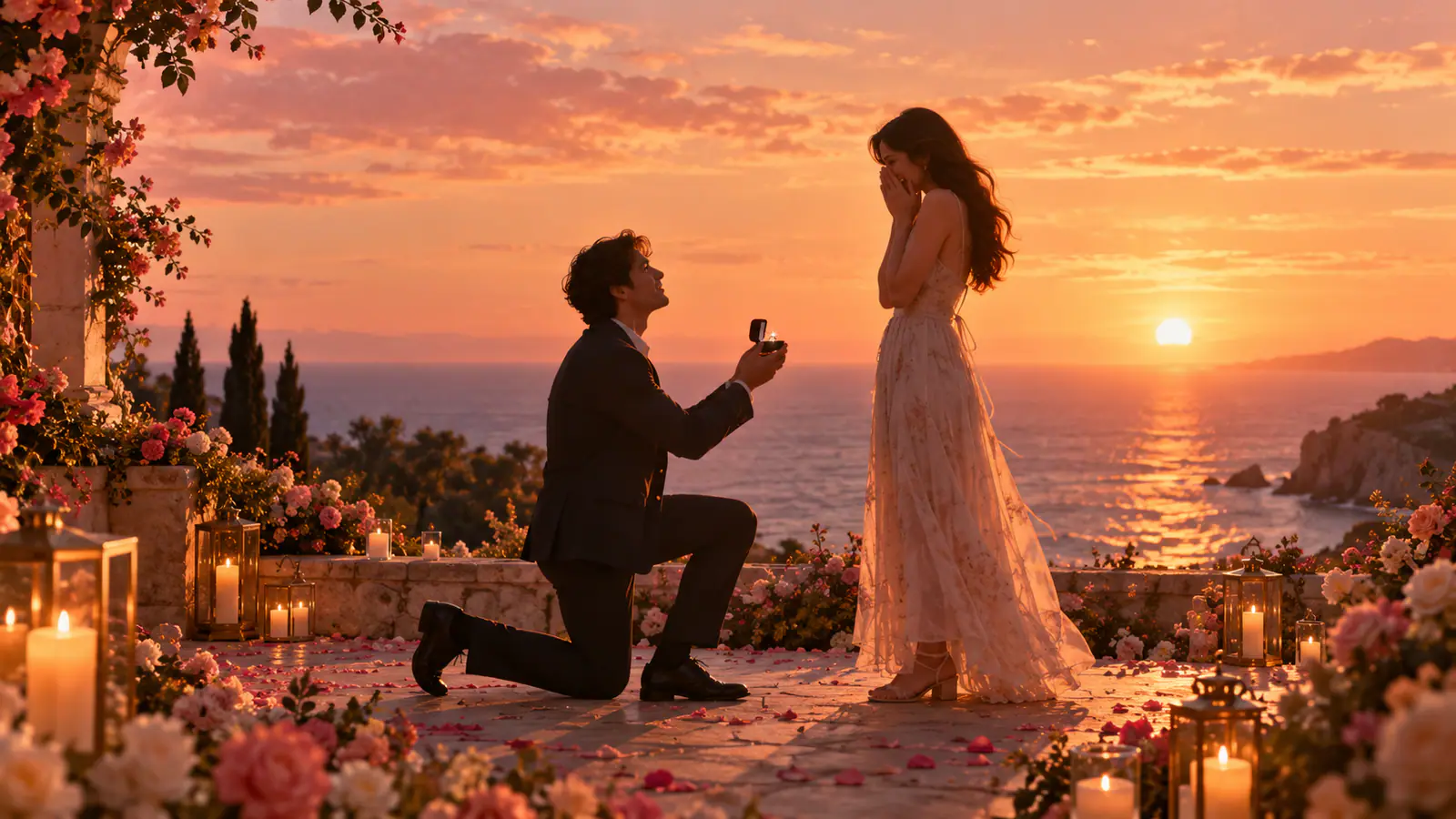
An AI proposal video should lead to a clear question or proposal gesture. A couple photo supplies the people and the mood; the finished sequence adds an approach, a reveal and a moment for the answer. Choose one short version before generating so the clip has a purpose beyond a romantic smile.
This guide uses two approaches: a visible kneel-and-ring-box scene for a roomy standing photo, or a romantic photo animation followed by an exact proposal message added in an editor. The second approach is useful when a close crop cannot support a full-body gesture.
Choose the proposal you want to make
| Approach | Best source photo | What completes the proposal |
|---|---|---|
| Kneel and reveal | Two adults standing, with visible legs and space between them | One person kneels and offers an open ring box |
| Photo animation and question card | A clear seated or close couple photo | A final card with your exact question |
Agree that the people pictured are comfortable with the photo being used in an AI scene and decide whether it will stay private. Choose the intended proposer and recipient before writing a prompt. A fictional preview or a proposal concept should be presented that way when shared.
Prepare a couple photo that fits the action
Use a sharp image with both faces visible in even light. Keep the original outfits and a recognizable setting when those details matter to the couple.
For the kneeling version, choose a full-body standing photo with floor space around both people. The proposer needs room to lower onto one knee without leaving the frame; the recipient needs room to react. A tight selfie or seated café crop is a better fit for the question-card version. Cropping a close-up wider cannot recover legs that were never in the photo.
Note who is on the viewer’s left and right. Write a short casting note such as “left person proposes; right person receives the proposal,” then retain it through the prompt and review.
Plan three proposal beats
Keep the first scene to three actions:
- Approach: the couple turn toward one another, and the proposer takes a small step closer.
- Reveal: the proposer lowers onto one knee and offers one open ring box.
- Reaction: the recipient looks at the proposer and responds with a smile or a hand to the chest.
Stop at the reaction. A ring exchange, kiss, standing embrace and celebration add several more hand and body transitions. If you want an exact question, add it as a caption or final card after generation.
Use this frame plan while reviewing:
| Frame | Checkpoint |
|---|---|
| Opening | Two recognizable adults, enough floor space, intended roles clear |
| Reveal | The intended proposer is kneeling; one box is visible |
| Reaction | The recipient remains recognizable and the gesture reads as a proposal |
| Question card | The exact wording is readable and has been proofread |
Write the kneel-and-ring-box prompt
Use this brief with a suitable standing couple photo, replacing the positions and setting to match your image:
Animate the two adults in the uploaded standing couple photo. Preserve their recognizable faces, hairstyles, skin tones, clothing and the existing setting. The viewer-left person is the proposer; the viewer-right person is the recipient. Begin with both standing, then the proposer turns toward their partner, takes a small step closer and slowly lowers onto one knee. The proposer offers one open ring box while the recipient looks down with a warm, surprised smile. End on that proposal pose. Keep both full bodies and the box visible, with a steady camera and natural light. No extra people, text, outfit changes or ring exchange.
The prompt gives the motion a clear endpoint. It requests a ring box without also asking the model to place a tiny ring onto a moving finger. If a particular real ring must be represented accurately, show a separately photographed detail in your edit rather than assuming the generated jewelry matches it.
Generate the proposal scene in VidFomo
Open VidFomo’s AI Video Generator and choose the input mode that matches your material:
- Use Frames to Video for the standing-photo version. Choose a model with a Start input and upload the roomy standing couple photo. The photo should already show the opening positions and setting described in the prompt.
- Paste the proposal brief and confirm the roles. Match viewer-left and viewer-right to the preview. Change the casting note if the other person should propose.
- Select available format and duration settings. Keep both people and the floor in view. Give the approach, kneel and reaction room to read; review the displayed credit cost before generating.
- Preview before adding any message. Check the opening, kneel and final reaction against the source. If the roles switch or hands distort, simplify that motion before making a more elaborate version.
To request a new setting from an ordinary photo, choose Reference to Video with a compatible reference-image model. Treat the uploaded photo as an identity guide and describe the new scene in the prompt. If you need precise opening positions, prepare and inspect that still first, then use it as Start. Neither input mode guarantees that every face or gesture will be preserved.
Use a question card when the photo is tightly cropped
A close couple photo can still support a complete proposal message. Keep the movement small, then let a final card ask the question. Use the close photo as Start in Frames to Video and try:
Animate the two adults in the uploaded couple photo. Preserve both recognizable faces, hairstyles, outfits, existing jewelry and the original setting. They turn slightly toward one another and share a small natural smile as the camera eases forward. End on a quiet, steady moment with both faces visible. No kneeling, ring box, new jewelry, extra people or generated text.
After choosing a clean result, add a final card in a video editor. Write your actual question, such as “Will you marry me?”, and choose any name or personal line yourself. Hold the card long enough to read at the intended viewing size. Review the spelling and timing; the generated romantic shot supplies the lead-in, while the card completes the proposal.
Fix the problem you can see
The wrong person kneels
Match the casting note to the opening image. Repeat the proposer’s position once in the motion sentence, reduce the approach and keep the camera fixed. Check the two people at the start and reveal before accepting another take.
The pose or ring box becomes distorted
Shorten the action to one slow kneel and one held box. Remove ring placement, a kiss and an embrace from the same request. If the source hides the lower body, switch to a better standing photo or use the question-card approach.
Faces or outfits change
Return to the clearest source, reduce the movement and remove unnecessary location or styling changes. Compare both people at the opening and final pose. Identity-preservation wording is a request to review, not evidence that the output is correct.
The clip feels romantic but never becomes a proposal
Check for a visible reveal or a clear question. A smile and camera push alone are the lead-in. Add the ring-box scene when the source supports it, or complete the edit with the exact question card.
Finish the proposal edit
Choose the cleanest take, trim any idle opening, then add the question, music and any personally meaningful detail in your editor. Use audio permitted for the intended screening or post. Watch once without sound to check that the proposal still reads, then with sound to judge the reveal and question timing.
Keep a private copy before deciding where to share it. Review both likenesses, the intended roles, the wording and the audience with the people involved. A finished version should make three things clear: who is proposing, who they are asking, and the question or gesture that completes the moment.