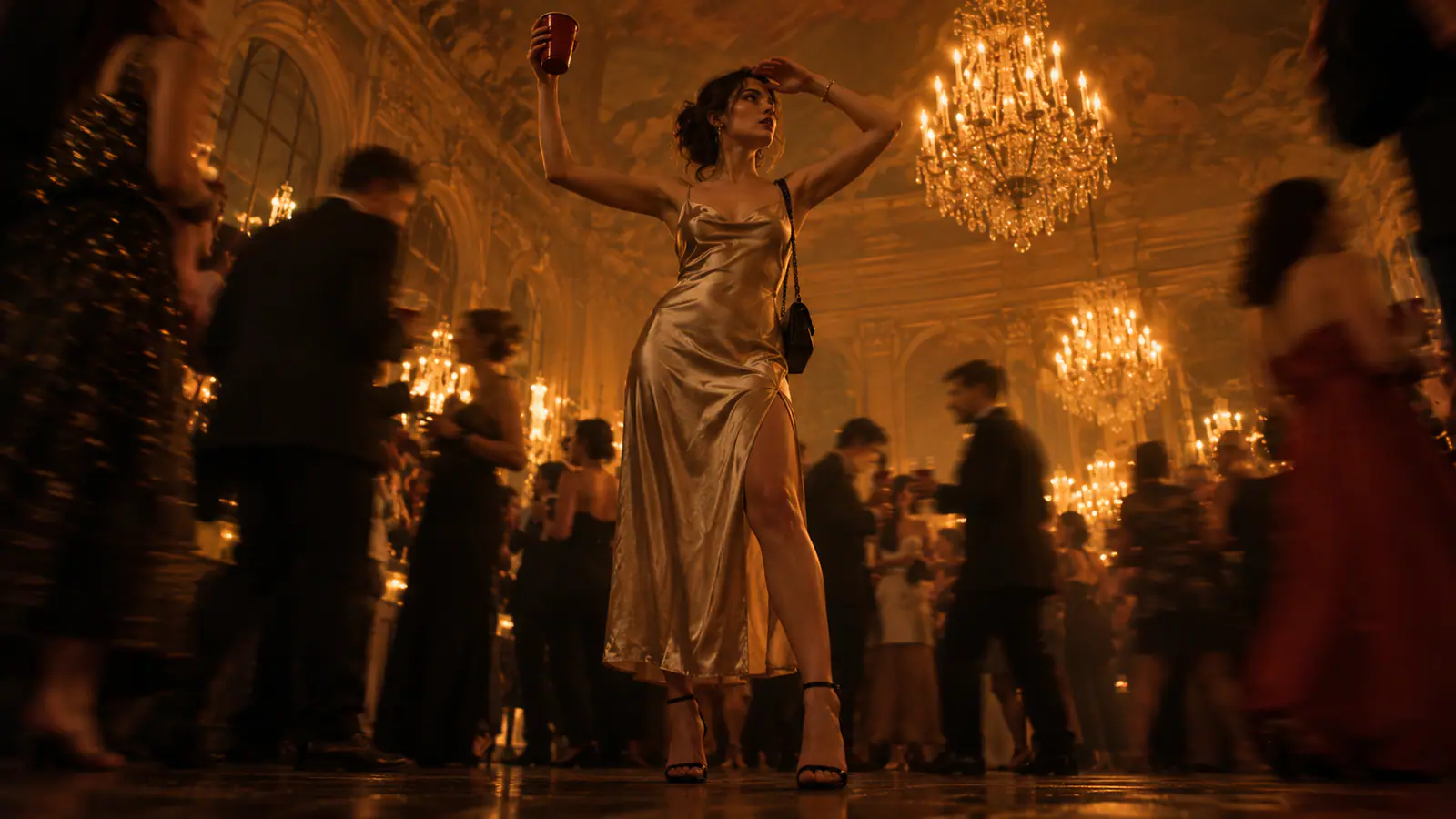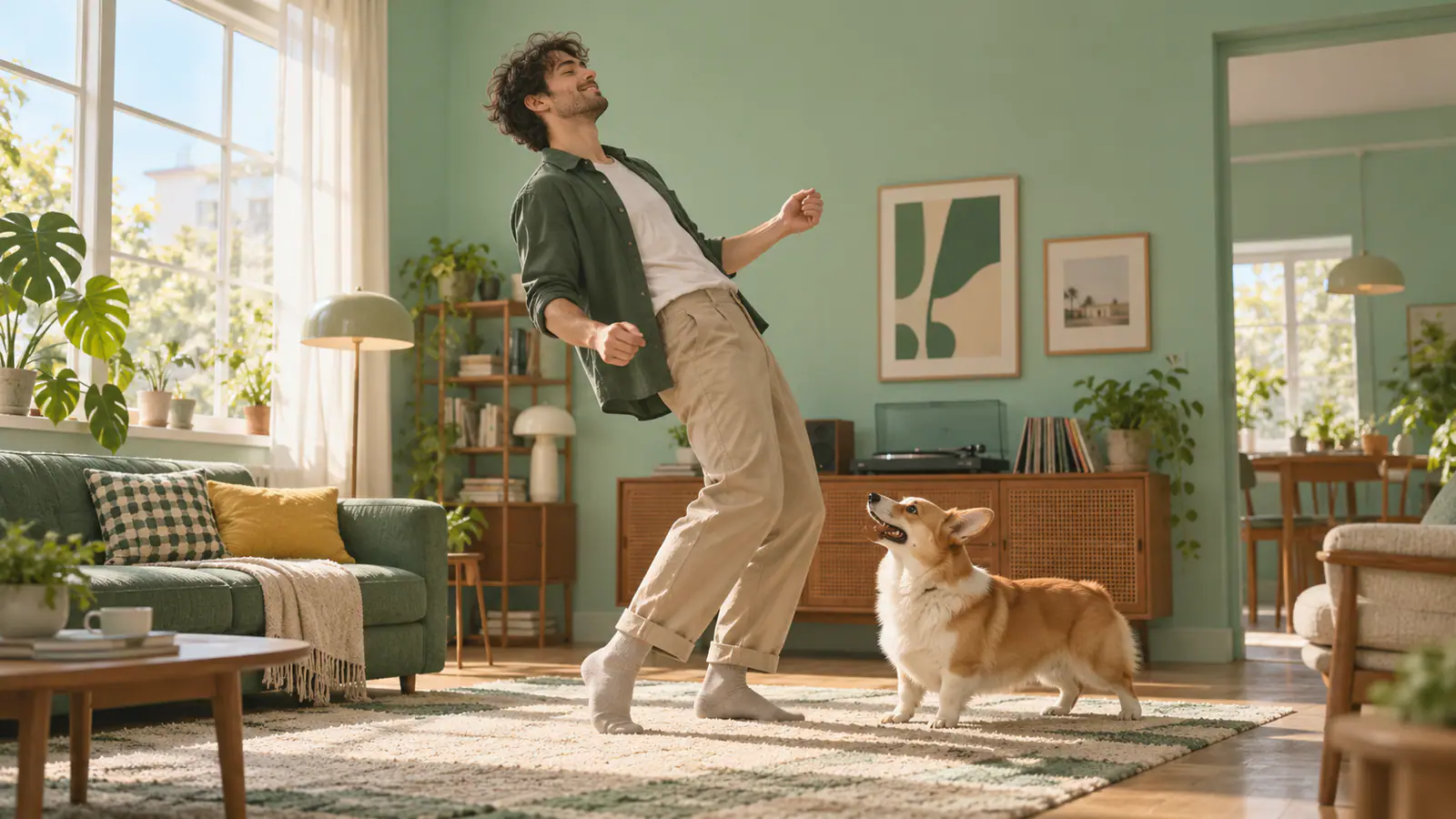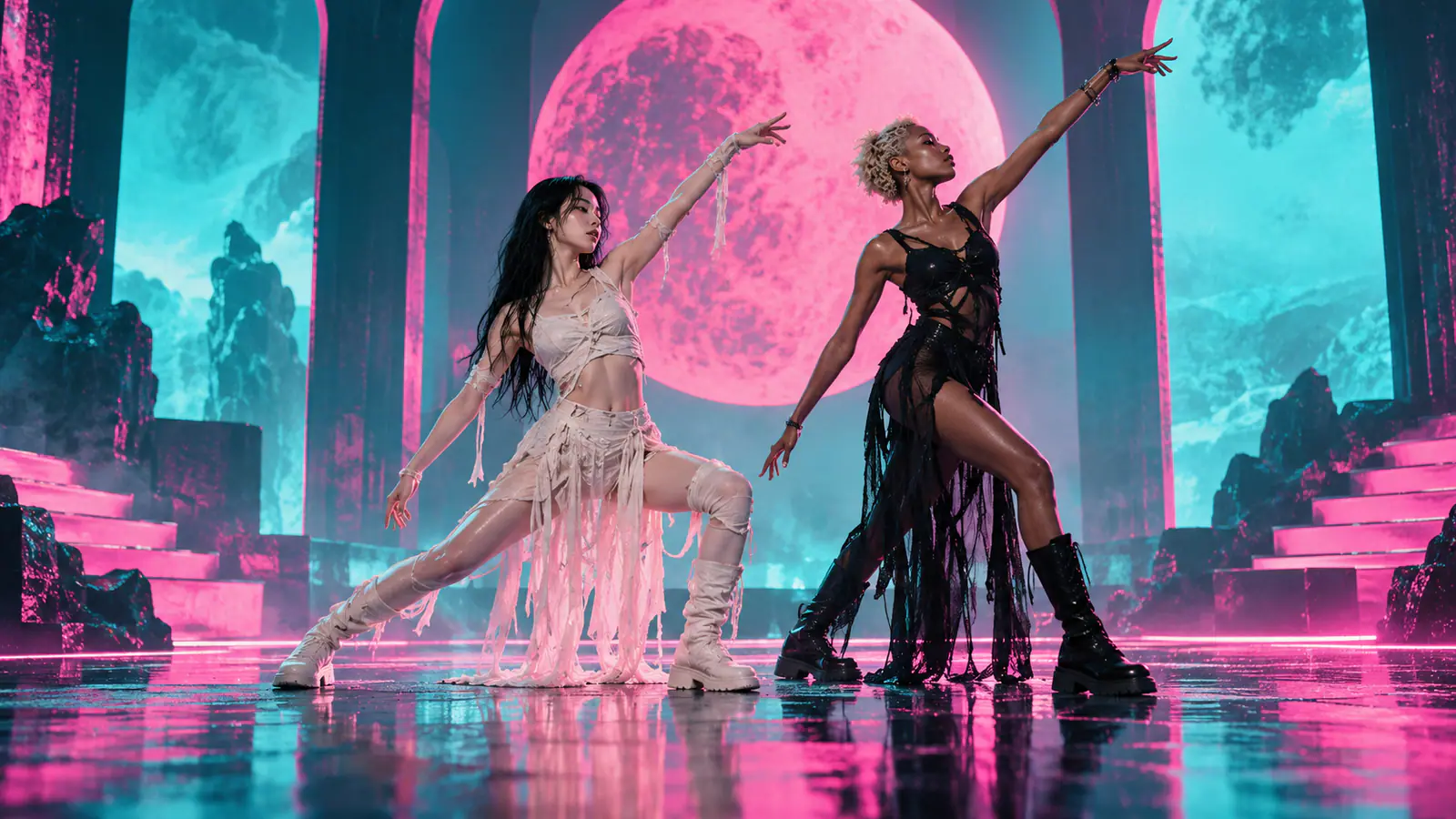

How to Make the Dime Dime Baby AI Video from a Photo
Make a Dime Dime Baby AI video from one photo. Plan the walk, bread bite, puffed-cheek stare and exit, then choose the right image input in VidFomo.
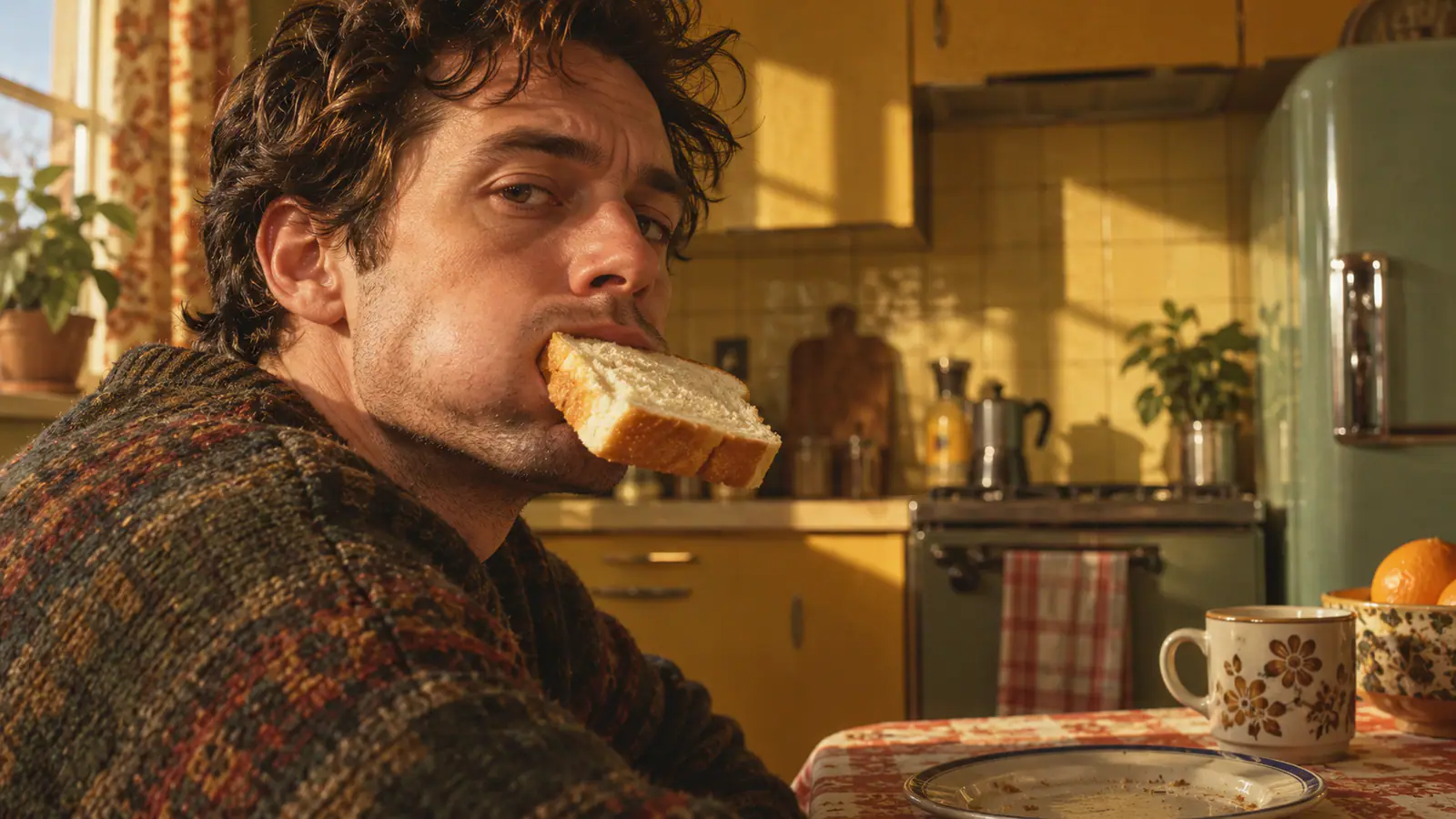
The joke only lands when the viewer can read the whole mini-scene without being told what is happening. A person arrives, takes one bite of bread, holds a deadpan, puffed-cheek stare at the camera, and then turns away as if the moment never needed an explanation. If those actions blur together, it stops feeling like the Dime Dime Baby format and becomes a generic AI dance clip.
That is the key distinction: Dime Dime Baby is a choreography and story template, not a vague baby-party effect. Your goal is not to ask for “a funny baby video.” It is to direct one short, continuous performance in a fixed order from a single reference photo.
Learn the four beats before you generate
Treat the video as one locked sequence. Keep the camera stable and the subject in the same setting so each action has room to register.
- Walk in. The subject enters the frame with a purposeful, ordinary walk. They should not begin centered and already posing.
- Bite bread. Near the middle of the frame, they take one small bite from a plain piece of bread.
- Give the puffed-cheek stare. While chewing, their cheeks are visibly rounded. They look straight into the lens with a deadpan, slightly defiant expression and hold that look long enough to be understood.
- Turn away. The subject turns their shoulders and body away from the camera, then leaves or moves away. This is an exit, not a new dance section.
The transitions matter as much as the individual poses. The walk creates anticipation; the bite supplies the absurd prop; the stare is the punchline; the turn-away closes it. Asking for lots of extra gestures, a costume change, a crowd, or a sudden dance gives the generator too many competing events and weakens that simple arc.
Pick a photo that supports motion
A single image can establish who the subject is, but it cannot supply every angle that a four-beat scene needs. Start with a sharp, well-lit photo of one person who is easy to recognize. A three-quarter or mid-length portrait is usually more useful than an extreme close-up because the tool has more information about the torso, arms, and direction of travel.
Choose a photo where the face is uncovered and the expression is neutral or relaxed. Avoid dark sunglasses, a hand across the mouth, heavy motion blur, multiple people, and a crop that cuts off both shoulders. A busy background is not automatically wrong, but a simple background makes it easier to see the entrance and exit.
If you can choose the reference, make the setup do some of the work. One visible hand gives the bread action a plausible place to begin, and a clear clothing outline helps the viewer follow the turn. Use an adult photo you own or an original character, not a photo without the subject’s agreement.
For an identity-reference workflow, the portrait supplies the person while the prompt requests the setting and entrance. For a start-frame workflow, the uploaded image supplies the opening composition: a centered portrait conflicts with an entrance from outside the frame. Choose the input mode before choosing the crop.
Write the action as one uninterrupted shot
Write the prompt as a tiny shot list in chronological language. It tells the tool who must stay consistent, where the action begins, what happens next, and what must not interrupt the scene.
Use this as a starting point, then change only the entrance side or room if your reference calls for it:
One continuous, realistic medium-wide shot with a stable camera. Preserve the person, outfit, and recognizable face from the reference photo. The subject walks into frame from the left and stops near the center. They hold a plain slice of bread, take one small bite, and chew with their lips closed. Their cheeks puff slightly as they look directly at the camera with a clear, deadpan puffed-cheek stare. After holding the stare for a moment, they turn their shoulders and whole body away from the camera and walk off to the right. Natural walking and hand movement, consistent indoor daylight, simple background, no cuts, no other people, no text, no logo, no dancing, no exaggerated chewing, no warped hands.
“One continuous” and “no cuts” protect the story structure. The directional cues give the entrance and exit a path; “after holding the stare” keeps the turn from swallowing the punchline. The negative instructions prevent an odd little performance from becoming a montage.
Keep the bite modest. “Eat a sandwich” can turn into an oversized food sequence, and “chew excitedly” can turn the expression into a grin. One small bite from a plain slice of bread is enough. Likewise, ask for cheeks that are “puffed slightly” rather than cartoonishly inflated. The humor comes from an ordinary face treating an absurdly serious stare as important.
Choose the image input in VidFomo
Open VidFomo’s AI Video Generator and choose the input mode before uploading.
- For the walk-in version, select Reference to Video. Choose a model that accepts reference images and add your portrait under References. Use the portrait to request the subject’s identity, rather than making it the opening frame. Paste the four-beat prompt above. Check the available format, duration and displayed credit cost before generating.
- For Frames to Video, prepare the actual opening composition. Use an image in which the person is already near the left edge, with room to step toward the center. Replace “walks into frame from the left” with “starts near the left edge, takes two steps toward the center, then stops.” Keep the bite, stare and turn-away sequence. This version starts with the person visible.
- Preview the sequence before adding sound. A reference image can guide identity, but it does not guarantee an exact entrance or action order. If a clip rushes the bite and stare, try a longer available duration or simplify the entrance before changing the other beats.
If the selected model only exposes a start frame, use the second version or choose a compatible reference-image model. Repeating “start outside the frame” will not resolve an opening image that already places the subject in the center.
Keep this four-frame plan beside the preview:
| Moment | What the viewer should see |
|---|---|
| Arrival | A clear walk toward the center; an off-screen entrance only in the reference-led version |
| Bite | One hand lifts one slice of bread for one visible bite |
| Stare | The face remains readable with rounded cheeks and a held look |
| Exit | Shoulders turn away after the stare, followed by a simple departure |
Change one variable per retry: input mode or opening crop first, then action timing. Keep the photo and the rest of the prompt fixed.
Review the first result with a pass/fail checklist
Watch once with the sound off. The visual sequence should make sense without music, captions, or trend knowledge. Then check these questions:
- Does the subject visibly enter instead of appearing in place?
- Is there one readable bite of bread, rather than a hand near the mouth or an unexplained snack?
- Do the cheeks look filled during a direct look at the lens?
- Does the subject actually turn away after the stare?
- Does the shot remain one scene without a cut, a second person, or an unrelated dance move?
If all five answers are yes, the structure is working. You can trim an awkward still at either end, but keep the pause after the bite.
If a beat fails, repair the specific beat rather than making the prompt longer. Here are the most useful targeted revisions.
The subject does not walk in
Check the input mode first. In Reference to Video, try “Begin just outside the left edge of frame; walk into the center before stopping,” then review whether the entrance actually appears. In Frames to Video, start with the subject visible near the edge and request a short walk inward. Reposition or replace the opening image instead of asking a centered start frame to begin with an empty scene.
The bread is confusing or the bite never happens
Replace loose food language with: “The subject raises one plain slice of bread to their mouth and takes one small, visible bite.” Keep it to one hand, one slice, and one bite; omit toppings, packaging, and a table.
The cheeks do not puff, or the stare becomes a smile
Make the facial beat explicit: “Immediately after the bite, keep the lips closed, cheeks visibly rounded, expression neutral, eyes fixed on the camera for a clear pause.” If the result is still too animated, remove adjectives like “cute,” “playful,” or “excited.” They work against the dry, held stare.
The ending becomes a dance or a spin
State the exit in physical terms: “After the stare, rotate the shoulders and torso away, show the back or side of the body, and walk away without dancing, pointing, or waving.” The exit should not compete with the stare.
Finish it responsibly and post the readable version
Use audio only if it reinforces the timing; do not assume a generated clip includes a particular song or that any song is cleared for your post. A quiet beat, a licensed sound, or no added audio at all can still leave the visual joke intact. Export the version where the bread, cheeks, and turn are clearest—not necessarily the most elaborate take.
If you share a realistic photo-to-video result on TikTok, use the platform’s AI-generated-content disclosure guidance. The format depicts a real-looking subject performing actions that did not happen in the original photo, so transparent labeling helps viewers understand what they are seeing.
Your Dime Dime Baby video is complete when a viewer can follow the exact four-beat story on mute: the subject walks in, bites bread, fixes the camera with puffed cheeks, and turns away. Start with that clean sequence, keep the prompt focused, and let every revision protect the same small punchline.