VidFomo
Loading...

AI Backflip Video

Add one photo of a person for the backflip effect. Generation is not available yet; selecting a photo keeps it local and does not spend credits.

References
0 / 1
Required Credits
50

Sample Videos

My Videos

AI Backflip Video From Your Photo

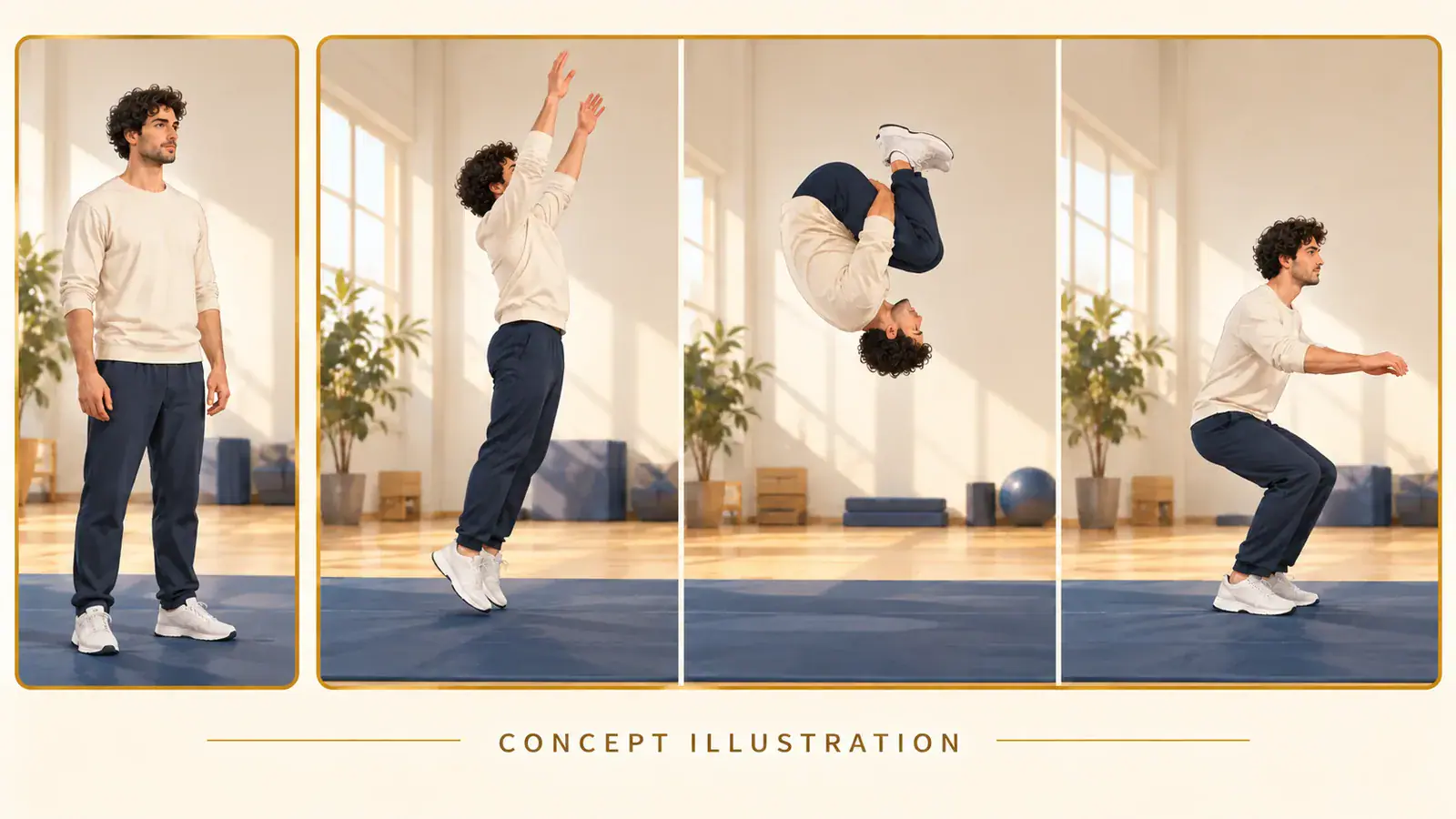
The idea is simple: the person in your photo leaves the ground, rotates backward through the air, and returns to their feet. An AI backflip video turns that imagined stunt into the focus of a short action edit, without asking you to perform it for a camera. Start with one standing portrait and use the effect controls above to set up your clip. The illustrations on this page explain the concept; they are not generated video results.

Concept illustration: one portrait becomes a takeoff, inverted backflip tuck, and landing storyboard

Set up your photo for the backflip effect

Keep the setup focused on one person and one action. You do not need to film a stunt or supply a motion reference. These steps use the photo and framing controls in the workbench.

  1. Choose a standing portrait

    Add a photo in Reference Images and check the local preview. Pick a picture showing the person from head to shoes, with their arms and legs easy to distinguish from the background. A relaxed standing pose gives the imagined movement a clear starting point. If someone else appears at the edge, choose a different photo or crop them out while keeping your subject complete.

  2. Choose the shape of your clip

    Open Aspect Ratio and choose the layout you want to work toward: 9:16 for a tall composition, 16:9 for a wide view, or 1:1 for a square frame. Keep space above the head and around the feet when deciding how to frame the action. Resolution has 720p and 480p choices. These selections are saved in the form; they do not resize your source photo.

  3. Check the photo before Generate

    Confirm that AI Backflip Video remains selected and that the counter shows one image. Replace a blurry picture before you continue, or remove it to start again. Generate checks that a usable image is present. If the tool reports that generation is unavailable, your selection stays in place and no video is created. You can still revise the local photo and framing without submitting another file.

Give the backward flip a clear visual story

A recognizable person, enough room for the turn, and a readable finish each solve a different part of the edit. Use these ideas to choose your source and judge an eventual clip.

Make the person easy to recognize

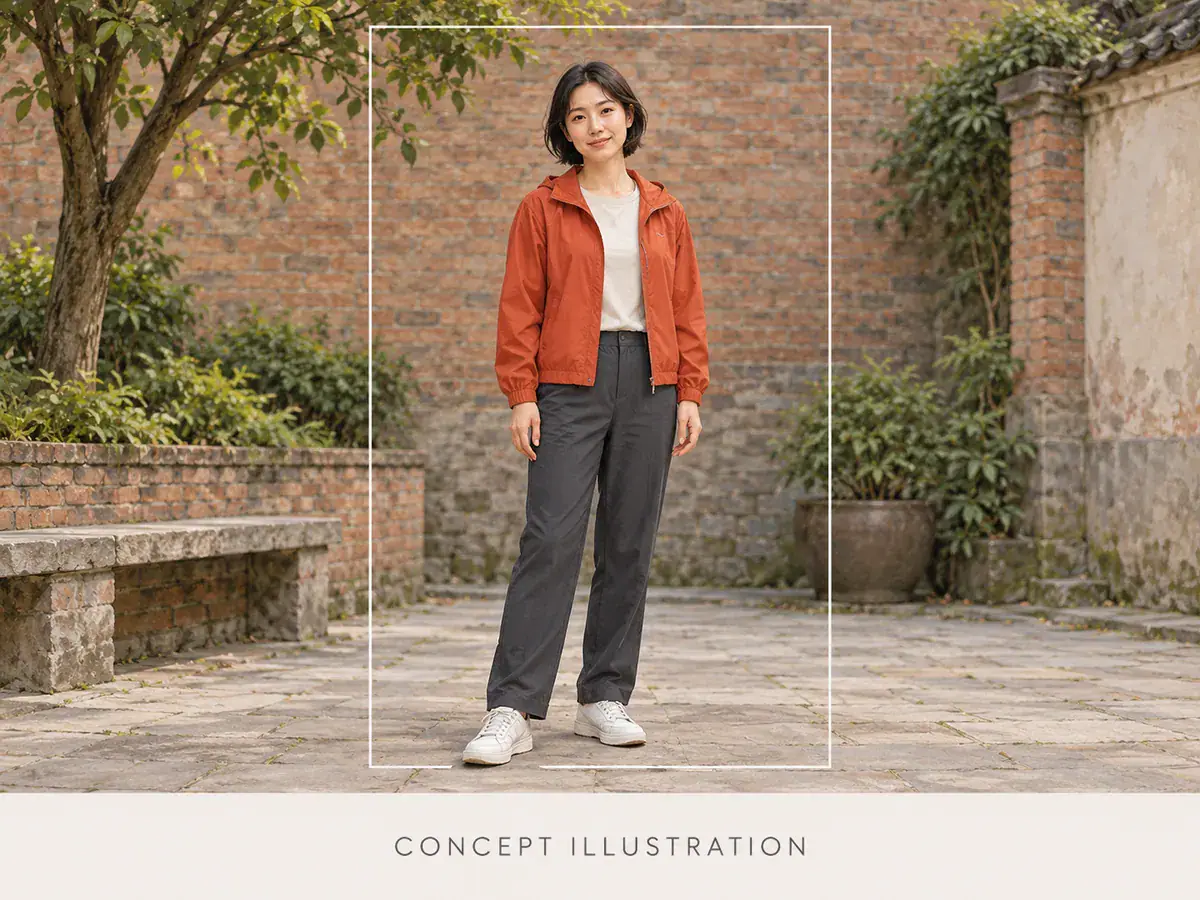
The fun comes from seeing a familiar person in an unexpected athletic moment. Choose a photo where a hairstyle, a jacket, or a distinctive pair of shoes gives the viewer something to recognize. Prefer visible facial features over sunglasses, a covered face, or a tiny figure in the distance. For a birthday joke, an everyday outfit can make the imagined stunt more surprising than a costume. Keep that recognizable detail in the crop instead of cutting tightly around the face. This is a practical source choice, not a promise that every detail will stay identical through a generated rotation.
Choose a portrait
Concept illustration: full body portrait with face, jacket and shoes inside a crop guide

Leave room for the whole rotation

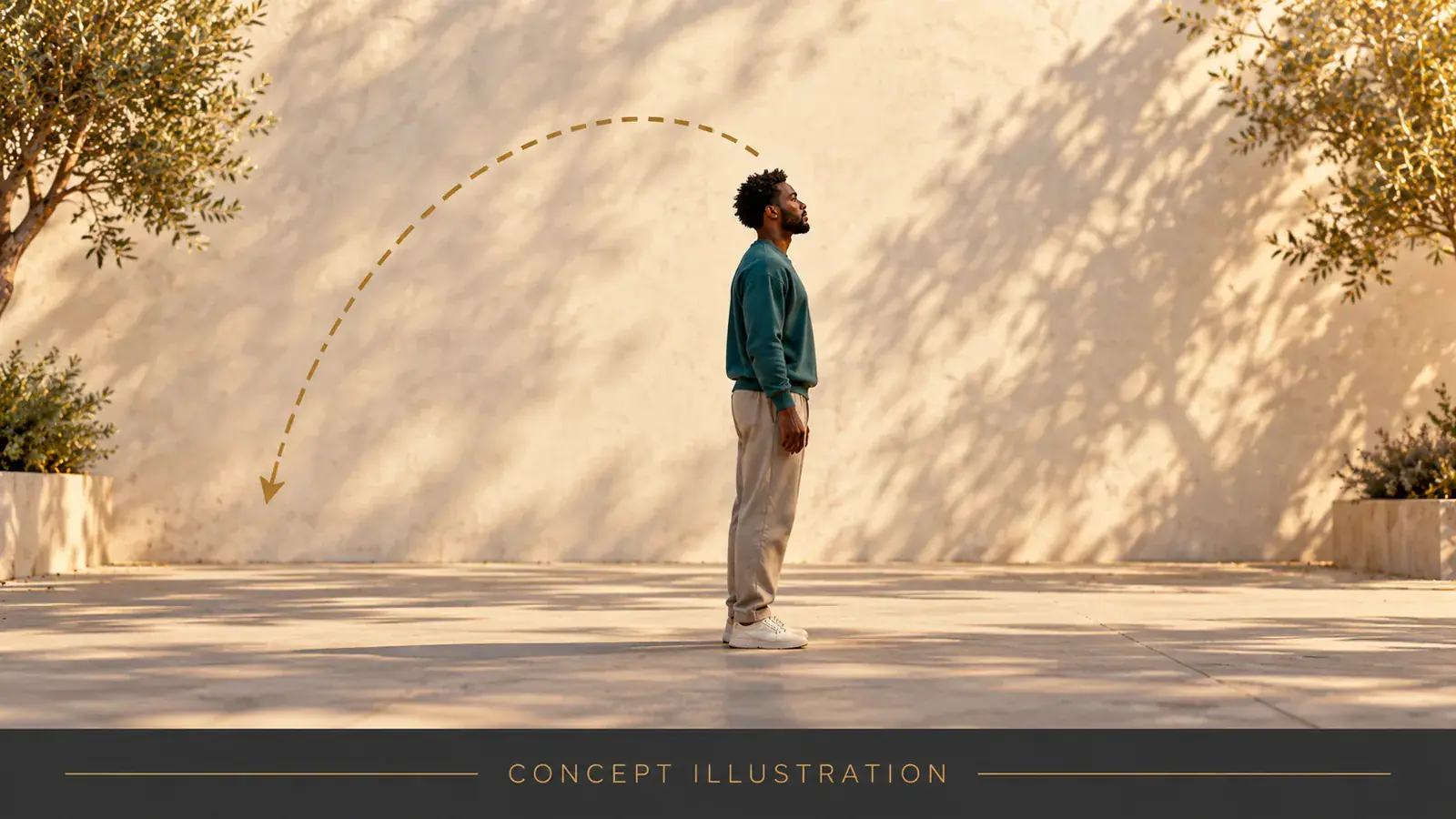
A backflip needs to read as a backward rotation, rather than a jump that disappears beyond the frame. Look for a source composition with a visible floor and open space above the subject. A simple courtyard or an uncluttered room makes the body outline easier to follow than a dense crowd. For a vertical edit, protect both headroom and the landing area; for a wide edit, avoid making the person so small that the motion loses its impact. The framing illustration shows why extra space matters without presenting a still image as proof of successful motion.

Set the framing
Concept illustration: side view with open space behind a standing person for a backward flip

Make the landing part of the punchline

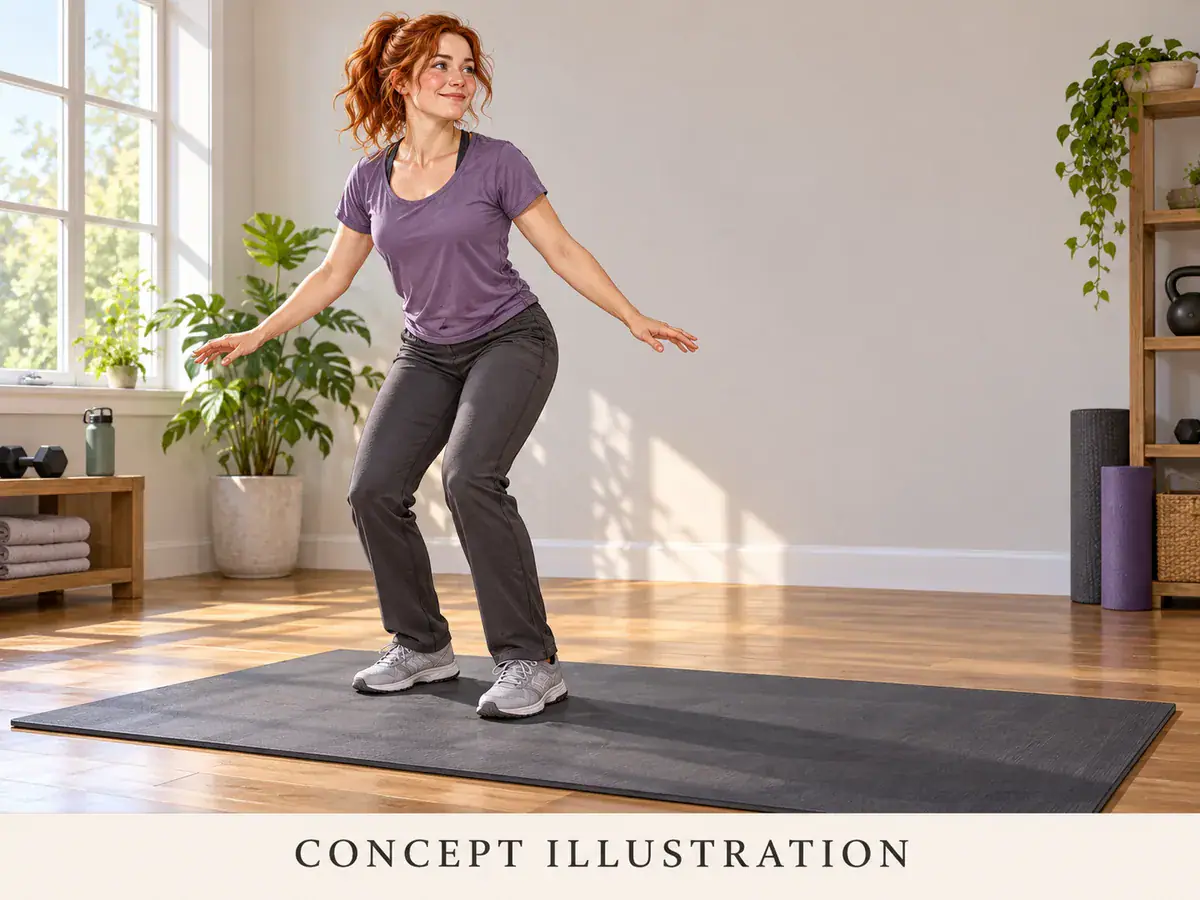
The ending gives the surprise its payoff. When you review a finished backflip animation, watch beyond the upside down moment: the feet should return to a coherent ground plane and the person should settle into a readable pose. Avoid choosing a cover frame that hides the subject behind captions or cuts off their shoes. For a playful message to friends, pair the eventual clip with your own short caption explaining the joke. A simple ending often communicates more than several competing effects. Add captions in your usual editor; this page does not provide a timeline or caption editing controls.

Plan a backflip clip
Concept illustration: a woman finishes a landing with both feet on an exercise mat

Decisions that keep the edit focused

Before choosing an AI backflip generator, separate the creative idea from the controls and services actually available on the page.

One person, one source image

This effect accepts one photo. A group picture makes it unclear who should perform the action, so use a solo portrait. Keep the original file handy if you want to compare crops. Selecting another effect opens its own page; finish choosing your source before switching away.

A template, not a motion upload

The backflip idea is selected through the effect menu. There is no prompt box or reference video upload in this form. If your project depends on copying a particular performer, camera move, or exact sequence from a clip, that is a different task from this photo effect.

Read the current submission state

The workbench currently shows the shared 50 Required Credits value, but this effect is not accepting generation jobs. Choosing a photo and pressing Generate here does not charge that amount. Treat the displayed figure as a provisional interface value, not a confirmed price or an offer of free video generation.

Share the joke with context

Use your own photo or one you have permission to edit. When sharing an eventual AI stunt clip, describe it as an AI edit so viewers understand the premise. Music and sound effects need their own permissions; a backflip image effect does not grant rights to a song you add later.

AI backflip video questions

Answers to common input and editing choices, with the current tool limits kept separate from the imagined stunt.

No. The starting point is an ordinary standing photo, not an action shot. You do not need to jump, balance upside down, or attempt a stunt to prepare it. The target effect supplies the imagined backward movement. Choose an existing portrait rather than taking a risky photo just for this idea.

A close selfie leaves the body and landing area outside the picture. For this particular idea, switch to a wider portrait that includes both feet instead of enlarging the face crop. Enlarging an existing crop cannot recover the missing body. If a full body photo is unavailable, keep that limitation in mind when evaluating any later output.

Start with a photo for your AI backflip video

Find the portrait that makes the idea funny: a recognizable person, an ordinary setting, and room for an unexpected flip. Open the backflip effect to select your photo and explore the framing controls. Keep the full body visible so the imagined action has a clear beginning and ending.