
VidFomo
Loading...

AI Explosion Effect

Add one scene photo for a fictional cinematic explosion. Generation is not available yet; your image stays in the form without a charge.

References
0 / 1
Required Credits
50

Sample Videos

My Videos

AI Explosion Effect: Your Photo, a Fictional Movie Blast

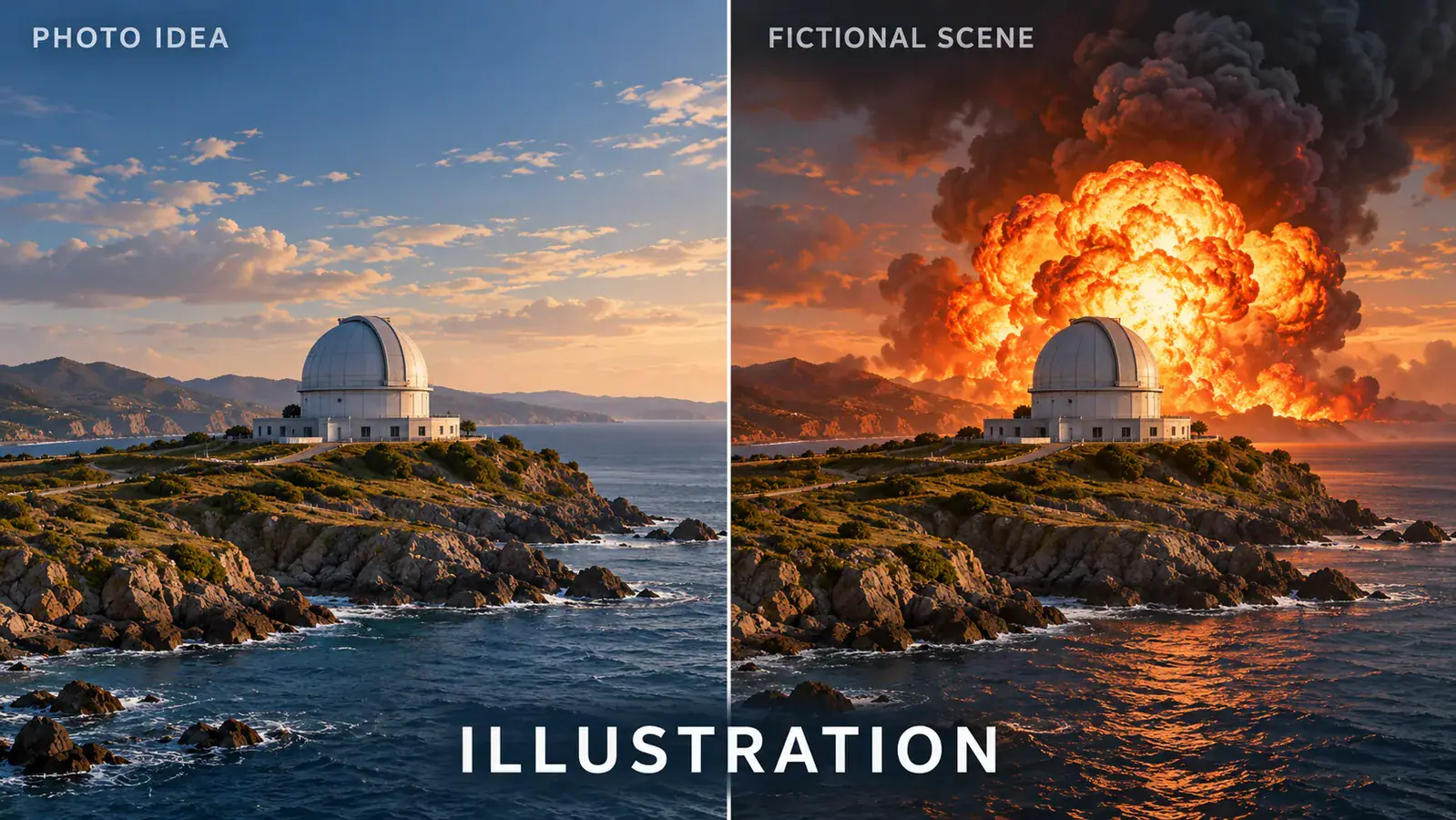
Give an ordinary location an action scene premise: one still photo, a sudden burst of fire, and smoke rising through the background. The AI Explosion Effect is designed around that change from a familiar setting to a fictional cinematic blast. Start with a scene you can read at a glance, such as an empty industrial yard, a parked vehicle, or an open landscape. The illustrations below explain composition ideas; they are not generated video results. Open the studio to select your photo. Generation is not available yet, and the current form does not charge credits.

Labeled illustration comparing a calm coastal observatory with a fictional explosion scene

How to Set Up an AI Explosion Effect

Build the scene around the photo you already have. A useful starting image makes the subject, ground, and surrounding space easy to understand before any imagined action begins.

  1. Choose one readable scene

    Select a photo with one obvious focal point and some visible surroundings. A building should include its roofline and ground; a vehicle should have room around its outline. Avoid a close crop that removes all context. Add the image in the studio, then inspect the local preview. If the main object is already hard to identify, replace the photo before choosing your settings.

  2. Set the frame for your edit

    Keep AI Explosion Effect selected and choose the aspect ratio for the edit you have in mind. A wide frame gives a location more context; a vertical frame concentrates attention on the center. The studio also provides a resolution selection. These choices are saved in the form, so you can prepare the setup without writing a prompt or choosing an underlying model.

  3. Check the setup before generating

    Look at the selected photo once more: is the focal point visible, and is there enough background to understand the scene? Use Generate to check the form. Missing images receive a prompt to add one. With a photo selected, the current studio explains that generation is unavailable and keeps your selection. There is no finished clip to download at this stage.

Three Ways to Frame a Fictional Explosion Scene

The subject changes how an action shot reads. Use these illustrated scene ideas to choose a source photo, rather than treating every picture as the same background for a fireball.

Building explosion: give the scene a clear scale

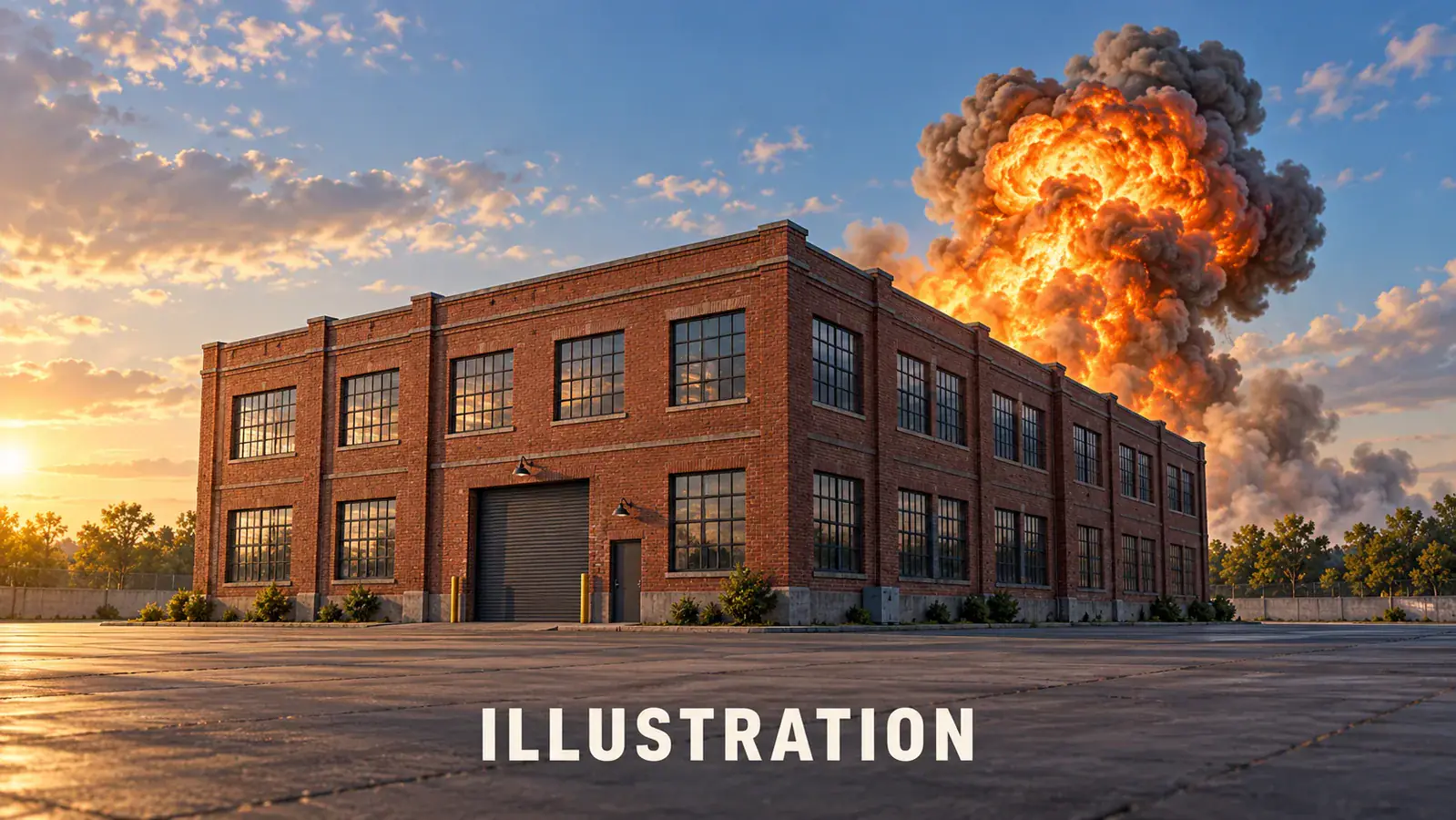
For a building explosion concept, choose a view that shows both the structure and the space above it. Roof edges, windows, and a stretch of ground give the viewer familiar size references. An isolated fictional warehouse is easier to read than a dense skyline where several buildings compete for attention. Keep the main structure away from the edge of the image, and leave room for the imagined smoke to rise. The illustration focuses on scale and placement, not a promise that individual windows or walls will break in a particular way.
Choose a building photo
Illustration of a brick warehouse with a fictional blast showing building scale

Car explosion: keep the vehicle recognizable

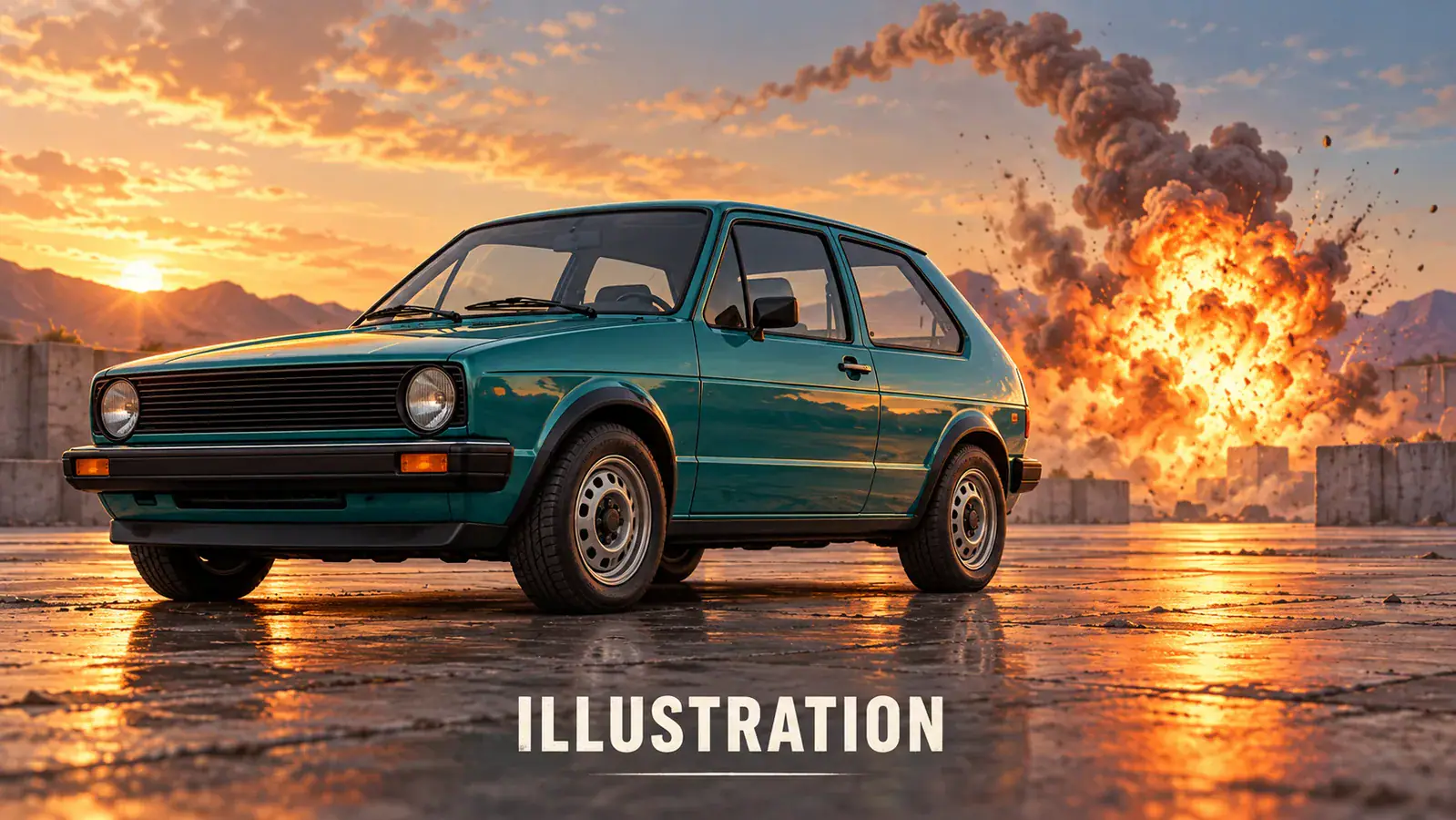
A vehicle gives an explosion scene a compact focal point. Try a parked car photographed from a slight angle, with its wheels and outline visible against a simple setting. A very tight detail shot of a door or headlight loses the visual story because the viewer has to guess what the object is. For an imagined trailer moment, leave open ground beside the vehicle so the action has somewhere to expand. This composition idea is about a fictional scene, not a prediction of damage or a reconstruction of an actual incident.

Choose a vehicle photo
Illustration of a teal car with a clear outline beside a fictional explosion

Landscape blast: use distance to tell the story

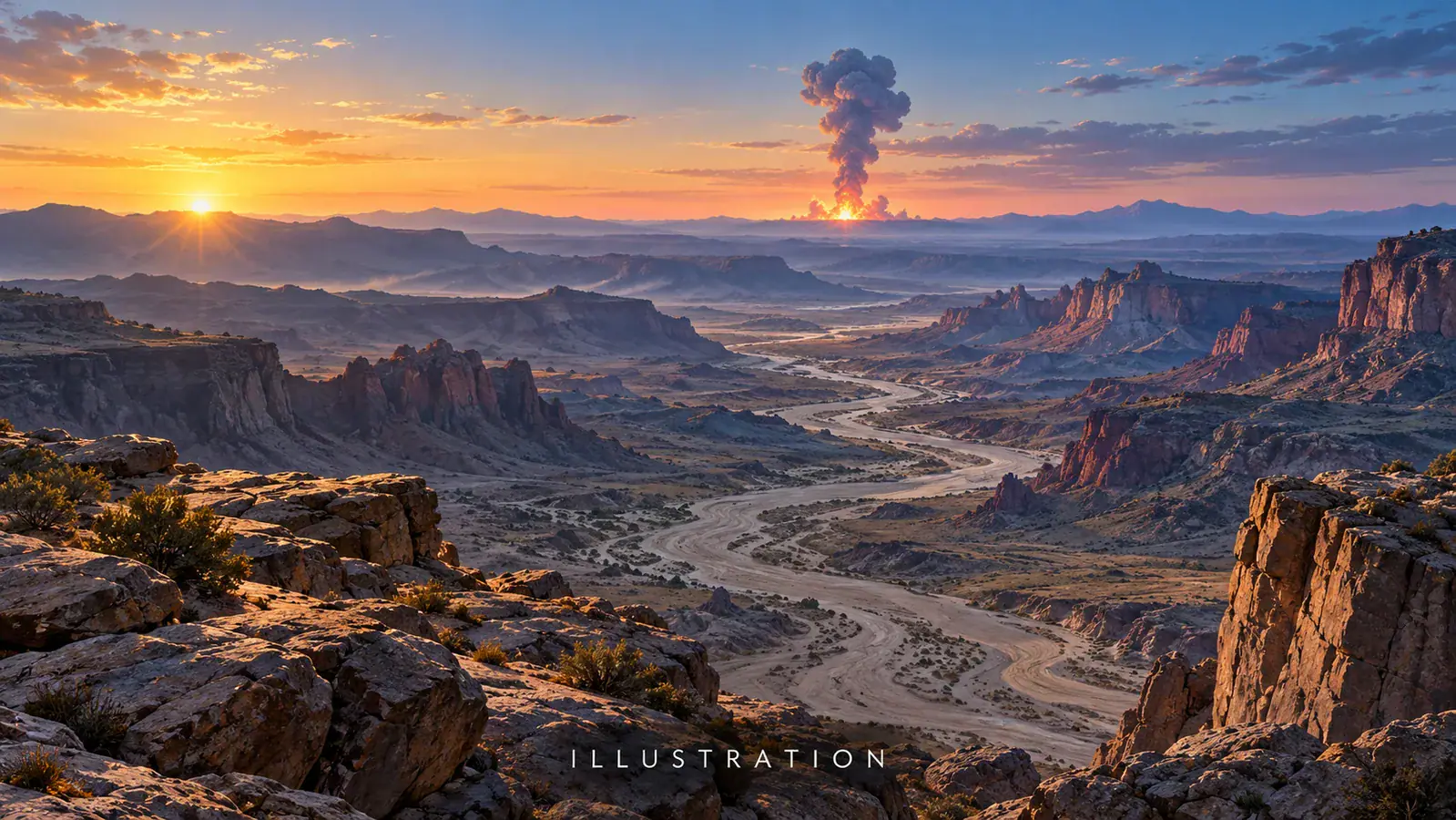
An open landscape makes the environment the main character. A dry valley, a broad field, or an invented rocky plain can suggest a distant cinematic event without centering a person. Use a horizon that leaves space for both the ground and the sky. A blast close to the horizon reads differently from one filling the foreground, even before motion is added. Choose which relationship matters for your edit, then select a photo that already supports it. The landscape illustration shows this sense of distance rather than repeating the building or vehicle setup.

Choose a landscape photo
Illustration of a distant fictional blast beyond a canyon and dry riverbed

Make the Action Scene Easy to Read

A dramatic idea still needs a clear visual story. These small decisions help you prepare a photo and decide how a future clip would fit into a larger edit.

Separate the focal point from clutter

Remove distracting borders or screenshots of other apps before selecting your source. Tiny interface labels and overlapping objects compete with the action. Keep the original file separately so you can return to a wider crop if the composition feels cramped.

Plan the quiet moment too

The contrast between an ordinary setting and a sudden blast is the central joke or reveal. In your edit, give the audience enough context to recognize the location before the action. That is an editing choice, not a timing control offered by this form.

Leave room for your own caption

If you plan to add a title later, reserve a quiet corner of the composition. Keep words away from the main subject and the imagined smoke. Add your caption in your usual editor; the effect form does not include a text overlay tool.

Frame the clip as fiction

Use an action trailer, a playful reaction, or an obviously invented scene as the context. A caption such as fictional movie scene helps viewers understand the intention. Avoid presenting an altered location photo as evidence that an explosion happened there.

AI Explosion Effect Questions

Practical answers about the photo input, available controls, and what the studio currently does when you press Generate.

The intended result is a fictional explosion video based on a still scene photo. It is not a downloadable fire overlay or a filter pack for another editor. An explosion scene tells a small action story through a change in the setting, while a photo filter usually changes the appearance of a single still image.

This effect uses one photo. Choose a single scene rather than a collage of separate images. Existing video clips and multiple reference photos are not inputs on this page. If you want to change the source, replace the selected image in the studio; you do not need to assemble a sequence of frames first.

Find the Photo for Your AI Explosion Effect

Start with a scene that has a clear subject and room for the action. Open the effect studio, compare your crop with the illustrated ideas, and keep the fictional movie moment in focus.