VidFomo
Loading...

AI Rap Video Generator

Add one portrait for a solo rap performance. Choose your framing and resolution, then select Generate.

References
0 / 1
Aspect Ratio
Resolution
Required Credits
50

Sample Videos

My Videos

AI Rap Video Generator from Photo

Put yourself at the center of a solo rap performance. This AI Rap Video Generator starts with one portrait, giving your familiar face a new role in a performance clip. Choose a photo with an expression and outfit that suit the occasion, then set the framing in the workspace above. The focus is the person on camera: their presence, gestures, and connection with the viewer. For a birthday surprise, a playful profile post, or an original character introduction, start with a face that makes the idea personal.

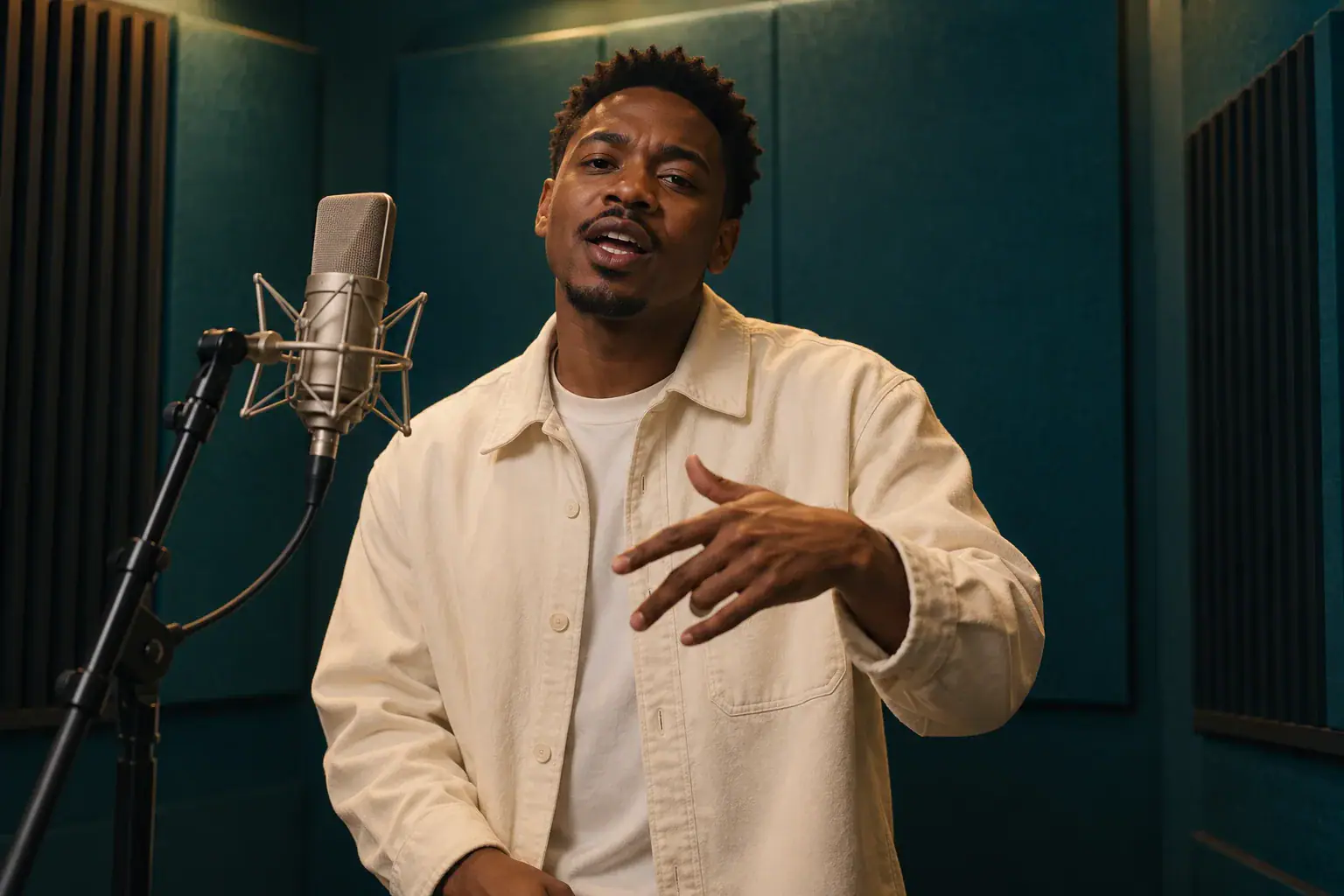
Fictional adult rapper performing toward the camera in a small teal recording booth

How to make an AI rap video from a photo

Use the solo photo workflow when the performer is the main idea. Have one portrait ready and decide where you plan to show the clip before choosing the frame.

  1. Choose one clear performer

    Add a portrait showing one adult, with the eyes and mouth easy to see. A face angled slightly toward the camera can retain personality without hiding the jaw. Include the shoulders and some space around the head; a tightly cropped face leaves little room for expressive movement. Use the local preview to inspect the picture, crop distracting edges, or replace it with a clearer version. A casual portrait can be more useful than a heavily filtered selfie that smooths away recognizable features.

  2. Set the frame for your post

    Choose Aspect Ratio and Resolution in the settings panel. A vertical frame suits a phone screen, while a wider frame gives the surrounding scene more room. Keep the face within the central area when comparing these options, especially if you expect to add a title in another editor. Use the input preview to assess the source crop separately from the settings you select for the video. Finish any crop adjustment before selecting Generate so the chosen image reflects the composition you want to start from.

  3. Generate and follow the feedback

    Select Generate after adding your portrait. If the form asks for an image, return to the input area and check that the selection has finished. Keep your chosen photo in place while reading the feedback beside the form. A successful video, when returned, belongs in the result panel; a selected photo alone is not a finished clip. Review any returned performance from beginning to end before saving or sharing it, including the moment when a hand passes near the face.

Give your solo rap clip a reason to exist

A memorable photo to rap video idea starts with a person and an occasion. These directions help you choose the source image and the story around your post, rather than asking one clip to do everything.

A personal birthday entrance

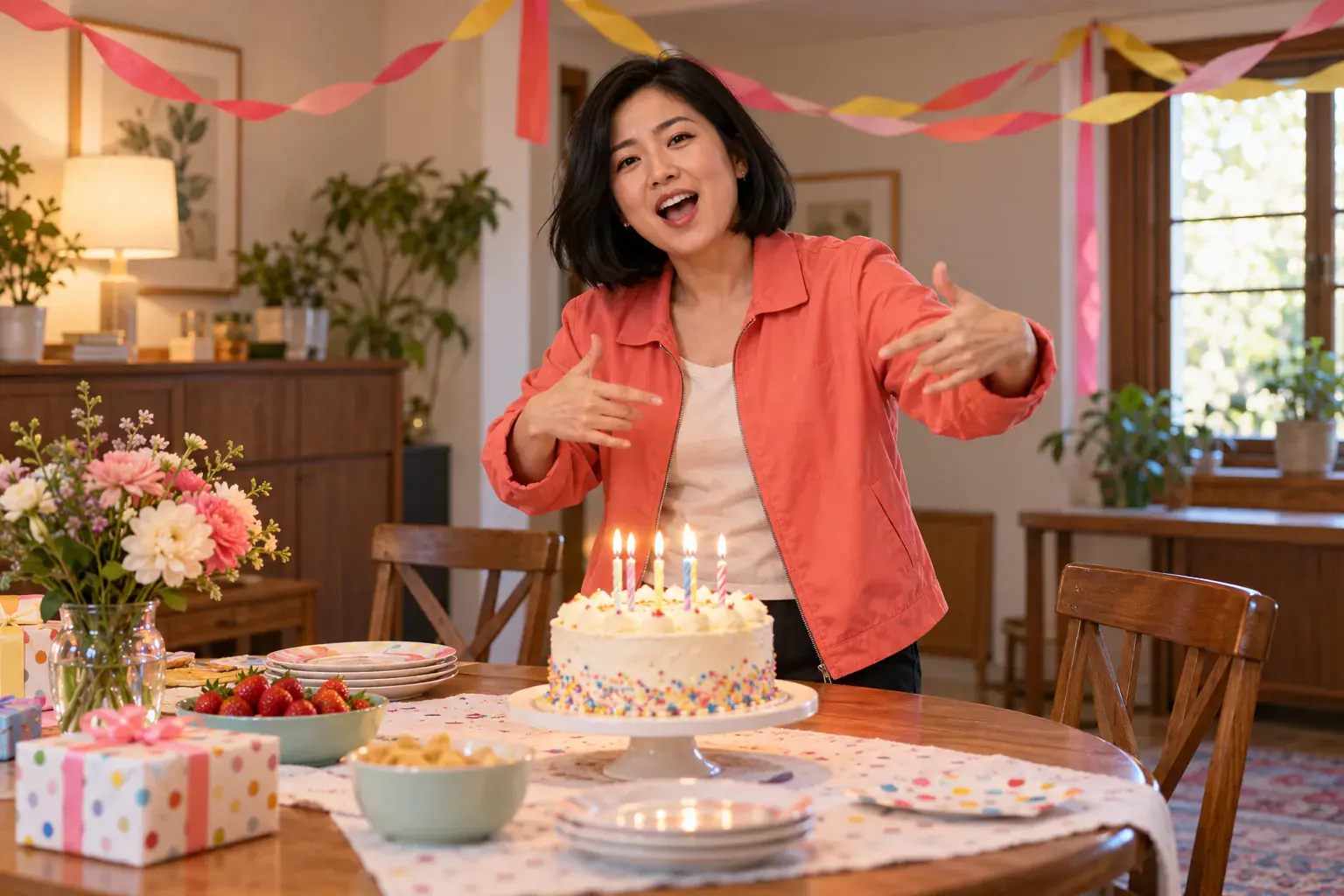
Choose a portrait that friends would recognize immediately: a familiar smile, a favorite jacket, or the expression everyone associates with the birthday person. Build the post around that recognition. A simple party setting in the source picture can establish the occasion without a crowded group competing for attention. Add the name and greeting afterward in your editing app, where you can control spelling and placement. Keep the message separate from the performance so it remains readable even on a small screen. Share the idea with the person involved before turning it into a public surprise.
Choose a birthday portrait
Adult woman making a rap gesture beside a birthday table with unlettered decorations

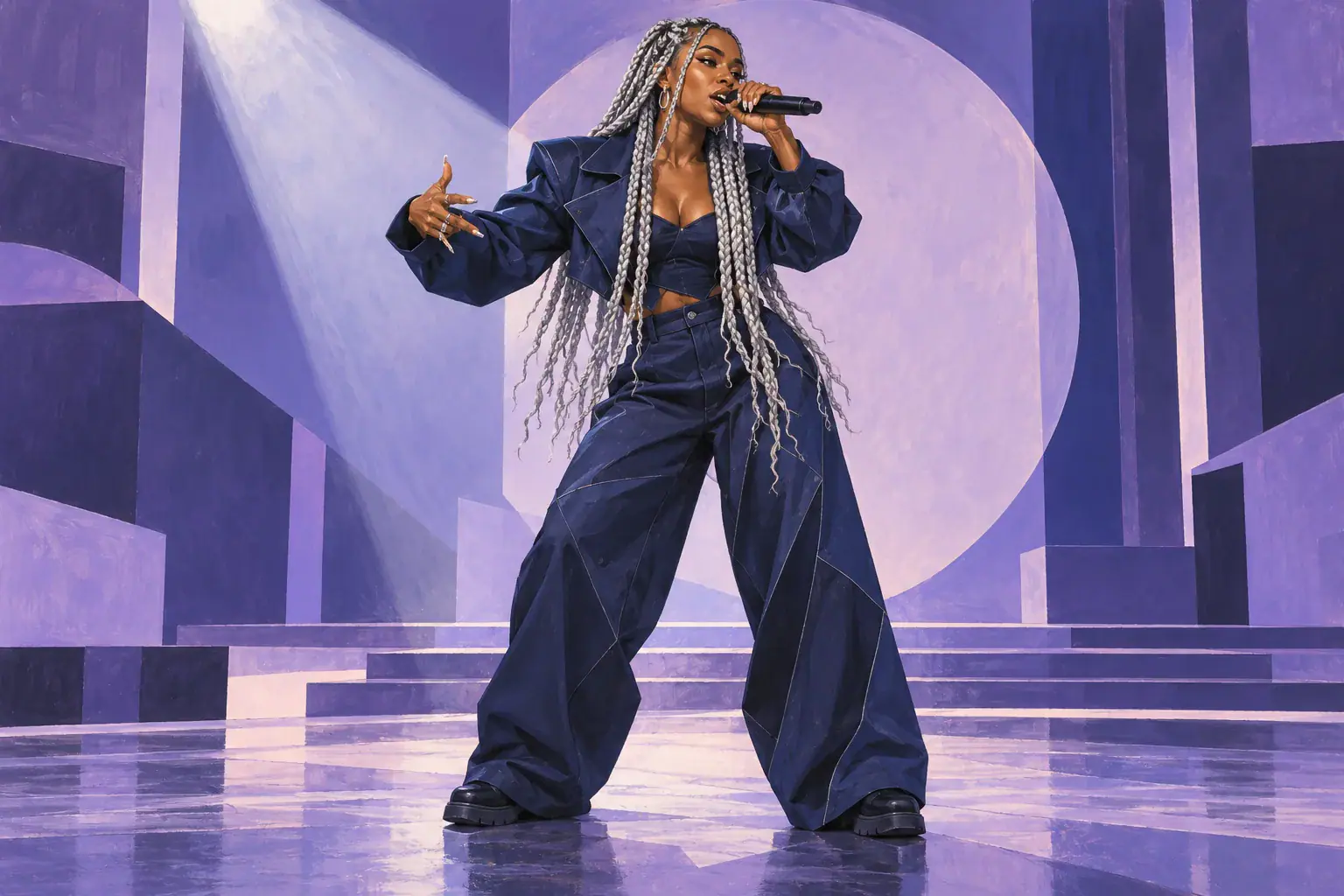
An original character with stage presence

A fictional adult performer gives you room to invent a look without borrowing an artist's identity. Think about a few visual anchors: a distinctive hairstyle, a strong silhouette, and one accessory that belongs to the character. Prepare a portrait where those details are visible instead of burying them under stage effects. For an illustrated character, keep the face readable and the design consistent across the image. Use the surrounding post to introduce the character's name or backstory. That creates a recognizable personality without claiming the clip recreates a famous rapper's voice, song, or performance.

Start a character performance
Original illustrated adult performer with silver braids on a lavender stage

A creator introduction with personality

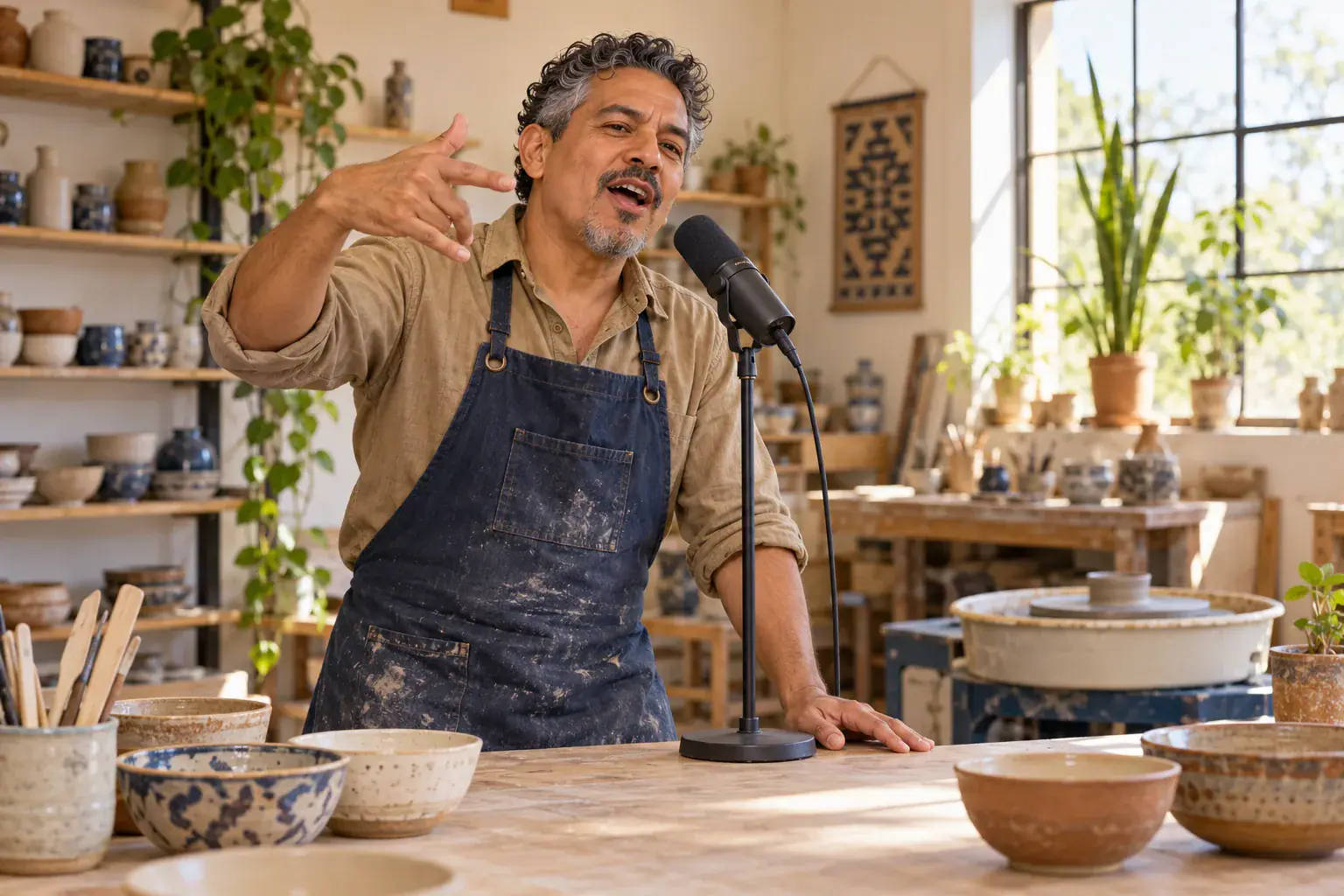
Use a photo that connects with what people already know about your work. A maker in a tidy workshop or a host beside a familiar recording desk can make a solo performance feel like part of an existing identity. Leave room for your introduction outside the face and hands, then add a short line such as “Small room, big ideas” in your editor. Keep product labels, exact slogans, and contact details out of the generated scene when their accuracy matters. Those elements are easier to control as separate overlays, and the performer remains the center of the clip.

Choose my introduction photo
Adult ceramic artist with an apron gesturing beside a microphone in a bright workshop

Small choices that shape a rap performance

Use these checks to make the visual idea easier to read, from the first glance at the portrait to the final viewing size.

Separate gestures from clutter

Hands near the chest can communicate emphasis, but a source image with a hand already covering the lips hides an important part of the face. Favor a relaxed starting pose. A microphone can establish a performance setting when it sits to one side; avoid placing a large grille directly over the mouth. Keep unrelated objects away from the hands.

Give the scene a clear focal point

A bright face against a quieter background is easier to follow than several competing faces or lights. Inspect your image at thumbnail size: can you still tell who the performer is? If the answer depends on reading a sign or spotting a tiny detail, simplify the crop. The visual joke or personality should survive before a viewer opens the post.

Treat rhythm and lip sync separately

Head movement and expressive gestures can suggest rap energy, but matching specific words requires an audio driven lip sync workflow. Adding a song underneath a visual clip does not automatically align every syllable. If your project depends on an exact recorded verse, plan the audio and mouth synchronization together in a tool that accepts that recording, then evaluate them with sound on.

Check the ending as well as the opening

The first frame may look convincing while later details drift. When reviewing a returned clip, watch the eyes, jawline, fingers, and clothing edges throughout the performance. Look for abrupt changes around gestures and at the ending. Choose a clean stopping point when editing a social post, so the last moment feels intentional instead of cutting off an unfinished movement.

AI rap video questions

Choose the workflow that fits your input before starting. A portrait performance, a two person scene, and a finished song video involve different decisions.

This page uses a photo input, with no audio upload or lyrics field. It is for a solo visual performance from a portrait. For a specific song, use an audio based workflow that accepts your recording and provides lip sync controls. A music visualizer is another option when you want patterns or waveforms responding to a track instead of a person performing it.

The form on this page takes one image for a solo performer. For the two person Hotel Lobby format, open the effect selector and choose Hotel Lobby AI Video. That page has its own two image workflow. Keeping the two tasks separate helps you prepare the right portraits before starting, rather than combining two faces into a single upload and expecting independent performances.

Start your AI rap video with one face

Choose the portrait that makes your solo performance personal. Bring it to the workspace, set the frame for your post, and keep the idea focused on one recognizable performer.