
VidFomo
Loading...

Hug In Heaven

Images
0 / 7
400/3072
Aspect ratio
Duration
5s
Resolution
Generate Audio
Required Credits
76

Sample Videos

My Videos

Hug In Heaven AI Memorial Video

Give the wish for one more hug a place in an imagined scene. Hug In Heaven is an AI memorial video idea: you and someone you miss meeting in soft light, among clouds, or on a quiet stairway. Start with a shared photograph or separate portraits, then describe the embrace in your own words. This is a creative tribute, not a recording of a real reunion. Choose a scene that feels right for your family, whether you keep it for yourself or share it with people who remember them.

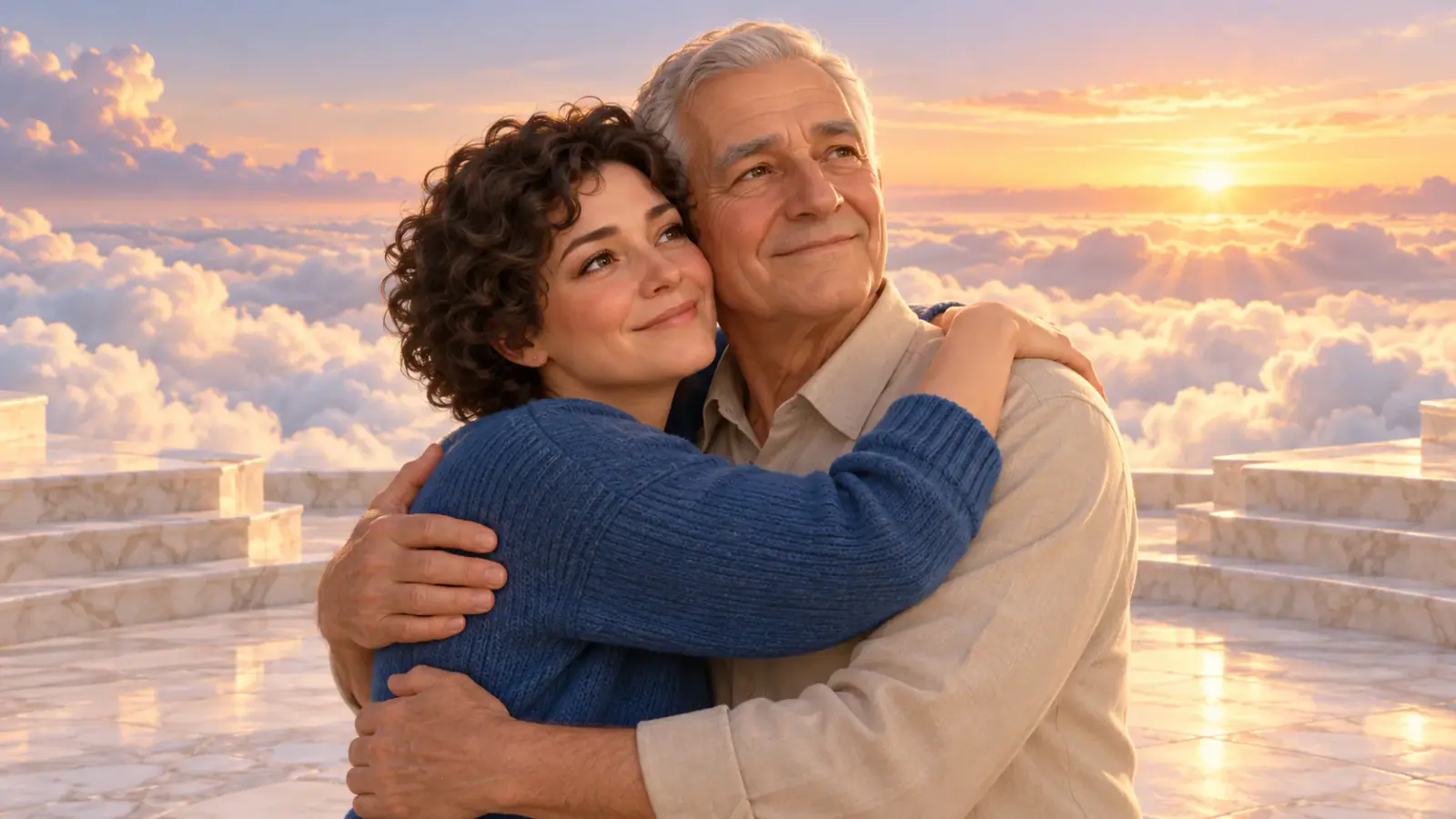
Illustrated adult daughter embracing her father on a luminous landing above clouds

How to make a Hug In Heaven video

The workspace opens with Images and an editable reunion prompt. Your photos guide appearance; your words guide the setting and movement.

  1. Add the people you want to remember

    Add one photo showing both adults, or two separate portraits with one person in each. Keep faces, shoulders and some of the upper body visible. Use photographs you have permission to use, and discuss the idea with the living person pictured. The reference area lets you preview, replace and crop your selections before generation; selecting local photos does not start a video request.

  2. Describe one gentle moment

    Edit the starting prompt to name each person by their clothing or position in the reference photos. Describe a short approach, a gentle hug and a still ending. Choose the model and the available duration, resolution and aspect ratio in the workspace. Begin with a simple scene rather than combining a long climb, several camera cuts and a detailed conversation in one clip.

  3. Generate, watch and save

    Sign in and check the credits shown for your selected settings before choosing Generate. When a result is ready, watch the full clip, then pause where the arms meet and where each face turns. If a detail feels wrong, simplify the motion or choose a clearer source photo for another attempt. Download the version you want to keep from the result controls.

Build a reunion around your own memories

A familiar face, a meaningful setting and a small gesture each contribute something different to a memorial scene. Decide what matters most before adding more detail.

One shared photo or two separate portraits

A shared photo already shows the people together, including their relative height and how they stand beside each other. Separate portraits are useful when no shared photograph exists, or when a group picture makes either face too small. For two portraits, choose similar viewing angles and avoid heavily cropped heads. In this page’s reference workflow, both options provide appearance references for a newly imagined scene; the composition can change. If you want to animate an existing photograph from its exact opening frame, use the Image to Video mode in the main video workspace instead. Keep an untouched copy of any family original before preparing a crop. Open the main video workspace

Choose my reunion photos
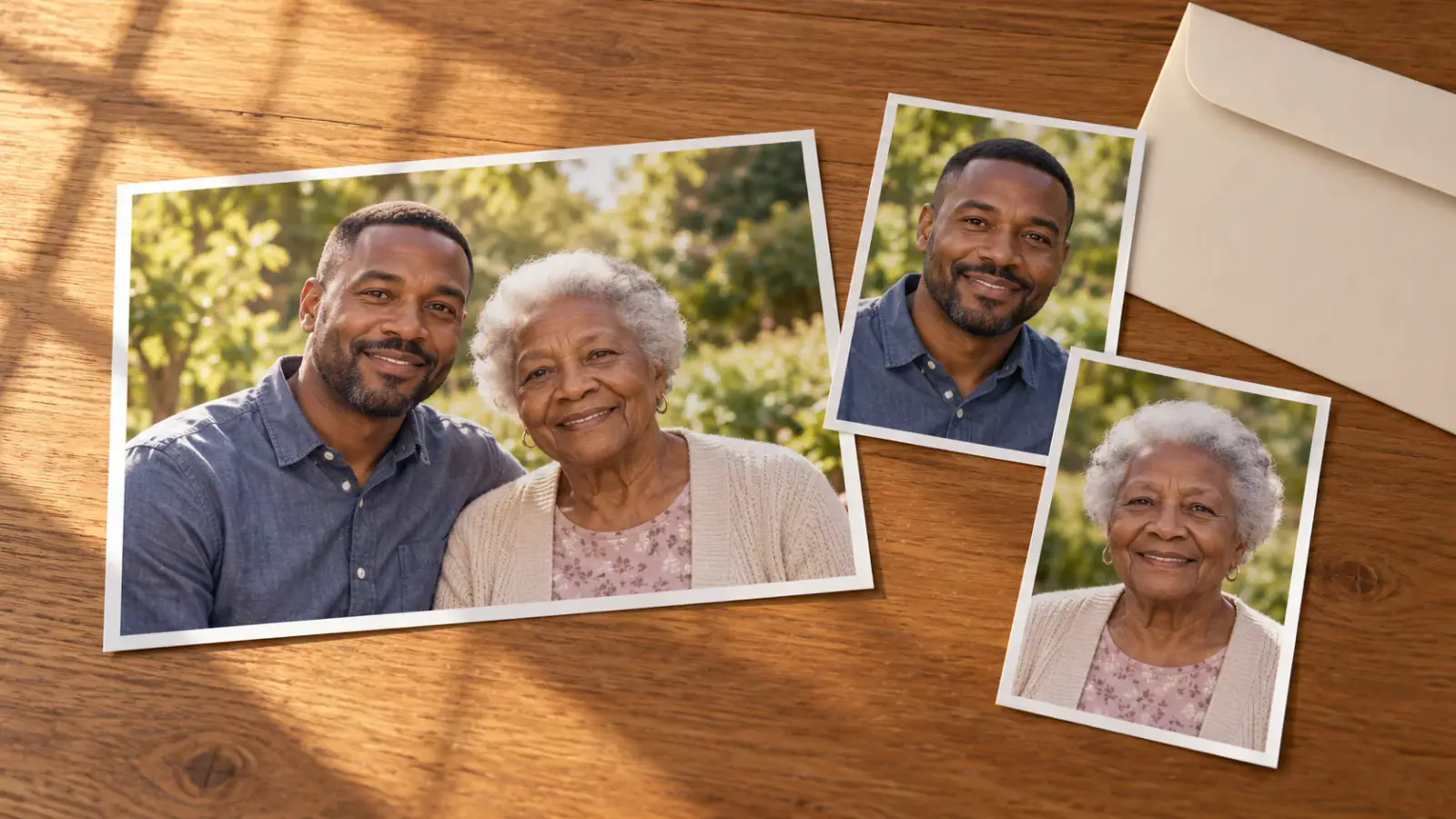
Three illustrated photo prints showing an adult son and his mother together and separately

A heaven reunion with a personal setting

Clouds and a glowing stairway are recognizable choices for a heaven reunion, but you can describe a garden, a familiar doorway or a bright open path instead. Keep the environment simple enough that the two people remain the focus. A useful prompt names the subjects, the place and one action: “The two adults from the reference photos meet on a quiet garden path above soft clouds, step toward each other and share a gentle hug. Keep the camera steady and finish with a brief hold.” Add an everyday detail, such as a favorite cardigan, when it helps the scene feel personal. Treat elaborate stairway sequences as a creative direction, not a fixed template.

Shape my heaven reunion
Two illustrated adult sisters approaching on a garden path above clouds

Keep the tribute on your own terms

A memorial video can stay in a personal collection, accompany an anniversary message, or become part of a family conversation. Before sending it, consider whether the recipient would welcome an imagined depiction of the person they miss. Ask first rather than making the video an unexpected surprise. When sharing, use a simple description such as “An AI tribute made with our family photos.” Keep the source photograph alongside the finished clip so the original memory remains easy to find. If you want to add dates, a dedication or licensed music, save the video and make those additions in your usual editor.

Create a personal tribute
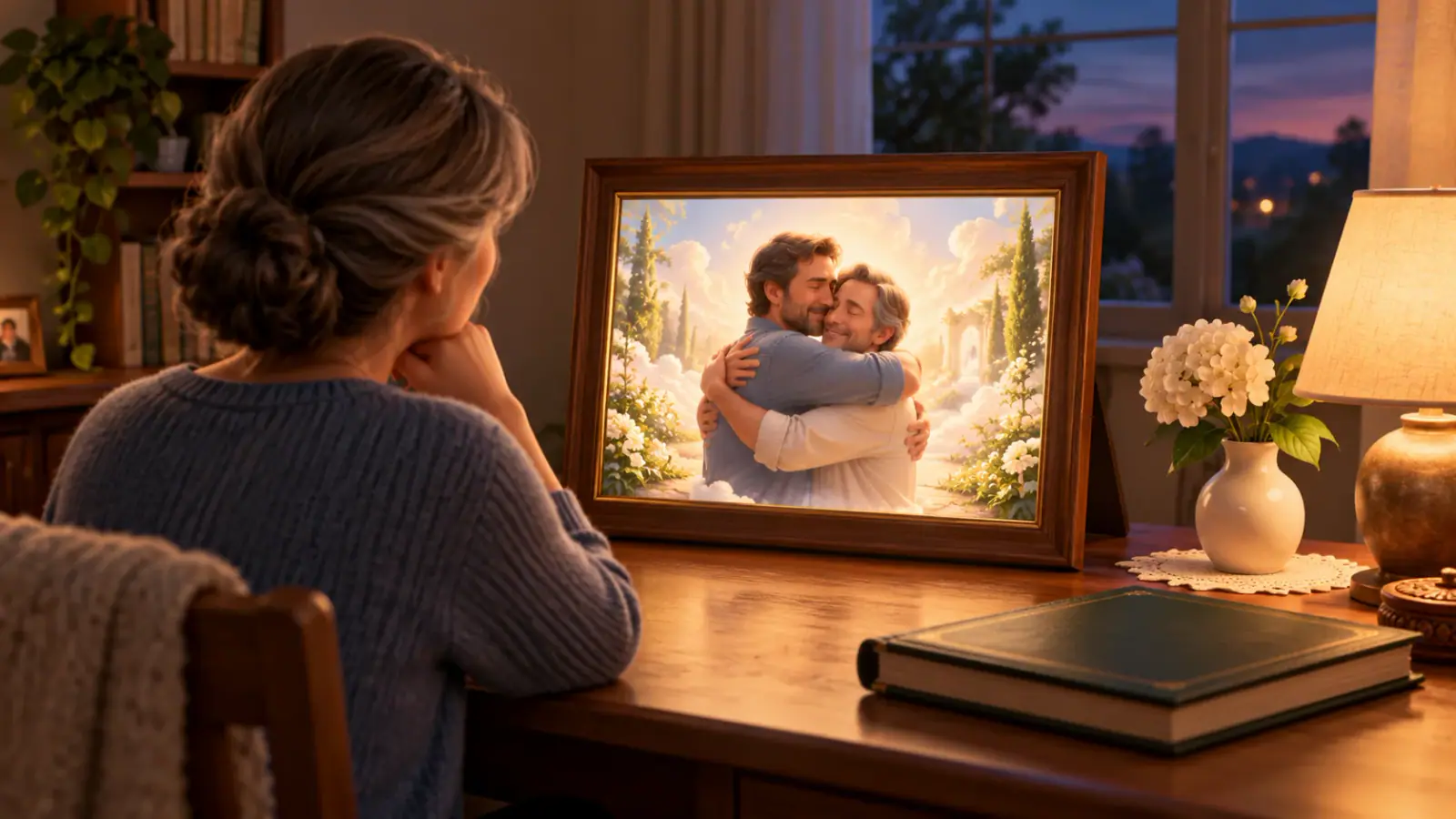
An illustrated woman reflecting beside a framed imagined family embrace

Decisions before you generate

Use the controls to match the clip to its purpose, then let the reunion stay simple.

Choose a frame for the destination

Portrait framing suits a phone tribute; a landscape frame leaves more room around two people. Leave space above heads and around elbows when composing the scene. Choose the available aspect ratio before generating, especially if you already know where you want to share the clip.

Give the embrace time

Spend the clip on one approach and one embrace. A long walk can use up the time intended for the hug. For a shorter duration, start with the people already close together. A steady camera also makes it easier to inspect faces and hands afterward.

Check credits for your choices

The required credits depend on the selected model and settings. Read the amount beside Generate and check your account balance before submitting. Changing resolution, duration or model can change the quote. Plan another generation as a separate attempt when deciding how much to spend.

Choose sound deliberately

Use the audio control when the selected model offers it. A quiet tribute can work without dialogue. To add a particular song or a real voice recording, use an editor and material you are allowed to use. A photograph alone does not supply the person’s authentic voice.

Hug In Heaven questions

Practical answers for family photos and imagined memorial scenes.

Yes, you can select a clear scan as a reference. A faded photograph with a readable face is more useful than a heavily sharpened copy that changes facial features. Crop away scanner borders and distracting people, while leaving shoulders visible. If the face is tiny or damaged, try another photo before asking the video model to invent missing detail.

Reference photos guide appearance, but generated faces, hands and clothing can change as people turn or touch. Compare the finished clip with both originals, particularly during the hug. For a revision, reduce camera movement and remove extra actions from the prompt. Choose the version that feels appropriate to you rather than treating a generated expression as something the person actually did.

Begin your Hug In Heaven tribute

Choose the photographs that matter to you, then return to the workspace to shape a small reunion scene. Start with one embrace and a setting your family would recognize.