
VidFomo
Loading...

Gemini AI Image Generator

Mode
0/10000
Aspect Ratio
Resolution
Images
Required Credits
3

Sample Images

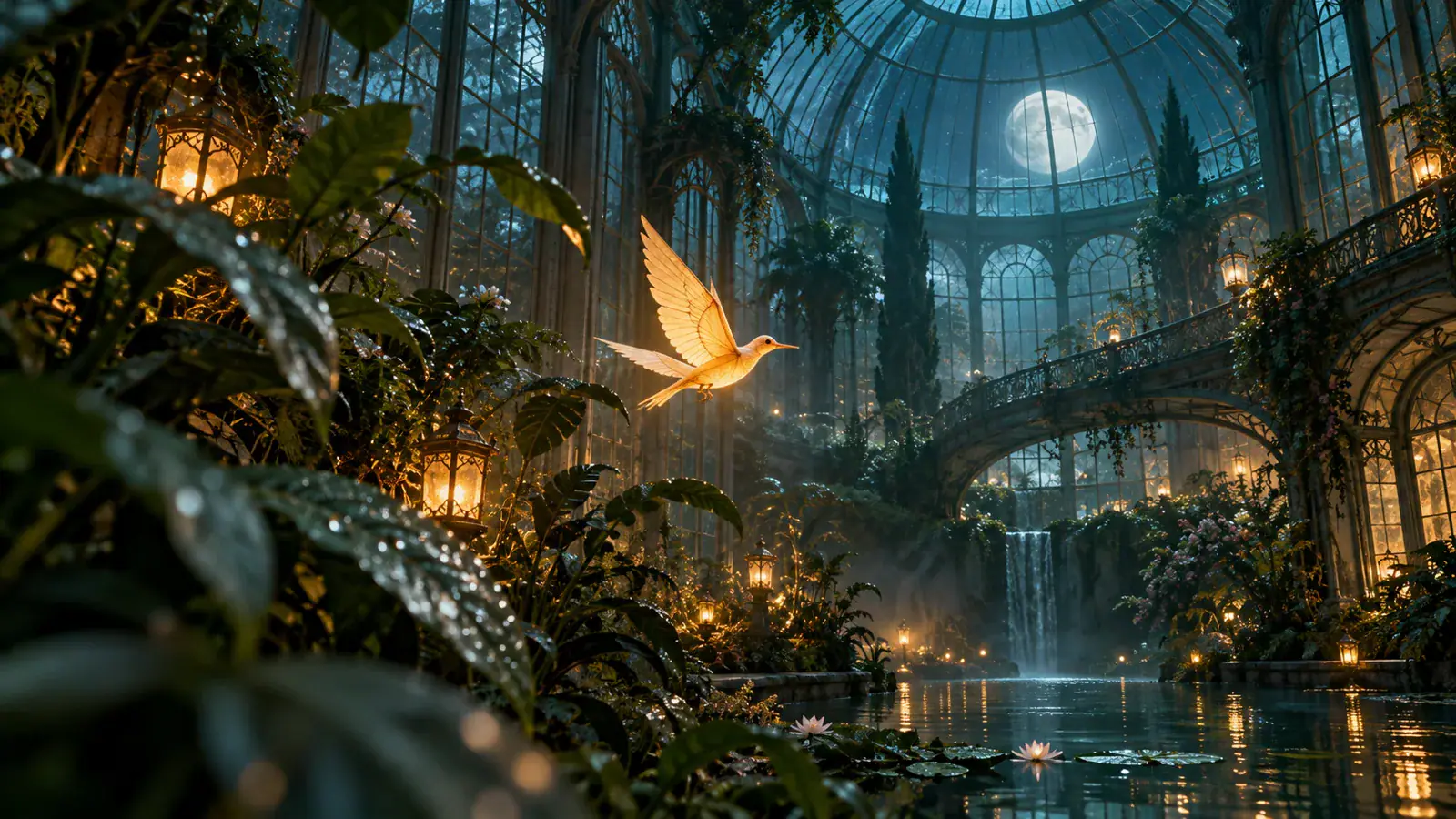
A glowing bird among plants inside a moonlit greenhouse

Gemini AI Image Generator

Create an image from a text prompt or upload a photo and describe what you want to change. VidFomo's Gemini image generator uses Google's Nano Banana 2.1 for both tasks. Start with Text to Image when you have an idea for a new picture. Choose Image to Image when the subject, composition, or style of an existing photo should guide the result. You can set the shape of the canvas before generating and download the image from the same workspace.

A brass table lamp on a stone side table beside a sunlit window

How to generate an image with Gemini

Choose your starting point, write the image brief, and inspect the result before saving it.

  1. Start with a prompt or a reference

    Open Text to Image if you are starting from a blank canvas. To work on an existing picture, open Image to Image and add the photo you want to edit. Pick a reference with the whole subject in view if you need to preserve its shape. Check the upload thumbnails before generating, especially if you have several versions of the same photo.

  2. Describe the result you want

    Write what should appear in the finished image. Name the subject, setting, and framing for a new scene. For an edit, name the area or object to change and the detail you want to preserve. Open Settings to choose an aspect ratio and resolution, then review the credit cost shown by the workbench before selecting Generate.

  3. Review and download your image

    Open the result in My Images and inspect the details that matter for your project. Check the edges of an edited object, the spelling on a label, or the space around a subject you intend to crop. When the composition and details are ready, use the download control in the result panel to save the image.

What you can make with Gemini image generation

A new scene, a targeted photo edit, and a new composition for a different canvas size call for different kinds of instructions.

Build a scene from a text prompt

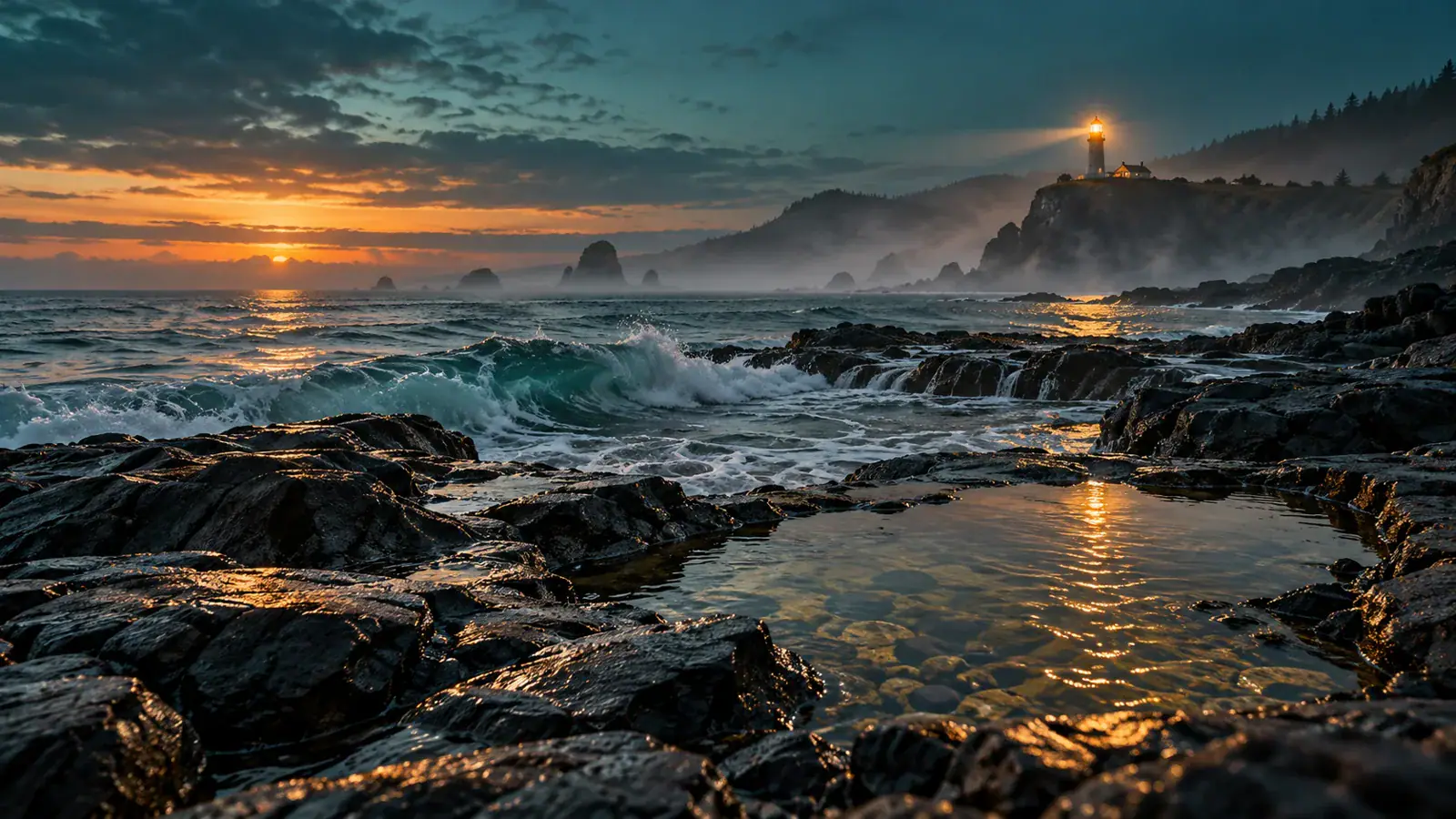
Describe a single frame that someone could photograph or draw. For a coastal illustration, try “A white lighthouse on a rocky headland at sunset, warm light on the tower, cold blue waves below, with open sky on the left.” The subject, viewpoint, and lighting each give Gemini something specific to compose. If this is for a cover, describe where the empty space belongs and what will go there. “Leave the left third clear for a heading” gives a more concrete layout instruction than a general request for a clean design. Keep optional details for a second pass so the first result is easier to evaluate.
Generate from text
A lighthouse at sunset above waves breaking against a rocky coast

Edit a photo with a written instruction

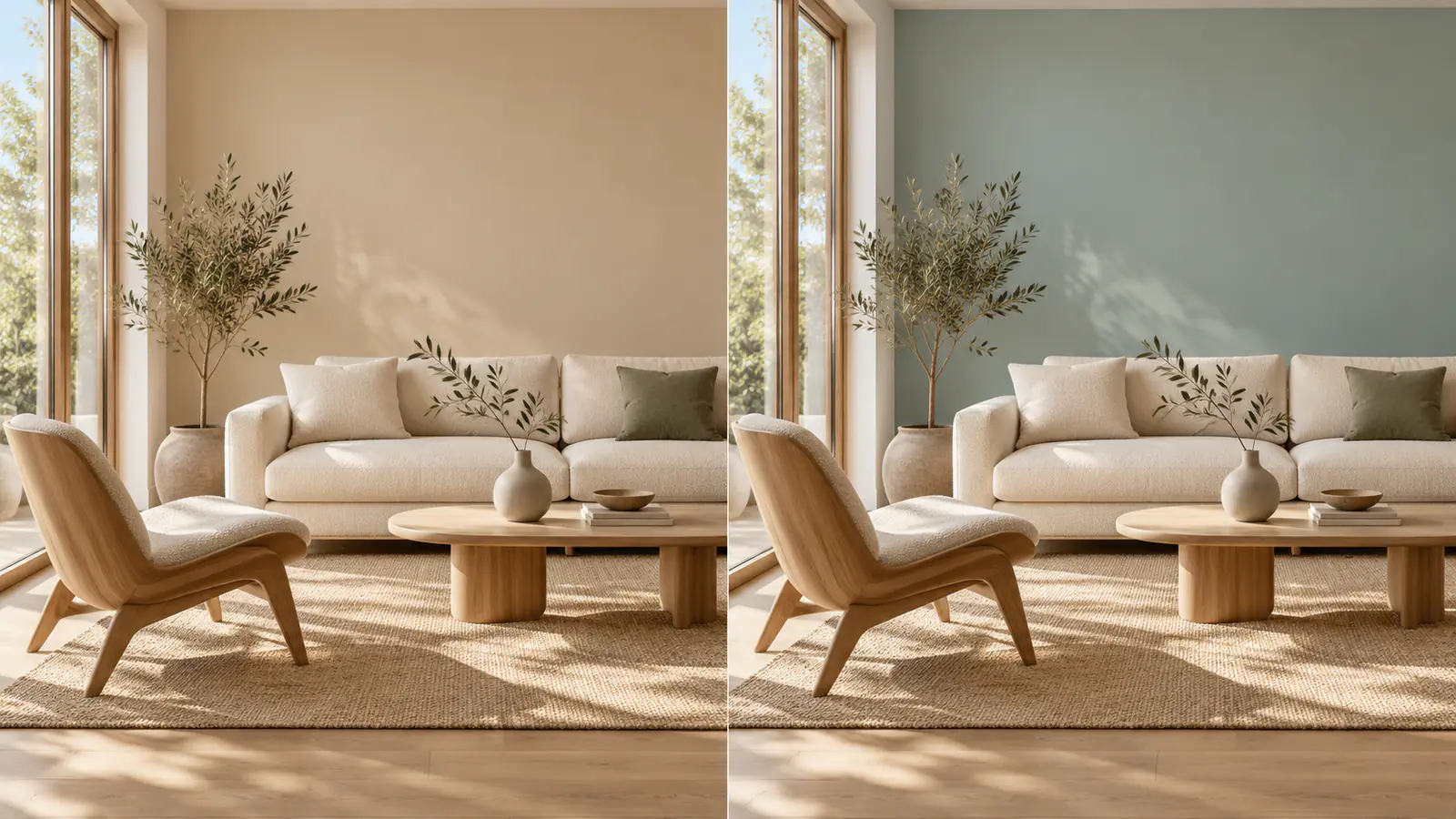
Start with the photo that already has the right viewpoint or subject. To test a wall color, upload a room photo and ask Gemini to repaint the back wall in sage green while keeping the furniture, window position, and shadows. Use the location of an object to help identify it, such as “the lamp beside the window.” When you add a second photo for its palette or texture, say exactly which quality to borrow. For a second edit on the same image, keep the original nearby so you can compare features that should stay consistent, such as a face, a product label, or the angle of the room.

Edit a photo with Gemini
The same room shown with two different wall colors

Compose for a square, wide, or vertical image

Pick the aspect ratio for the place the image will appear. A square product tile can give a centered object even margins. A wide site banner may need the subject on one side and room for a headline. A vertical portrait can use the height of the frame while leaving space near the top for an overlay. If you need both a wide header and a vertical social image, give each version its own framing instruction and carry over the subject and lighting. For the vertical version of a wide portrait, ask for the full head and shoulders in frame, with breathing room above the subject.

Choose an image format
A vertical portrait lit with cool blue and warm orange light

Get more control over your Gemini images

Give the model a clear reference, a readable text instruction, and a size that matches how you will use the image.

Give each reference a job

VidFomo accepts up to 10 reference images for this model. Start with the clearest picture of the main subject. If you add more, identify what each contributes. For example, tell Gemini to use the first image for the bag's shape, the second for the fabric texture, and the third for the lighting. If two references give conflicting directions for the same detail, use the one closest to your goal.

Set the resolution for the final use

Use 1K to test a composition or compare variations. The 2K and 4K options give you a larger image for designs that will be inspected closely, and those settings require paid access. Choose aspect ratio for the shape of the canvas and resolution for its size. For print, check the downloaded pixel dimensions against the size of the intended layout.

Write the exact words for a label

For an image with a title or short label, put the exact wording in quotation marks and describe where it should go. For example, ask for “COASTAL MARKET” at the top center in large cream lettering. Zoom in on the downloaded image to check each word. For longer copy, leave space for a text layer you can typeset after downloading.

Change one thing in the next pass

When a result is close, write down the one change that would make it usable. “Keep the scene and framing; soften the shadow behind the bottle” gives you a specific change to compare. If several edits have shifted an important detail, go back to the original reference and reapply the change that mattered most.

Gemini image generation FAQ

Find out which model powers this tool, how credits work, and how to fix common problems with references and framing.

This VidFomo tool uses Nano Banana 2.1, a Google Gemini image model that takes text and image inputs. Both tabs use the same model. Text to Image starts with your description, and Image to Image includes the reference photos you choose. The Gemini app has its own model selection and account options.

Sign in to VidFomo to submit a generation. The workbench shows the credit cost for the settings you choose. Higher resolutions and requests for multiple outputs require paid access. For a first draft, select one image at 1K and check the cost shown next to Generate.

Create your next image with Gemini

Start with a scene you want to see or a photo you want to revise. Open the Gemini workbench, set the canvas for your project, and generate your first version.