
VidFomo
Loading...

Veo 3.1 Fast Video Generator

Mode
0/10000
Aspect ratio
Duration
8s
Resolution
Required Credits
60

Sample Videos

My Videos

Veo 3.1 AI Video Generator

Give a short scene something to say. Google Veo 3.1 brings video and native audio into the same creative brief, from a spoken line to the sounds of a place. This page uses Veo 3.1 Fast. Start with words, a starting image, first and last frames, or up to three reference images, then describe the action, framing, and sound you want. Choose a focused moment that fits a four, six, or eight second clip.

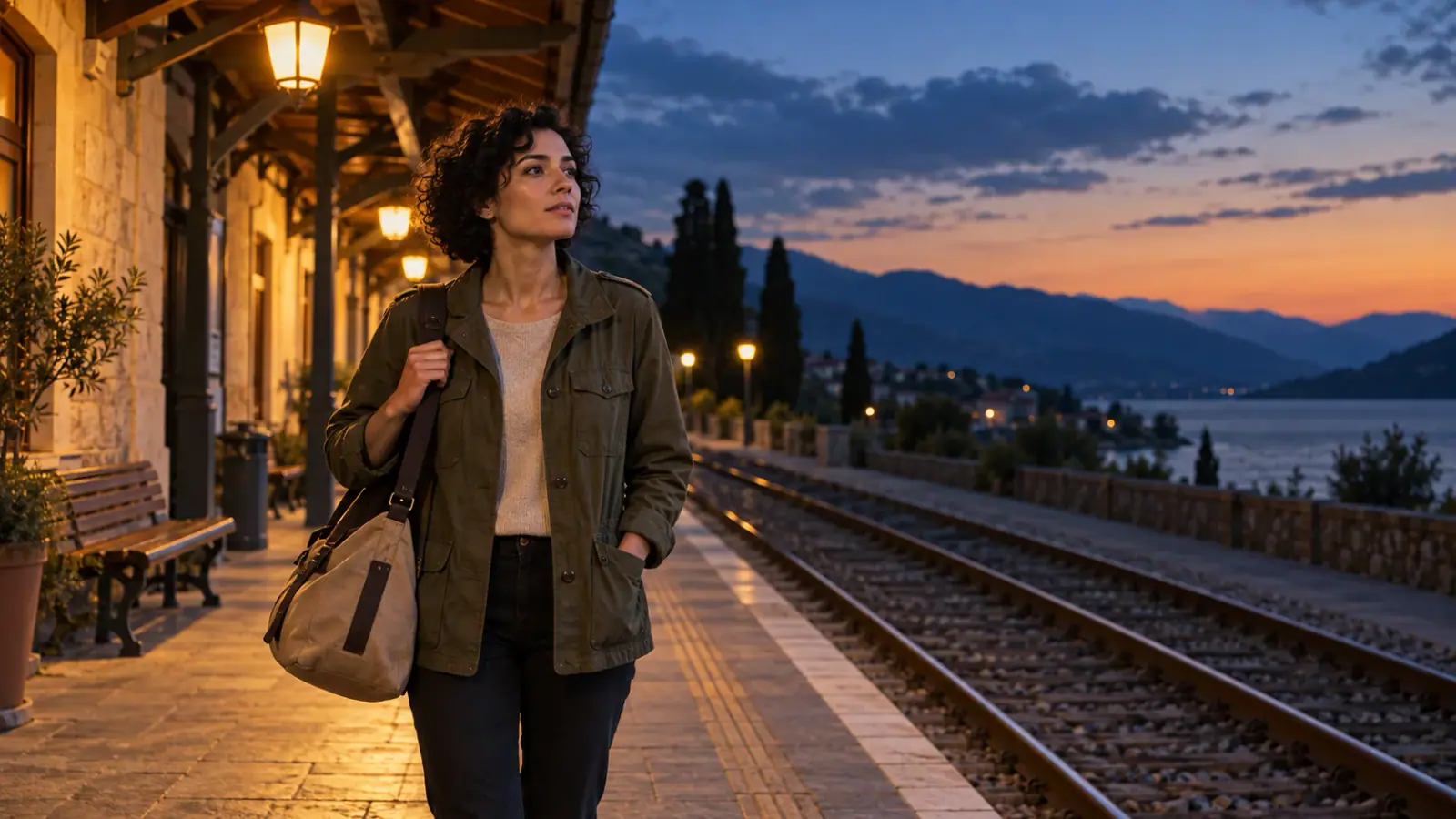
A traveler listening beside a quiet railway platform at dusk

Explore video models for your next scene

Compare the dedicated model pages when your next idea calls for a different input or creative approach.

How to use Veo 3.1 for a focused video idea

Build the scene around one visible event, then give that event a setting and a sound. A simple brief is easier to revise than several competing storylines.

  1. Choose text, frames, or reference images

    Choose Text to Video to invent the scene from words. For image to video, choose Frames to Video and add a First Frame image; enable an end frame when you want to guide the closing composition. Reference to Video accepts up to three images for visual guidance. Use pictures with readable subjects and space for the action: a bicycle beside a path gives a clearer starting point than a crowded collage. Preview the crop before writing your prompt, and replace or remove images that work against your idea.

  2. Describe the action and the sound

    Write who or what appears, what changes during the shot, and how the camera sees it. Follow with a separate sentence about audio. For example: a red bicycle stands outside a bakery as rain falls; the camera moves closer to droplets gathering on the handlebar. Audio: steady rain on the pavement and a distant doorbell. Keeping visual and sound instructions distinct makes it easier to change one part of the brief.

  3. Set the frame and check the brief

    Choose Auto, 16:9, or 9:16 for your composition. The settings offer 720p, 1080p, and 4K, with four, six, or eight second clips. Reference to Video uses eight seconds. Check the required credits for your settings before using Generate. Keep the main action within the selected duration and put important subjects away from the edges. Read the complete prompt once, checking for contradictory camera directions. Check that a spoken line can finish before the scene ends, leaving a short pause for the viewer to absorb it.

Three ways to shape a Veo 3.1 scene

Choose the visual problem first: an imagined place, an object you already have, or a moment whose meaning depends on sound.

Veo 3.1 text to video for a place you imagine

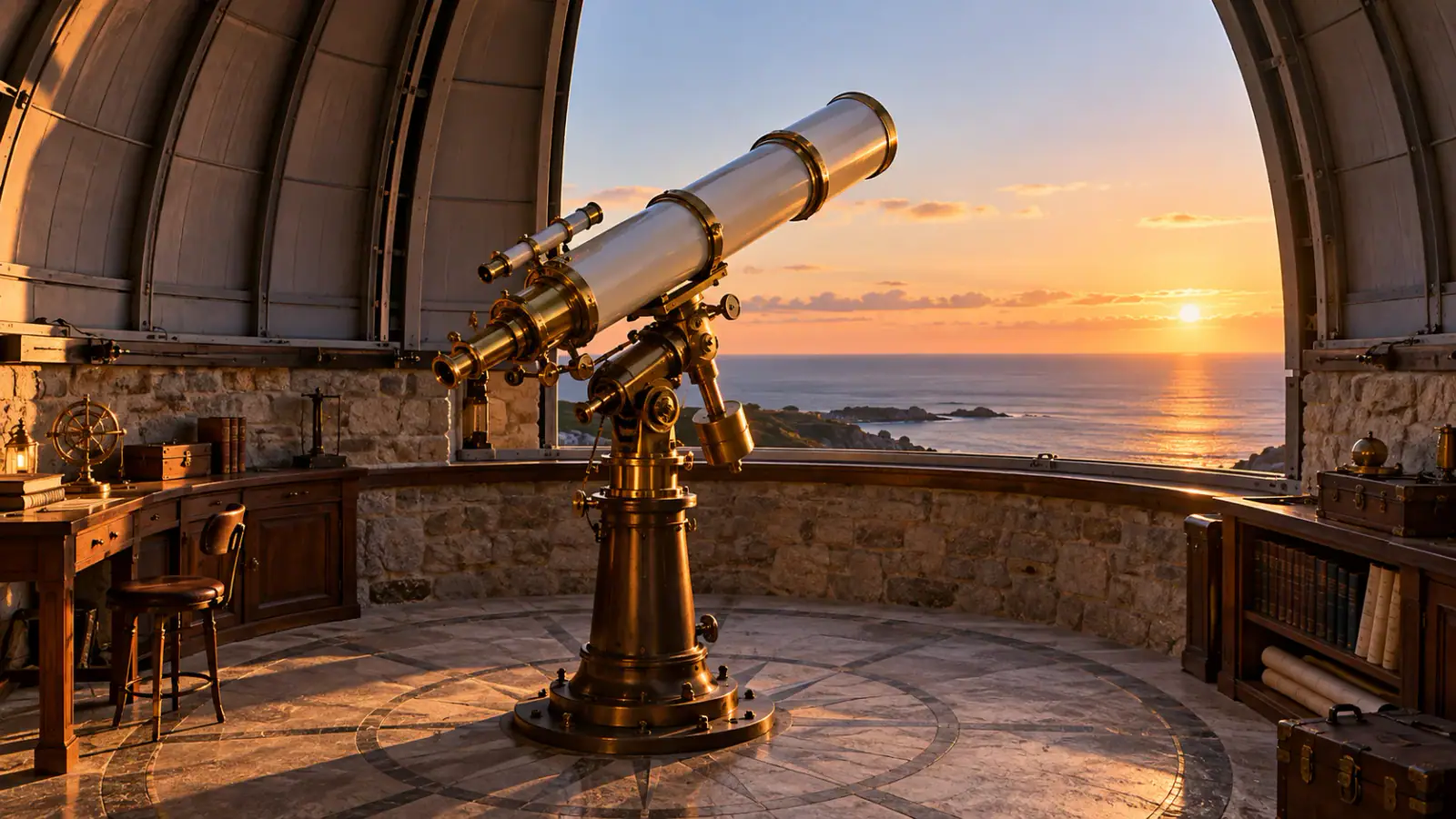
A text prompt gives you room to establish a location without finding a starting photograph. Try a small coastal observatory at dawn: an open dome, one telescope, and clouds moving beyond the windows. Decide whether the viewer should notice the whole room or a single detail, then choose a wide shot or a closer view. Add one camera movement, such as a slow push toward the telescope. This approach suits an opening shot for a fictional story or a visual mood study. Keep extra characters and scene changes for separate clips so the main event remains easy to read.

Describe a Veo 3.1 scene
A coastal observatory with one telescope under an open dome at dawn

Veo 3.1 image to video for an object in motion

Start from an image when the appearance of an object matters more than inventing a new setting. A handmade paper bird on a desk offers a concrete subject, texture, and color palette. Describe the next action rather than rewriting everything already visible: its wings lift gently while the camera stays still. Leave enough clear space around the object for that movement. For a product concept, separate the motion idea from exact labels or specifications, which you can add in your editing software. An image anchors the opening composition; the prompt explains how the moment should develop.

Start a Veo 3.1 image scene
A folded paper bird with lifted wings on a spacious wooden desk

Write audio as part of the scene

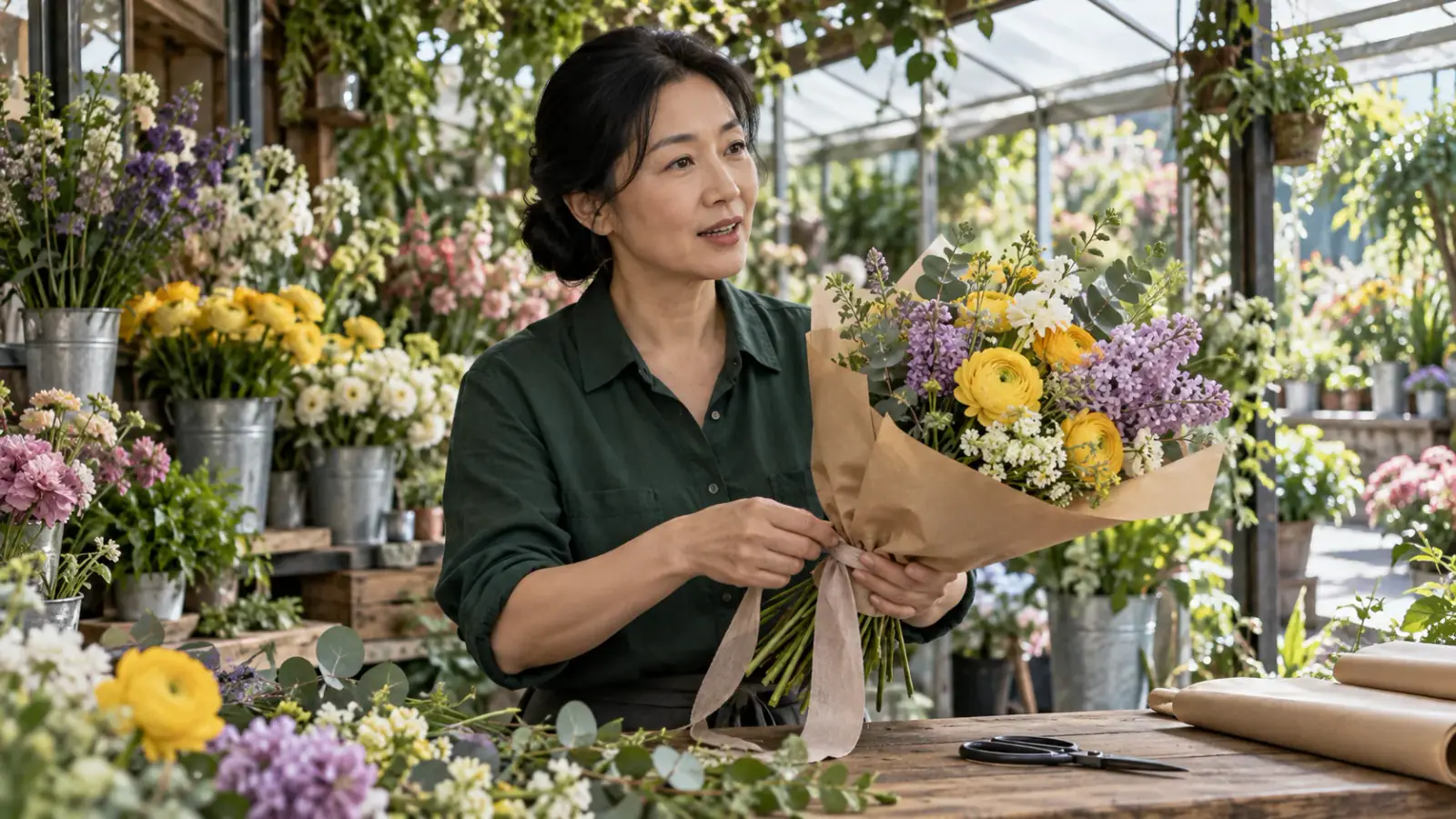
Veo 3.1 generates native audio, including environmental sound and dialogue. Give sound a reason to exist in your scene. In a flower shop, a florist might wrap a bouquet and say one short line while scissors snip through a ribbon beside the counter. Name the speaker, write the exact line, and describe the delivery separately from background sound. If the dialogue is the focus, keep the environment quiet; if the location is the focus, use ambience without adding an unnecessary conversation. Listen for whether the sound supports the action when reviewing a finished clip.

Write a scene with sound
A florist wrapping a colorful bouquet at a greenhouse flower counter

Make useful choices before generating

These decisions give each revision a purpose and make a short clip easier to fit into a larger project.

Plan where the clip will sit

Decide whether the clip opens a story, illustrates a point, or fills a gap between two shots. An opening needs context; an insert can concentrate on a small action. Write that role into your own brief before choosing visual detail, so a beautiful image also serves the edit.

Leave room for your final layout

If you intend to add a headline or subtitles later, reserve a calm area of the composition. Keep faces and essential objects out of that space. Add exact campaign wording in an editor, where spelling, typography, and placement can be controlled independently of the generated scene.

Change one creative choice at a time

Save the prompt version alongside the intended use. When comparing alternatives, change the camera movement, the action, or the audio direction separately. A small record of what changed helps you identify a useful improvement instead of guessing which instruction produced a different result.

Review the moment at normal speed

Watch the whole clip before inspecting individual frames. Check whether the action has a readable beginning and ending, then listen again with attention to spoken words and background sound. For a sequence, compare the final frame with the next shot and choose an edit point that feels deliberate.

Veo 3.1 Reviews from Creators

Read how creators used Veo 3.1 to test camera movement, storyboard scenes, and explore video concepts.

  • Motion Makes the Scene Feel Real

    I tested Veo 3.1 with a short scene of someone walking through a quiet street after rain. I paid particular attention to the walking motion, camera movement, and reflections on the pavement. Watching those elements together helped me judge whether the scene could work as a reference for a larger project.
    Ethan MitchellVideo Creative Director
  • Easy to Describe a Shot

    For a travel video concept, I wrote a prompt describing a slow camera movement across a mountain landscape at sunrise. I liked being able to express the shot in everyday filmmaking language. The generated clip gave me something visual to evaluate before spending time planning a real shoot.
    Olivia TurnerTravel Content Creator
  • Useful for Social Video Concepts

    Our team was planning a short social campaign for a local coffee shop, and we needed a few ideas for the opening scene. I used Veo 3.1 to explore a cinematic coffee-making sequence. The clip helped us discuss pacing, atmosphere, and framing before deciding what to film ourselves.
    Jessica ReedSocial Media Producer
  • Better Results Through Prompt Changes

    My first video concept had more camera movement than I wanted, so I adjusted the prompt to describe a steadier shot and a slower subject movement. The next attempt felt closer to the mood I was aiming for. That process helped me understand how specific instructions could influence the visual direction.
    Marcus ChenIndependent Filmmaker
  • A Straightforward Way to Test Scenes

    I needed a short atmospheric clip for a presentation about an upcoming brand campaign. I described the scene, generated a video, and reviewed the result against the storyboard. Being able to see an idea in motion made the discussion more useful than relying on a written description alone.
    Lauren HayesBrand Content Strategist
  • Helpful Before a Full Production

    As a freelance video editor, I often receive creative briefs that leave the intended mood open to interpretation. Veo 3.1 gave me a way to explore possible scenes and share visual references during early planning. It didn't replace production work, but it helped reduce unnecessary back-and-forth before the team committed to a direction.
    Ryan CooperFreelance Video Editor

Veo 3.1 questions before you start

Clarify the model name, the input you need, and the decisions that affect a short video project.

This page generates with Google Veo 3.1 Fast. The model is fixed in this workspace, so your settings, credit estimate, and generation request all use the same model. Veo 3.1 Lite is a separate variant. Use the complete model name when comparing tutorials and capabilities.

No. Text to Video starts from a written description. Choose an image when you want the opening to begin with a specific composition, such as your own illustration or an object photograph. Use material you are allowed to upload, and choose a single clear image rather than a collage of unrelated views.

Give your Veo 3.1 video one clear moment

Bring a scene idea or a starting image to the Veo 3.1 AI Video Generator. Choose what the viewer should notice, write the action and sound, and shape a brief you can refine.