
SuperMaker.ai Alternatives for Product Videos
Compare four SuperMaker.ai alternatives for product ads, image-to-video clips, and edits. See what it takes to start and how to hand off your work.

For a first product ad from a photo, try Higgsfield Marketing Studio. If the cut only needs an opening shot, try VidFomo Wan 3.0. With clean footage, use Adobe Firefly Timeline to put the new offer on an editable text track. Try Runway Workflows if you need to rebuild a reusable node workflow. Keep SuperMaker if its existing canvas still does the job.
VidFomo publishes this guide and is one of the options. The comparison uses public web tools, documentation, and US pricing checked November 8, 2026. The desk lamp trial below is a plan you can follow.
SuperMaker alternatives at a glance
| What you have | Try | What you get and where to revise |
|---|---|---|
| A product photo and an offer, with no ad yet | Higgsfield Marketing Studio | A short ad draft. Check whether changing the offer needs a new render. |
| A product photo and a cut missing its opener | VidFomo Wan 3.0 | One clip for your existing cut. Change the offer in your editor. |
| Approved footage and new copy or audio | Adobe Firefly Timeline | An MP4 for delivery. Keep a separate text track for the next edit. |
| Source assets and a workflow branch to rebuild | Runway Workflows | A rebuilt branch and its exported clip. Ask a teammate to reopen and rerun the node. |
What will the first trial cost?
For this pilot, cap new spending at $50 per route. Before paying, check the amount due today, access to your exact mode and export, and the quote for one attempt plus one revision. If your current edit has a separate text layer, change the offer there. That edit uses no generation credits.
| Route | Public starting option | Check before spending |
|---|---|---|
| SuperMaker Wan 3.0 | The entry annual plan lists $100 upfront. Free credits are available on login and through check-ins. | The listed plans name Wan 2.5 and 2.6. Confirm Wan 3.0 Frames access and the exact quote on your account. |
| Higgsfield Marketing Studio | Its latest US guide lists Plus at $59 a month before tax. | Confirm the lowest plan for your preset and read its quote. The 70-credit example is for a 10-second, 720p UGC ad. |
| VidFomo Wan 3.0 | The Mini pack is $9.90 once for 400 credits. Lite is $29.90 billed monthly. VidFomo pricing | The public form showed 80 credits for 5s, 9:16, 720p, audio off. Two runs at that quote use 160. Check your account's quote and ad-use terms. |
| Adobe Firefly Timeline | A revision with your own footage requests zero AI generations. Firefly Standard lists $9.99 a month in the US. US Firefly plans | Check Timeline beta and MP4 export on your account first. |
| Runway Workflows | Standard lists $15 month to month or $144 upfront for a year. Runway pricing | Check which workflow and model nodes your plan opens. Budget each generative node you expect to rerun. |
The SuperMaker and Runway annual offers exceed the pilot cap, as does Higgsfield Plus at its listed US monthly price. If you already have eligible access, check the balance before buying more. Credits are specific to each provider.
Higgsfield Marketing Studio for a first ad from a template
Start here if you have a product photo and an offer but no cut. In Marketing Studio, open UGC Videos and try a Silent preset if it fits the placement. Upload the approved photo and check the preset's aspect ratio, duration, and quote. Higgsfield also documents product-link and reference-ad inputs. Marketing Studio help
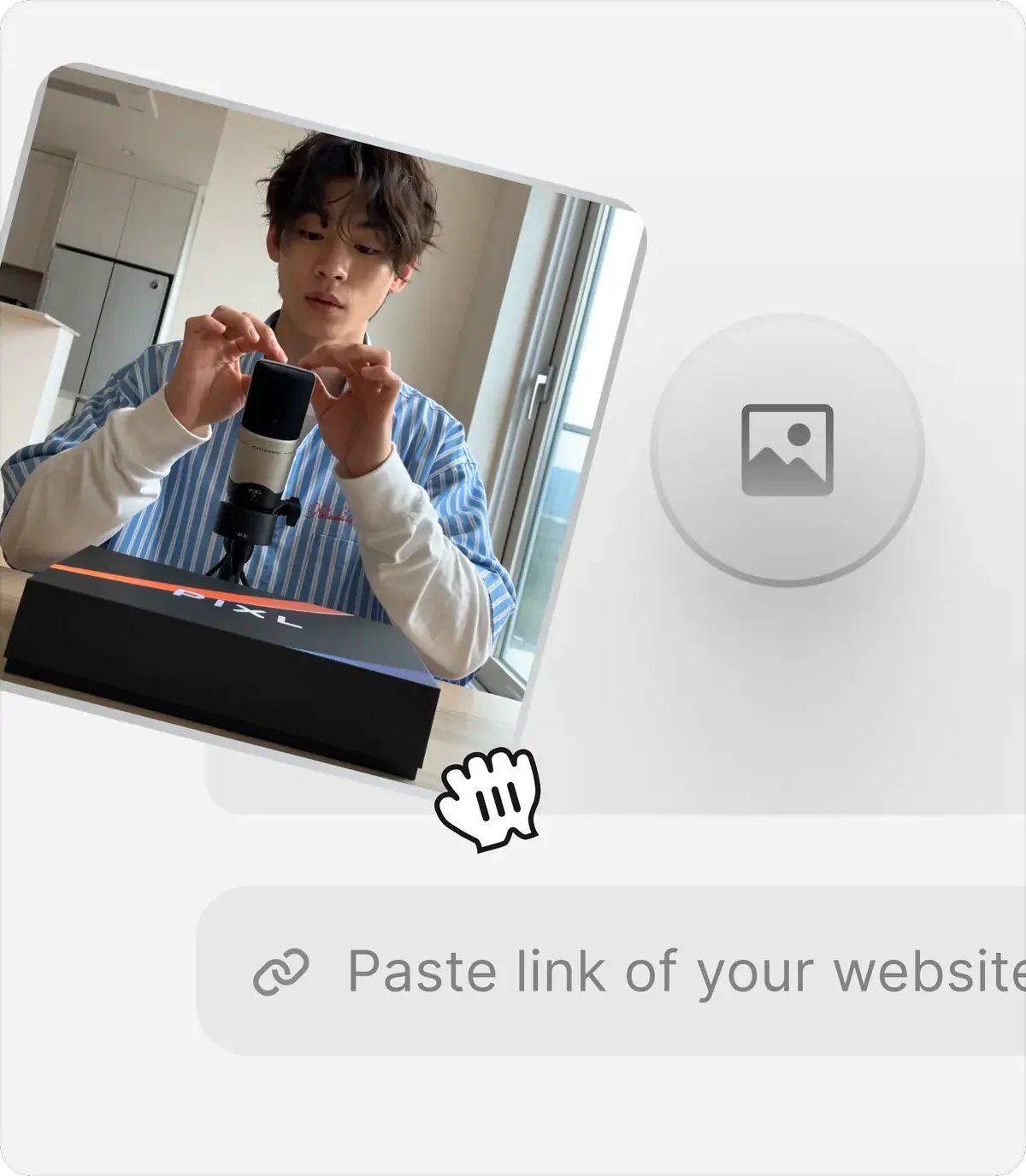
Higgsfield's template illustration shows where a product image or link enters the workflow.
Watch the draft at phone size and check the product, offer, and any added claims. Change the offer once. If the preset needs a new render, see whether you can keep the approved picture and add editable copy downstream. Check Higgsfield's usage terms before using the result in an ad.
VidFomo for one missing shot
If your cut only needs an opener, open VidFomo's Wan 3.0 workbench and choose Frames to Video. Upload the approved photo and try 9:16, 5 seconds, 720p, with Generate Audio off. Read Required Credits before submitting. Download an accepted take and drop it into your editor, where your offer, soundtrack, and project stay editable. Check your plan's commercial terms for ad use.
SuperMaker also shows a Wan 3.0 Frames to Video form. Its public form defaults to Auto Duration. Before you compare the two clips, check whether both accounts expose the same duration, resolution, aspect ratio, and audio settings. Record differences if a control varies.
Adobe Firefly Timeline for revisions after the footage is approved
Use Firefly Timeline to revise footage that already works. If the old offer is baked into the MP4, find a clean clip. If you still have the original project with its text layer, make the change there. In Timeline, put the new offer on a separate text track and any cleared music on its own track. Check desktop and browser requirements and your beta access.
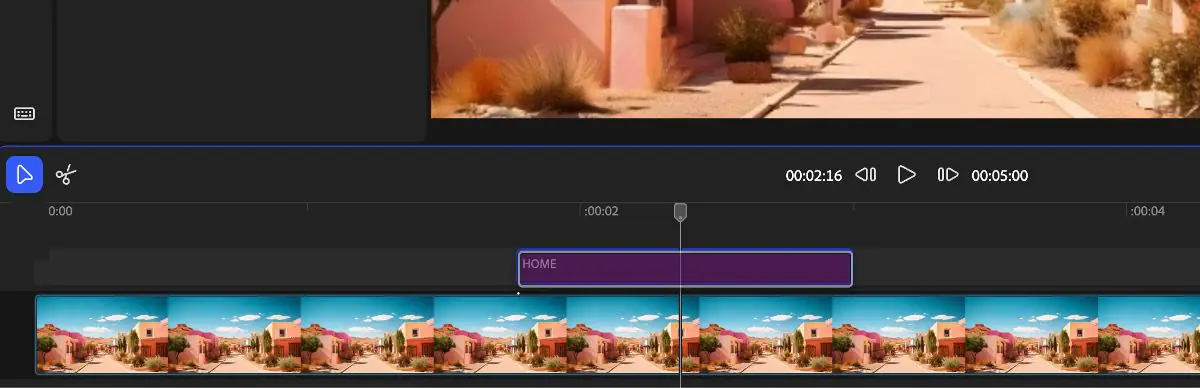
Adobe's tutorial shows a text clip above the footage so the offer can be edited on its own track.
Replace the text once and export an MP4. If a teammate will own the next change, have them reopen the editable timeline and change the offer before you hand over the project. Adobe's text-layer guide
Runway Workflows for rebuilding the canvas
Rebuild one branch before moving a campaign. Connect the approved still and a prompt to an image-to-video node. Change the camera instruction and rerun that node. Runway's public workflow link lets a teammate view the original and make a copy. Share the approved generated clips separately, then have the teammate reopen the workflow and rerun the node. Runway Workflows guide
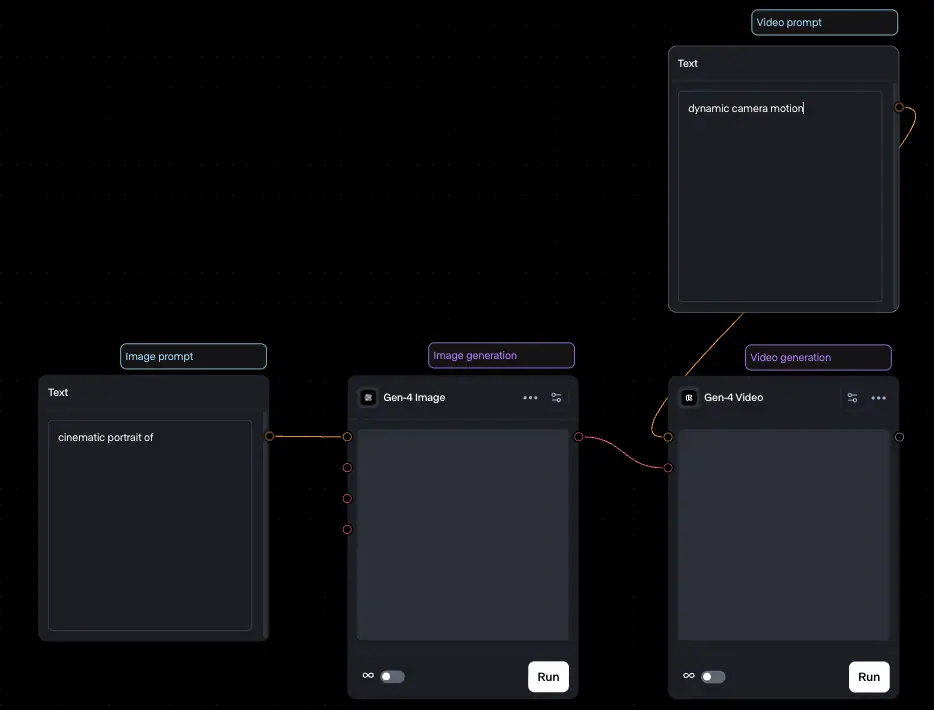
Runway's walkthrough shows separate prompt and generation nodes with individual Run controls. Building your first workflow
When to keep SuperMaker
Keep Workflow Studio if you can change one instruction in the existing canvas, export the revised clip, and preserve the branches your team still needs. If the bottleneck is one clip or one text change, replace that step first.
Before moving a whole project, save the approved clips, source images, prompts and settings, copy, and cleared audio. Check image, voice, and music workflows separately if your team uses them. Test whether the new project opens with the assets and permissions the next editor needs.
Set up one desk lamp trial
Use the same approved vertical product photo throughout. For the opening shot, aim for one 5-second, 9:16, 720p clip with audio off. Compare the two Wan 3.0 clips directly if both entries can match those settings. If a setting differs, record it and judge each clip against the brief.
Use the uploaded desk lamp photo as the first frame. Move the camera slowly
forward in one continuous shot. Keep the shade, stem, base, finish, and any
visible switch consistent with the reference. Keep the whole lamp in frame
and leave space above it for the offer. Silent shot.
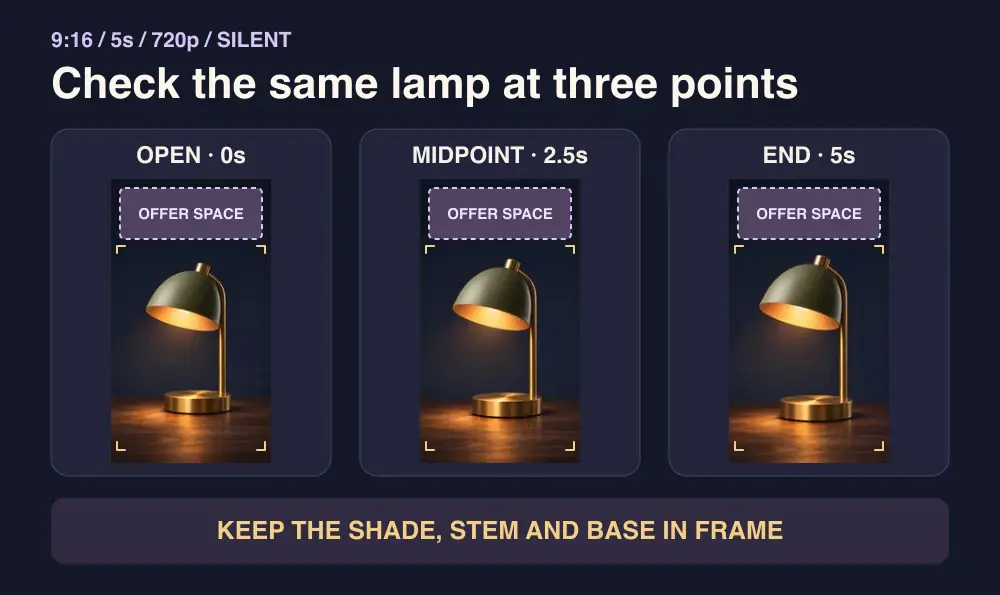
Framing guide. Check the shade, stem, base, and room for the offer at the start, midpoint, and end.
The video is a framing demo made from one reference still. Watch the upper part of the frame during the push-in to see where the offer can stay readable.
- Review the file. Check the product outline, finish, and any switch. Put the clip into your cut and confirm the export size, duration, watermark, and usage rights.
- Change the offer once. Swap “Shop the lamp” for “See the lamp” while keeping the approved picture. Log any rerender, the credits actually deducted, new cash paid, and hands-on minutes.
- Decide what to move. Compare routes that deliver the same thing. If both pass, prefer the one that saves setup and revision time within your budget. If the current route passes and the new one fails, keep the current route. If only the new route passes, use it for this job and confirm a teammate can repeat it before moving the campaign.