

How to Use Viggle Remake in ComfyUI
Set up Viggle Remake in ComfyUI for character swaps and scene edits. Compare GPU and RAM requirements, choose a workflow, and troubleshoot your first render.
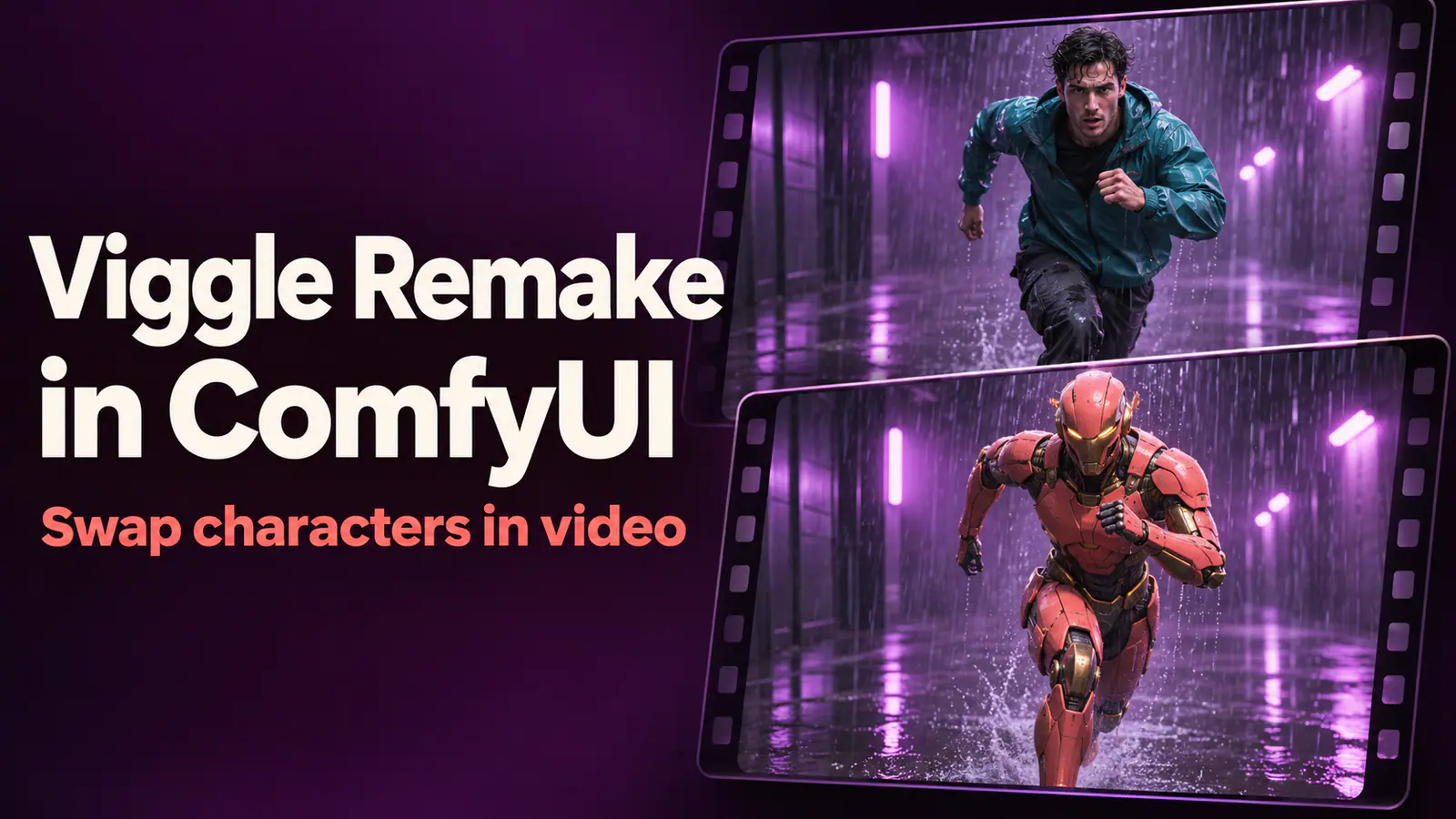
You already have the take you want: the movement works, the camera lands in the right place, and the audio is in sync. The problem is the person, the prop, or the setting. Starting again with a text-to-video prompt means giving up the parts you wanted to keep.
Viggle Remake is designed for that situation. It edits existing footage using a source video, repainted reference frames, and a structured prompt. Its two modes cover character replacement and broader scene edits, while carrying the source soundtrack into the result.
The important catch is that a small downloadable adapter does not mean a lightweight setup. Running Viggle Remake in ComfyUI still involves large MiniMax H3 components, substantial system memory, and a license that is not worldwide. This guide explains the installation route, the settings that matter, and how to evaluate a first render without confusing a successful load with a successful edit.
Checked November 14, 2026. This is a documentation-based walkthrough, not a hands-on GPU benchmark. Hardware measurements below are attributed to the project; the original prompt example has not been generation-tested.
What Viggle Remake changes—and what it keeps
Viggle Remake is a pair of LoRA adapters built on MiniMax H3. A LoRA changes part of an existing model's behavior rather than replacing the entire base model.
Use swap to replace people or characters, including more than one character in a scene. Use edit to replace, remove, or insert objects, or to change the background, weather, or lighting. Both modes use the source footage as the temporal guide. The intended result follows its motion, camera movement, and timing rather than inventing a new performance from a still image.
The character's appearance comes from the reference images you prepare. This is not simply a face-swap tool: you can describe and paint a replacement with different clothing or a different full-body appearance. That also makes body shape, hands, contact with props, and occlusion important checks.
AI-generated character replacement example. Watch the dough, the hands, and the moment the performer moves close to the camera—not just the replacement's face.
Scene editing is a separate task. The comparison below illustrates object removal rather than recasting a performer.
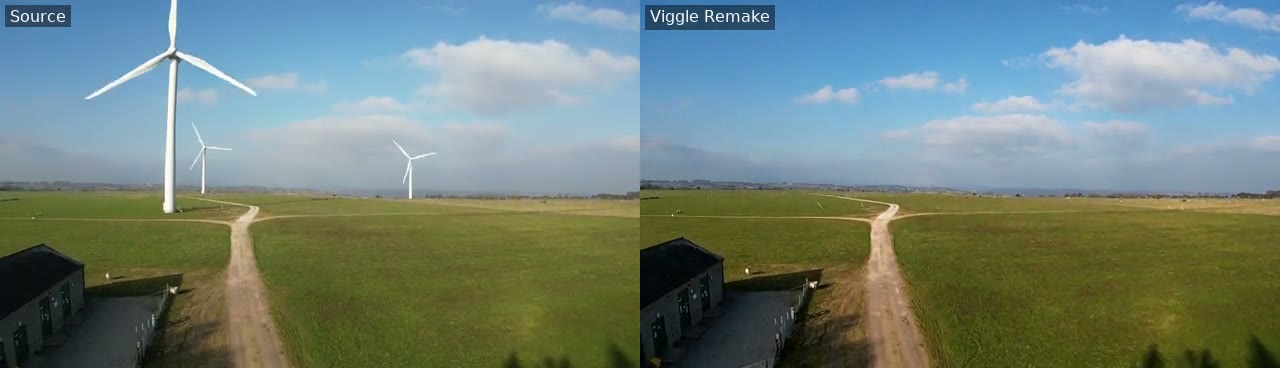
The useful question is whether the removal leaves the surrounding landscape and shot structure coherent, not merely whether the turbines disappear.
Audio needs its own distinction. Remake carries the source soundtrack; it does not create a new voice, new dialogue, or a new score for the replacement. A silent source produces a silent result. Changing a speaker's appearance does not, by itself, make their original voice belong to the new character.
Can you run Viggle Remake on a 12GB, 16GB, or 24GB GPU?
The project publishes int8 and GGUF versions for smaller GPUs. These files already contain the selected Remake LoRA merged into the H3 transformer, followed by quantization. You load one of those transformers instead of loading the full-precision base and a separate adapter.
The official ComfyUI guide gives these starting points for 832×480 output:
- 12GB: Q4_K_M or Q8_0 GGUF with
--reserve-vram 8. The documented int8 route is limited to 124 frames in this budget. - 16GB: start with int8. For GGUF, the guide lists Q4_K_M or Q6_K with
--reserve-vram 6. - 24GB: start with int8 or Q4_K_M. Q6_K and Q8_0 are listed with
--reserve-vram 6.
Treat these as configurations to investigate, not guarantees for every card. The 12–24GB results were obtained by limiting available memory on B200 GPUs. They are not native RTX 3060, RTX 4060 Ti, or RTX 4090 tests. The guide also warns that a real smaller card may trigger different ComfyUI low-memory defaults.
There is a separate documented RTX 5090 route through the MCP ComfyUI worker. That does not turn the smaller-card table into a consumer-GPU benchmark.
System RAM can be the less obvious bottleneck. The project measured roughly 47–55GB of peak ComfyUI process resident memory at 832×480, with memory-mapped weight files included. Higher-resolution quantized runs reached roughly 55–80GB. A 12GB graphics card paired with 16GB of system RAM is therefore not the same setup as the project's “12GB” experiment.
Disk space is substantial too. The int8 transformer is about 21GB, while the int8 text encoder is about 27.1GB; you also need the video and audio VAEs and room for inputs, outputs, and download overhead. Avoid cloning the entire Viggle model repository with Git LFS: the project warns that the full repository is about 210GB.
The timing figures need equally careful reading. The project reports about 95 seconds for a loaded full-precision ComfyUI render of its 226-frame, 832×480 example on a B200. It reports roughly 510–585 seconds at 1280×736 in the relevant tests. Neither figure is a speed promise for your desktop GPU.
Install the ComfyUI components without downloading everything
Before downloading weights, check the license section below. The instructions assume you are permitted to use the model where you are working, and that you already have a functioning NVIDIA/CUDA ComfyUI installation.
The project tested its node pack with ComfyUI 0.42.0. Its documented quantization environment includes PyTorch 2.9.1+cu128, comfy-kitchen 0.2.40, and, for GGUF, ComfyUI-GGUF at commit 6ea2651. These are reproduction details, not a reason to blindly replace a working PyTorch environment.
The commands below are for a manual Linux installation or an equivalent shell. Run python from the environment ComfyUI actually uses. Windows portable installations need the bundled Python interpreter and Windows equivalents of the copy commands.
1. Add the nodes and official workflows
From your ComfyUI directory:
cd /path/to/ComfyUI
python -m pip install -U "huggingface_hub>=1.0"

mkdir -p custom_nodes models/diffusion_models models/text_encoders \
  models/vae input

hf download Viggle/Viggle-Remake \
  --include "comfyui/ComfyUI-Viggle-Remake/*" \
  --include "comfyui/workflows/*" \
  --include "examples/inputs/*" \
  --include "examples/prompts/*" \
  --local-dir ./Viggle-Remake

cp -r Viggle-Remake/comfyui/ComfyUI-Viggle-Remake custom_nodes/
This selects the node code, workflows, and example inputs instead of fetching all weight formats. Hugging Face Hub 1.0 or newer matters because the project's guide warns that older versions may keep only the last repeated --include argument.
2. Choose one transformer route
For a first 832×480 swap test on the documented 16–24GB route, download the merged int8 transformer:
hf download Viggle/Viggle-Remake \
  int8/viggle_remake_swap_pruned_int8_convrot.safetensors \
  --local-dir ./Viggle-Remake

cp Viggle-Remake/int8/viggle_remake_swap_pruned_int8_convrot.safetensors \
  models/diffusion_models/
For scene editing, use viggle_remake_edit_pruned_int8_convrot.safetensors instead. You do not need to download both modes to check one workflow.
For the documented 12GB GGUF route, use this alternative:
git clone https://github.com/city96/ComfyUI-GGUF \
  custom_nodes/ComfyUI-GGUF
python -m pip install -r custom_nodes/ComfyUI-GGUF/requirements.txt

hf download Viggle/Viggle-Remake \
  gguf/viggle_remake_swap-Q4_K_M.gguf \
  --local-dir ./Viggle-Remake

cp Viggle-Remake/gguf/viggle_remake_swap-Q4_K_M.gguf \
  models/diffusion_models/
If ComfyUI-GGUF is already installed, use the existing installation rather than cloning over it. Q4_K_M is the smallest listed transformer at about 14.3GB, but the project reports larger departures from its full-precision reference than with int8 or Q8_0. Smaller is a memory trade-off, not a quality upgrade.
3. Add the text encoder and both VAEs
The following selects the project's documented int8 text encoder to reduce storage and loading overhead:
hf download Comfy-Org/MiniMax-H3 \
  text_encoders/qwen3vl_32b_minimax_h3_int8_convrot.safetensors \
  vae/minimax_h3_video_vae_fp16.safetensors \
  vae/minimax_h3_audio_vae_fp32.safetensors \
  --local-dir models
The quantized transformer does not replace the text encoder or either VAE. In the workflow, select this encoder in Load CLIP, with type minimax, and select the corresponding files in the two Load VAE nodes.
Most entries in the official memory table used the bf16 encoder, not this int8 version. The project separately tested smaller encoders on its two examples; that evidence is narrower than a guarantee for arbitrary footage.
4. Rewire the workflow before queuing it
Restart ComfyUI so it discovers the custom nodes. Import:
Viggle-Remake/comfyui/workflows/remake_swap_ui.json
Use remake_edit_ui.json for the edit mode. The *_api.json files are for ComfyUI's API, not the UI import used here.
For a merged int8 or GGUF transformer:
- Remove the original Load Diffusion Model and LoraLoaderBypassModelOnly nodes.
- Add Load Diffusion Model for int8, or Unet Loader (GGUF) for a GGUF file.
- Connect the new loader's
MODELoutput directly to Viggle Remake Keyframe Until. - Keep the conditioning, guider, noise, VAE, and video-output connections.
Do not put another Remake LoRA on top of a merged quantized transformer. The adapter is already in that file.
The full-precision route is different: it uses minimax_h3_fl2va_bf16.safetensors, not the ref2va variant, plus the separate ComfyUI Remake LoRA. In that route, keep LoraLoaderBypassModelOnly. The project found that the plain LoraLoaderModelOnly loses part of the adapter update when it merges into bf16 weights.
Reproduce the example before editing your own clip
A supplied example helps separate setup problems from reference-image or prompt problems. For the swap workflow, copy the expected inputs:
cp Viggle-Remake/examples/inputs/swap-pineapple-mascot/source.mp4 \
  input/remake_swap_source.mp4
cp Viggle-Remake/examples/inputs/swap-pineapple-mascot/ref1.png \
  input/remake_swap_ref1.png
cp Viggle-Remake/examples/inputs/swap-pineapple-mascot/ref2.png \
  input/remake_swap_ref2.png
The official example uses 226 frames at 832×480, two references pinned at frames 12, 184, and a six-section prompt already in the workflow. The intended result replaces the pizza maker with a pineapple mascot. The edit example removes wind turbines; use its matching workflow and input files rather than mixing the two tests.
Keep the mode-specific ManualSigmas values from the imported graph. For swap, they are:
1.0, 0.990476, 0.965243, 0.923077, 0.8, 0.631579, 0.0
For edit:
1.0, 0.983607, 0.96, 0.923077, 0.857143, 0.705882, 0.0
For the documented 12GB Q4_K_M setup, launch with the reserve flag:
python main.py --reserve-vram 8
The argument reserves GPU memory for activations. It does not mean the model uses only 8GB. If ComfyUI reports memory errors, adjust the reservation and clip settings in line with the guide; do not assume selecting a smaller weight file solves every allocation problem.
For repeatable comparisons, set Viggle Remake Noise to seed 0 and set its after-generation control to fixed, rather than leaving it on randomize. A fixed seed makes comparisons more useful, although ComfyUI and the reference sampler are not pixel-identical.
The supplied graph saves video under output/viggle_remake/. Check that the intended transformation actually happened. A finished MP4 with the original performer still present is not a successful swap.
Prepare your source video and painted reference frames
Choose a short single shot for your first custom test. A clear subject with a manageable turn is easier to diagnose than rapid cuts, several similar-looking people, and long periods of occlusion.
The ComfyUI node uses source frames as they arrive. Convert the clip to 24fps first:
ffmpeg -i in.mp4 -r 24 source.mp4
Prepare references from this converted video, not from the original timeline. Otherwise, a pin chosen before frame-rate conversion may land on a different moment afterward.
The output length must follow 17n + 5 within the documented 90–345-frame range. For example, 124 frames is about 5.17 seconds at 24fps; 226 frames is about 9.42 seconds. The project recommends staying at or below 294 frames, about 12.25 seconds, for a render window. Arbitrary choices such as 120 frames do not follow the required formula.
Use the Viggle Remake Conditioning node to set the source frames, audio, references, pins, frame count, short edge, and prompt. Start with short_edge = 480; the documented landscape canvas is 832×480. A mismatched source may be scaled and center-cropped, so inspect the framing before spending time on a render.
Paint the target appearance into an actual source frame
The official prompting instructions describe a painted reference as a source frame repainted to show the desired result. Change the character or scene element while preserving the pose and composition you want anchored.
One to four references are supported. They become <Picture 1> through <Picture 4> in the order you connect them. When using pins, provide one frame index for every reference in the same order. For a 124-frame test, references painted from frames 12 and 96 would use:
pins: 12, 96
Those anchors are at 0.5 and 4 seconds. Extract the exact frames before repainting:
ffmpeg -i source.mp4 -vf "select=eq(n\,12)" -frames:v 1 ref1-source.png
ffmpeg -i source.mp4 -vf "select=eq(n\,96)" -frames:v 1 ref2-source.png
Keep the source aspect ratio or paint at the output canvas size. A mismatched pinned image can introduce stretching or cropping into the composition it is meant to stabilize.
Pins matter most when a clip has cuts or when the painted frame's composition must occur at a particular time. Without pins, the images still guide appearance, but they do not anchor that exact composition to an output frame. The project generally uses one painted frame per shot and adds another when a character turns or another character enters.
Where VidFomo can help with reference preparation
VidFomo is an online image and video creation Studio with multiple model choices. Its role in this workflow is upstream: preparing a visual reference, not running the Remake ComfyUI graph.
The VidFomo image Studio supports creating images and, with compatible models, transforming a reference image. You can use it to explore the replacement's appearance or adjust a source frame, then download and inspect the result before connecting it in ComfyUI. Choose a model that accepts reference-image input when the existing pose and framing matter.
A useful image-editing brief is: “Change only the foreground presenter's outfit to a blue astronaut suit. Keep the person's pose, hand positions, camera angle, background, and the object being held unchanged.” This is a preparation prompt, not the six-section prompt Remake needs.
Reject a reference if it has moved the hands, reshaped the prop, changed the camera angle, or redesigned an important product detail. A visually attractive image can still be the wrong anchor. This is a manual workflow; it does not imply a VidFomo-to-ComfyUI integration.
Write a Viggle Remake prompt that describes the result
“Replace the person with an astronaut” expresses the idea, but it is not the documented prompt format.
Remake uses six sections, in this order: subject_definitions, summary, retention_analysis, detailed_description, overall_soundscape, and non_diegetic_music. The project's evaluated prompts use this structure; free-form prompts are untested.
The key habit is to describe the target video rather than issue a short editing command. Define which person changes, how they look in the painted references, and what remains from <Video 1>. Be especially precise in retention_analysis: preserving “everything” conflicts with asking for an edit.
Here is an original starting example for a hypothetical 124-frame, single-shot clip of a presenter holding a plain white box. It assumes two repainted references at frames 12 and 96. Adapt the scene, motion, and audio to your actual source; this is not a tested preset.
subject_definitions:
<Video 1> is the source video: one continuous shot of a foreground
presenter holding a plain white box at waist height and turning it
toward the camera in a small studio.
<Picture 1> and <Picture 2> are repainted target frames from [Shot 1].
<Subject 1> is the foreground presenter as shown in both pictures,
wearing the same blue astronaut suit, dark boots, and open helmet
with the face visible. This subject replaces only the foreground
presenter in <Video 1>.

summary:
[video editing + character replacement] The target video is an edited
version of <Video 1>. <Subject 1> holds and turns the same white box.
The single shot retains the source camera movement, action timing,
background, lighting, and soundtrack.

retention_analysis:
<Video 1>: partially_preserved - only the foreground presenter's
appearance changes. Camera framing, movement, pose timing, the white
box, studio background, and original soundtrack remain unchanged.
<Picture 1>: fully_preserved - its target costume, pose, and composition
anchor the early part of [Shot 1].
<Picture 2>: fully_preserved - the same costume and character appearance
anchor the later part of [Shot 1].
<Subject 1>: fully_preserved - the blue suit, open helmet, face, and
dark boots remain consistent throughout the shot.

detailed_description:
The target video is a realistic studio shot with the source lighting.
[Shot 1] The foreground presenter stands holding one plain white box
at waist height. At 00:00.500 the pose and composition correspond to
<Picture 1>. The presenter turns the box toward the camera following
the source movement and timing. At 00:04.000 the appearance and pose
correspond to <Picture 2>. Through the final frame, the same person
wears the same blue suit. The hands retain believable contact with
the box. No second box, new person, text, logo, or additional cut appears.

overall_soundscape:
The original source soundtrack continues unchanged, including any
existing speech and studio ambience. No new audio is requested.

non_diegetic_music:
N/A; no additional music is requested.
For a scene edit, change the subject definitions and retention analysis to identify the object or environmental feature being altered, then use the edit transformer and edit sigmas. Do not leave a character-replacement summary in a workflow whose actual task is object removal.
Every timestamp must fit the selected output window. A prompt describing a turn at eight seconds cannot guide that event inside a 124-frame output lasting about five seconds.
Diagnose failures without changing everything at once
The workflow loads, but the edit does not happen
Check the selected transformer and mode before rewriting the prompt. For full precision, confirm the FL2VA base and bypass LoRA loader. For int8 or GGUF, confirm that the file is the Remake swap or edit transformer, not an unmodified H3 model, and that you have not added the adapter twice.
Then check that retention_analysis does not preserve the source feature you intended to change. If you ask for a new background while also declaring the original background fully preserved, your instructions disagree.
The replacement drifts during a turn or disappears behind a prop
Inspect the references at the difficult moment. Do they show the same costume and identity? Do they preserve the source pose? A second reference can help describe another visible side, but an inconsistent second reference introduces another target appearance.
Evaluate occlusion in motion. A clean still frame does not prove that a hand remains attached to the right arm or that the replacement returns coherently after passing behind an object. The project lists non-humanoid characters in a long continuous take among its known failure cases.
GGUF reports CUDA error: invalid argument
The guide associates this failure with memory estimates that do not account for reference and keyframe tokens. Weights may fit while activations do not. Increase --reserve-vram according to the documented route, or reduce resolution and use a shorter valid frame count.
Do not immediately interpret this error as a corrupt download. Check the memory conditions and loader first.
int8 fails at higher resolution despite a large GPU
The project's CUDA 12.8 tests hit a high-resolution memory problem in the fallback int8 matrix-multiplication path. At 1280×736 and 226 frames, that path ran out of memory even with 80GB available, while the Q8_0 route behaved differently.
Start by confirming the 832×480 example. If the higher-resolution test is still necessary, compare the documented GGUF path and environment requirements rather than assuming int8 always needs less working memory. The separately documented CUDA 13 MCP-worker route has additional implementation changes; it is not simply the same graph on a newer GPU.
The output is silent or the audio is not the audio you wanted
Confirm that Get Video Components supplies the source audio to Viggle Remake Conditioning, and that the audio decode reaches Create Video. An unconnected audio input produces silence.
If you wanted a different voice or soundtrack, that is a separate audio task. Writing a new voice into the prompt does not convert Remake into a voice-replacement pipeline.
For each retry, hold the seed fixed and change one cause you can name: a loader, a pin, a conflicting prompt line, a reference, or a memory setting. Otherwise, you will not know which change helped.
Check the whole shot before calling the result usable
Watch the opening, the main action, the most difficult turn or occlusion, and the ending. Compare source and result at those moments.
For a character swap, check identity and costume continuity alongside hands, feet, and contact with props. For a scene edit, check whether object removal damaged surrounding geometry or introduced a flickering replacement texture. In both modes, compare camera movement, cut timing, and soundtrack alignment.
Judge file quality separately from task success. The project's PSNR measurements compare quantized renders with a full-precision reference on two example clips. They are not a general rating of character realism, and they do not establish superiority over other editing models.
If you record your own test, save the GPU, system RAM, ComfyUI version, transformer and encoder filenames, dimensions, frame count, pin indices, seed, and full prompt. Record first-load time separately from a render with models already loaded. Those details make a result reproducible instead of anecdotal.
Is Viggle Remake licensed for commercial use?
Do not treat “open weights” or the Apache 2.0 code license as worldwide commercial permission.
The LoRAs and merged int8/GGUF weights are derivatives governed by the MiniMax H3 Community License. Its “Excluded Territories” are the European Union, United Kingdom, Republic of Korea, and United States of America. The grant of rights is limited to the remaining applicable territory. Section V.4 also restricts use, reproduction, modification, distribution, or display of the works and their outputs outside that territory.
That is broader than a rule about where the GPU is located. Hosting inference elsewhere does not, by itself, establish permission to serve users or use outputs in excluded territories. The license invites interested parties in those territories to contact MiniMax about a separate license; do not assume one has been granted.
Commercial use within the applicable territory still has conditions. The license requires prominent “MiniMax H3” identification in a commercial product's interface, specifies distribution obligations, and requires prior written authorization when commercial products and services generate more than US$20 million in annual revenue. Hosted services must also implement safeguards, enforce applicable use restrictions, and provide a reporting mechanism.
Rights to the footage, music, and depicted people are separate. A downloadable example does not grant permission to republish its underlying film, song, or likeness. Use footage you have the right to alter, obtain appropriate consent, and label generated content. Remake itself cannot verify identity or consent.
This is a practical reading of the published terms, not legal advice. For a public or paid deployment, review the full agreement and your intended audience before committing to infrastructure. A local technical test is not evidence that a global inference business is authorized.
When the online route makes more sense
If you need this specific source take's performance and timing, Remake's video-editing workflow is the relevant path. The official Hugging Face demo is an online entry point, subject to its current availability and terms. The model card also points to the Viggle app as its no-setup route. Neither should be described as universally free or as removing applicable licensing conditions.
If your real goal is simply “make this portrait move” or “create a new product shot,” preserving an existing video may be unnecessary. The VidFomo video Studio offers text- and image-based creation with model-dependent settings. That is a different task, not an online implementation of the Remake instructions above.
For an existing take you want to keep, start with one short shot, a matching painted reference, and the official example's working graph. Establish that the edit is correct before increasing resolution or chaining windows. The useful result is not just a different person in a saved video; it is a coherent replacement that leaves the parts of the take you valued intact.